Choose the app boundary
Create one profile for each mobile app identity you test. A profile is the durable home for that app's deep links, share fixtures, push setups, notification templates, scenarios, and local history.
Separate unrelated apps even when the same team owns them so schemes, tokens, and evidence never become ambiguous.
Add the app identity
Give the profile a recognizable name. TestDock scopes it to the platform currently running: add the iOS bundle identifier and associated-domain settings on iOS, or the Android package name and App Link settings on Android.
The profile describes the external app; it cannot change that app's build configuration or runtime environment.
Record every custom scheme
Add each URL scheme the installed app supports. Multiple schemes belong in the same profile when they route into the same app, such as a current scheme plus a compatibility alias.
Keep the scheme value exact and omit punctuation that is not part of the scheme itself. When a link with a new custom scheme opens successfully, TestDock adds that scheme to the profile for you.
Find your way around a profile
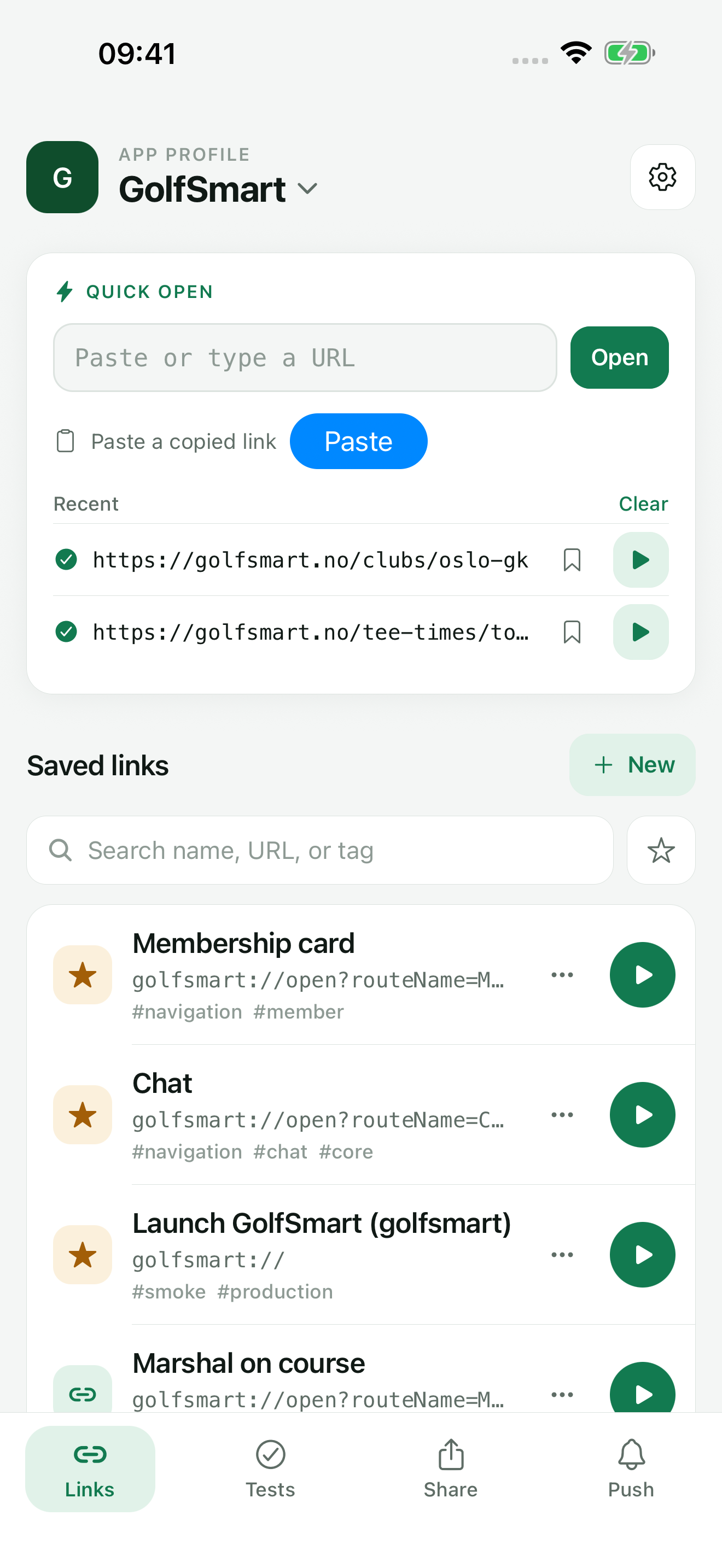
Each profile has four tabs: Links, Tests, Share, and Push. Links holds Quick open and your saved links, Tests holds scenarios, and Share and Push are part of TestDock Pro.
TestDock reopens the last profile you used on the Links tab. Start with the parts the app exposes and add the rest when the app is ready to test.
Free & Pro: what’s included
Available on the App Store and Google Play. Free includes one app profile with unlimited saved links, Quick open, Paste, sharing links in, home-screen shortcuts, and the sample scenario plus one scenario of your own. A one-time Pro purchase unlocks unlimited profiles and scenarios, share fixtures, push testing, association inspection, links created from an apple-app-site-association file on iPhone, and profile or scenario import and export.