Organise your app captures
Import captures, logos, backgrounds, and decorative images into the project library so the composition does not depend on temporary external paths.
Give reusable assets recognizable names and remove genuine duplicates before a project becomes difficult to audit.
- Keep source-resolution captures.
- Avoid lossy re-exports before composition.
- Separate brand assets from application captures.
Replace captures without rebuilding
When application UI changes, replace the shared managed asset used by a screenshot layer. Every page and output that references it updates together.
Preview affected outputs before export; a new capture may shift important UI even when its pixel dimensions are unchanged.

Choose frames deliberately
Device frames improve recognition when the hardware silhouette is part of the message. They reduce the usable area, so omit them when the application UI itself should dominate.
Use platform-aware frames that match the intended device family and review them at every selected output ratio.
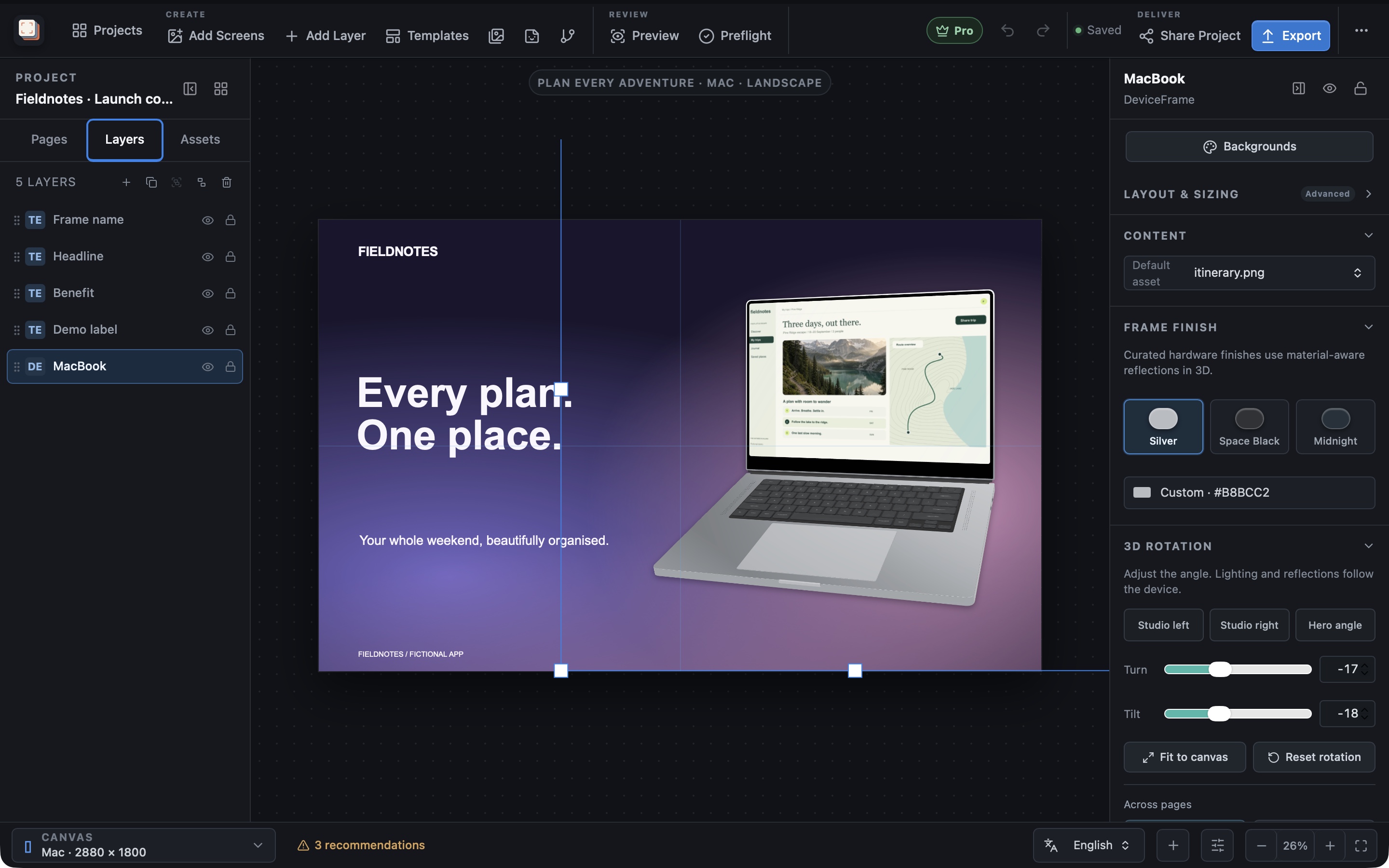
Turn and tilt a frame in 3D
Select a device-frame layer and use Turn and Tilt to change its perspective. Both angles are constrained to -60° through 60°, update the canvas live, and remain serialized with the scene for native export.
Use depth to establish hierarchy, not to hide important interface content. Reset one frame or every frame when the composition works better flat, and review App Store preflight guidance before submitting rotated custom iPhone artwork.
Create capture recipes
With Pro, a capture recipe records a simulator or Android device target, the app, and for each screen a deep link and a wait of 100 to 15,000 ms before the capture. Choose a wait long enough for the screen to settle. The Mac App Store version cannot launch simulators or devices; import existing captures there instead.
Recipes should produce consistent application state, not conceal nondeterministic setup. Keep test data and authentication outside the exported artwork project when they are sensitive.
Diagnose missing and stale assets
Preflight identifies missing managed files and incomplete outputs. If an image appears stale, confirm which asset identity the layer references before importing another copy.
Restore the expected managed file or deliberately relink the layer. Avoid repairing the rendered output only.
Move the project
Use the portable project workflow when moving work between machines. Verify that managed assets, fonts, target presets, and language content are present after import.
Store credentials and machine-specific simulator configuration remain separate from portable design content.