Diff Anything 1.3 can compare spreadsheets even when the two files are in different formats. Open an Excel workbook on one side and an OpenDocument or Apple Numbers file on the other, and review the stored cell values in one sheet-aware comparison.
That is the largest change in this release. It removes the conversion step from comparisons such as XLSX against ODS or Numbers against XLSX, while keeping the boundary honest: this is a comparison of workbook data, not a claim that two files have identical formatting or behavior. Folder diff has also been rebuilt into a faster review workspace with better navigation, filtering, moved-file detection, and a safer Pro synchronization pipeline.
01 / Compare the data, not the container
Different spreadsheet formats can now meet in one diff
Spreadsheet comparison supports XLS and XLA, XLSX, XLSM and XLAM, XLSB, ODS, and Apple Numbers workbooks. The formats do not need to match. If a workbook was handed off to another office suite or received as a Numbers file, you can compare it with the source format directly. CSV files are compared with each other in CSV mode, and since version 1.6 a CSV or TSV export can also be compared with one sheet of a workbook.
Sheets and cell coordinates form the common comparison model. Equivalent stored values can therefore compare cleanly across formats instead of producing noise from their unrelated container structures.
02 / Know the boundary
Stored cell values are compared; workbook presentation is not
Diff Anything reads the values stored in each populated cell and compares those values by sheet and coordinate. It does not compare formulas, formatting, charts, macros, or workbook layout. A formula and a literal value can therefore compare as equal when their stored results are equal.
That tradeoff is deliberate. It answers whether the data survived a format change without pretending to validate spreadsheet styling, calculation logic, VBA, charts, print setup, or editing behavior. Those properties still need review in the spreadsheet applications that own them.
03 / Review cells in context
A sheet-aware grid replaces extracted-text guesswork
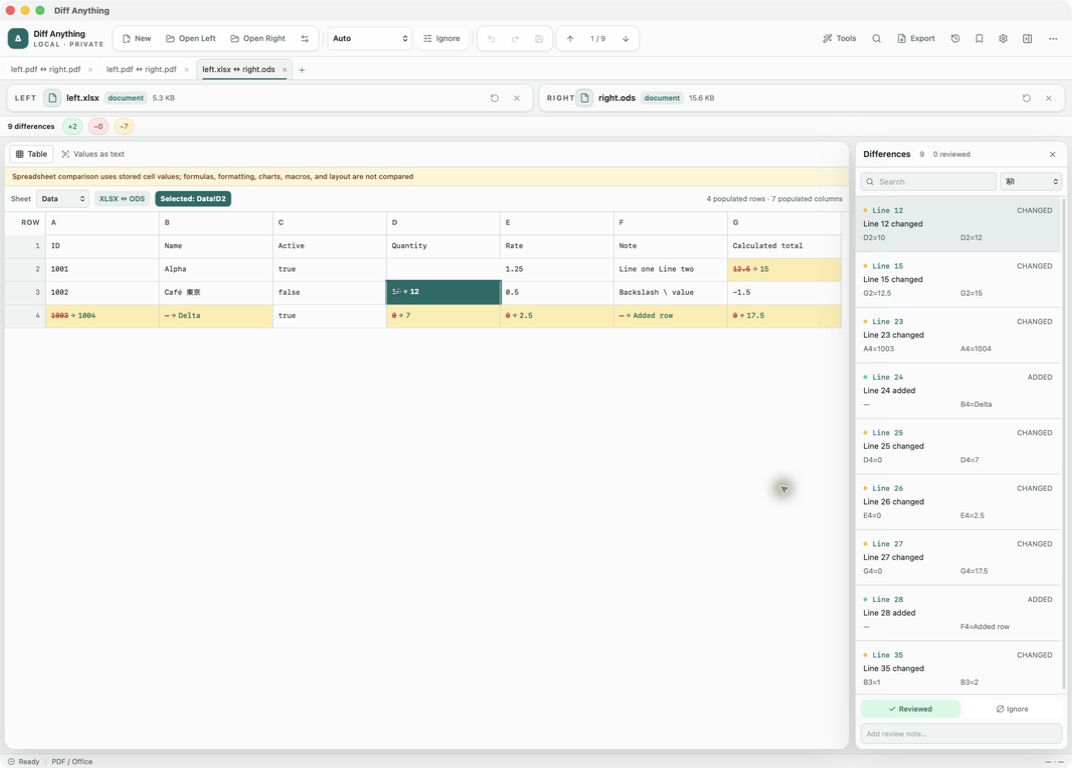
The desktop app presents spreadsheet results as two aligned grids. Choose a sheet, scan the populated rows and columns, and select a changed cell to connect its coordinate with the Differences pane. Column letters, row numbers, empty cells, and values remain visible on both sides.
Rows and columns are virtualized so a large populated range stays navigable instead of rendering the entire workbook at once. The format badge also keeps the source pair visible—for example, XLSX ↔ ODS—so the result never hides what is actually being compared.
04 / Review a whole tree
Folder diff now behaves like a review workspace
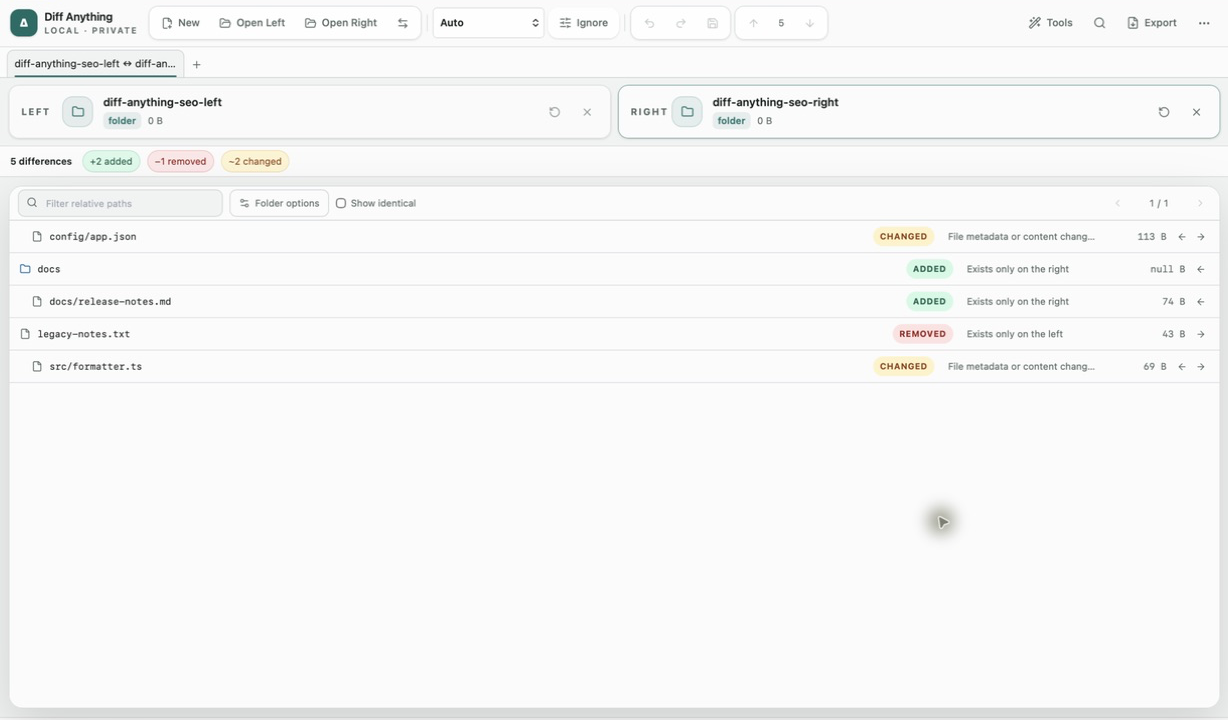
Folder comparison now offers two-pane tree and table layouts, global search, status filtering, progressive loading, ignore patterns, and direct opening of nested file pairs. Structured files inside the tree can use their semantic comparison, rather than every changed file collapsing into a hash or line-only result.
Moved-file detection separates a relocated file from an unrelated delete and create. That makes release folders, generated artifacts, migrations, and reorganized projects much easier to review without losing the path on either side.
For a step-by-step walkthrough, see how to compare two folders on Windows or compare two folders on a Mac.
05 / Change folders deliberately
Synchronization plans now cover moves and safer recovery
Pro can turn a reviewed selection into an explicit create, update, delete, and move plan in either direction. Stale-result protection checks that the comparison still describes the sources before applying it, while progress and cancellation keep a long operation visible and controllable.
Metadata preservation, nested-selection pruning, durable recovery journals, restart-safe rollback, and one-click undo are built around the same principle: show the plan, protect the destination, and keep a recovery path after confirmation.
06 / PDF review also improved
Rendered pages and extracted wording are now explicit choices
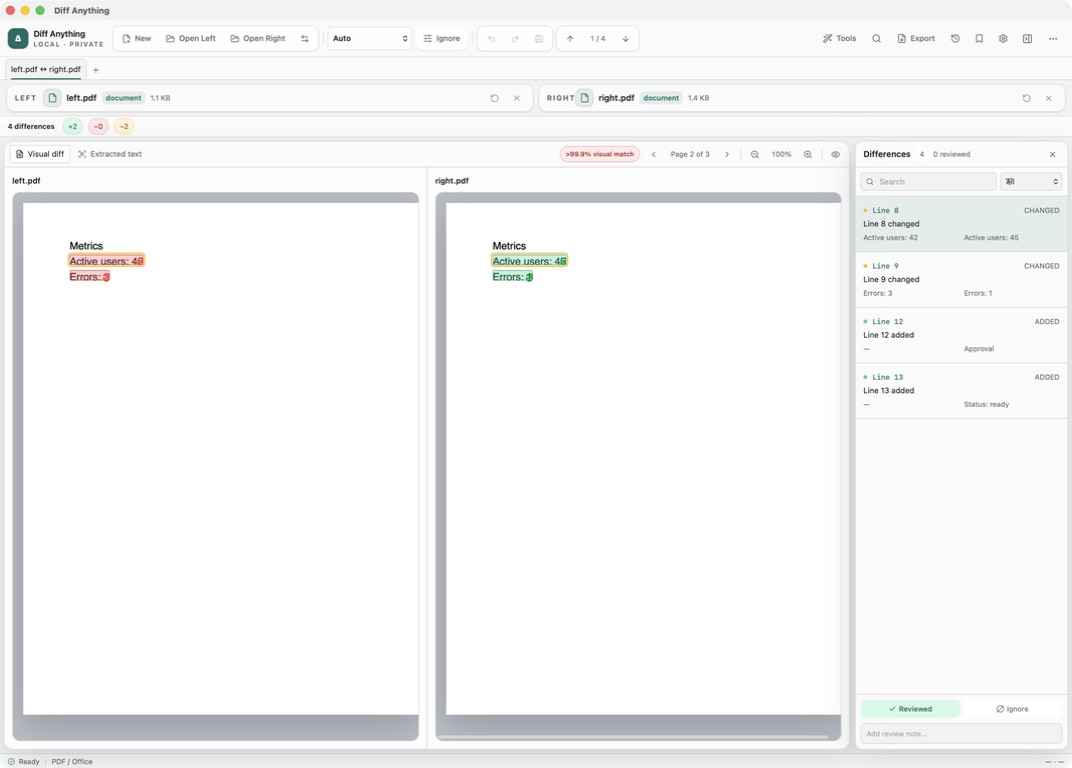
Choose Visual diff when you need to know whether the PDF looks different to its reader. Diff Anything renders both versions and compares the resulting page pixels, so it can reveal changed charts, replaced or moved images, altered logos and stamps, visible signature changes, missing elements, and shifts in typography or layout. Changed areas are highlighted directly on the pages, with a visual-match percentage for each page.
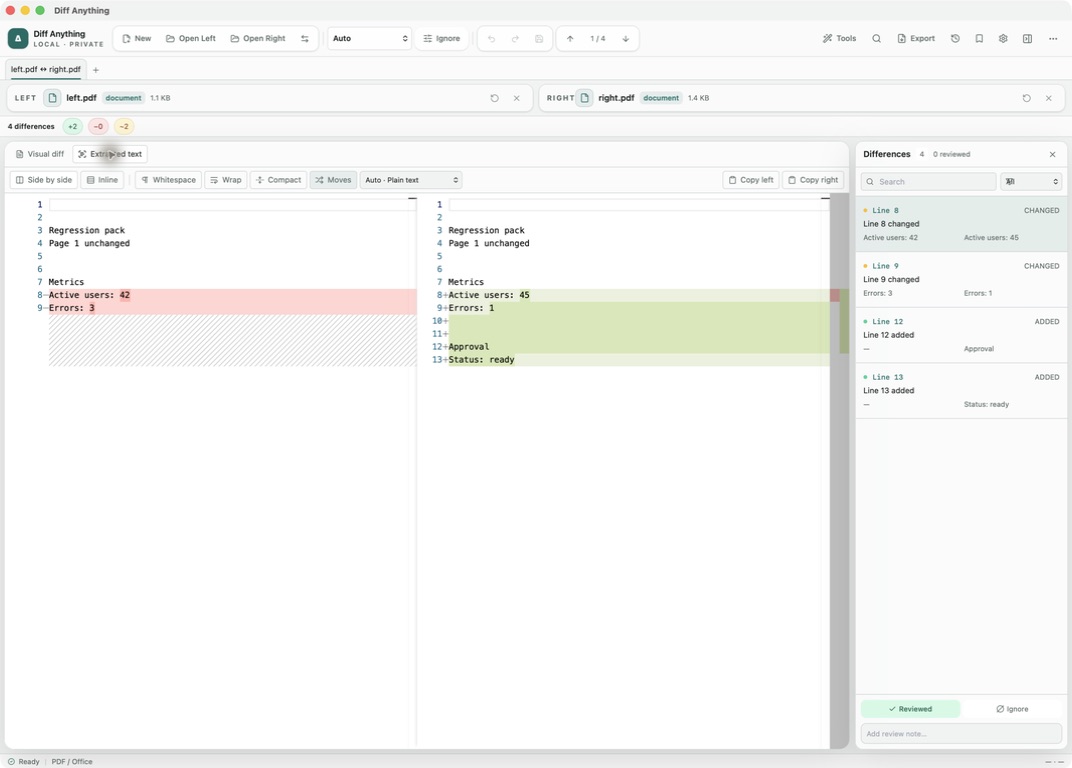
Choose Extracted text when the wording is the main concern. It presents additions, removals, and changed sentences side by side, and stays in that view while you move through the Differences pane. Image-only scans still need OCR before their wording can be compared as text.
Visual diff compares appearance; it does not authenticate a digital signature or inspect PDF metadata, accessibility tags, or hidden content. A changed visible signature can be highlighted, but its cryptographic validity still needs to be checked with an appropriate PDF or signing tool.
All of these comparisons still run locally on macOS and Windows, without a Diff Anything account, cloud comparison service, analytics, or telemetry.