Generated and custom commands
Generated commands come from detected project metadata and known technology adapters. With Pro, custom commands cover repository-specific work that detection cannot infer, while keeping the same visible executable, arguments, working directory, and safety model.
Use generated tasks when they accurately describe the work. Create a custom task when the command has a stable team purpose that would otherwise live in a personal note or shell-history fragment.
- Give tasks outcome-based names such as Run API tests or Start web client.
- Keep the working directory explicit.
- Prefer an executable and argument list over a shell expression.
Review before the first run
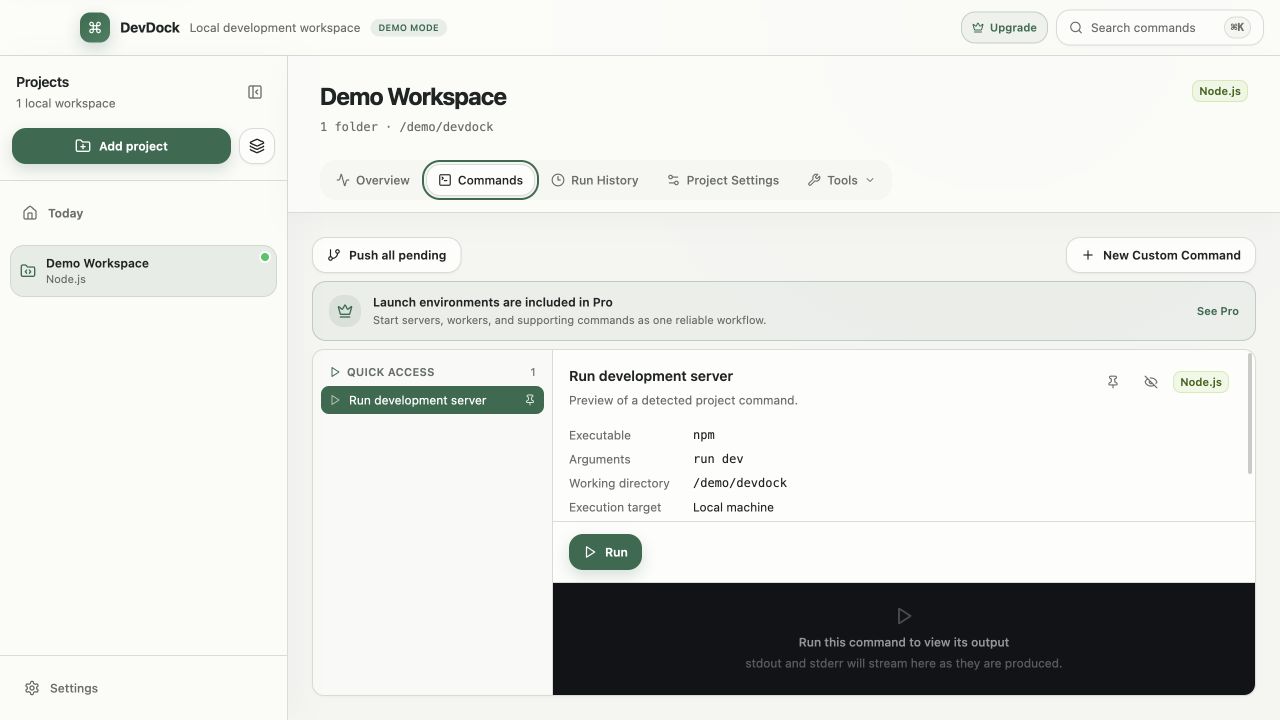
Before running a newly detected or custom command, verify its working directory, execution target, arguments, and confirmation level. This one-time review prevents most cases where the right command runs against the wrong package or service.
A confirmation prompt communicates impact. Normal confirmation is appropriate for consequential but recoverable work; destructive and production levels should be reserved for commands whose effect genuinely deserves a stronger pause.
- Check whether the command runs on the host or in a container.
- Confirm optional environment values before starting.
- Never hide a destructive operation inside a harmless-looking workflow name.
Run and stop processes
The run view keeps output attached to the task and project that produced it. Standard output and error output remain distinct, and the active process state stays visible while you move through the workspace.
When DevDock starts a long-running task, stop it from the run view so the managed process tree is terminated together. Closing an output panel is not the same as stopping the process.
Build reusable workflows
With Pro, a workflow combines commands that belong to one work session. Order servers, workers, watchers, and readiness checks so later steps do not claim success before their dependencies are usable.
Keep workflows focused. A Local development workflow is easier to understand and recover than one sequence that also mutates databases, seeds production-like data, and performs unrelated maintenance.
- Use readiness URLs only for local loopback services.
- Keep destructive steps manual.
- Verify stop behavior before pinning a workflow to Today.
Read run history
History answers what ran, where it ran, when it started, how it ended, and which output accompanied the result. Filter it by command and status to review a failing run beside earlier successful runs instead of reconstructing the command from memory.
Free shows the 20 newest matching runs per project; Pro shows the complete retained history. On both plans, DevDock keeps runs for 30 days and up to 200 runs per project by default; change these limits in Settings. If output matters outside that window, copy the relevant non-secret result into the project's normal issue or documentation workflow.
- Start with exit status and duration.
- Check target and working directory before comparing output.
- Look for the first meaningful error rather than the final cascade.
Protect environment values
Ordinary non-secret values can belong to a saved task. Secret custom-task values use operating-system protected storage, while project records keep only the reference needed to retrieve them at execution time.
Avoid printing credentials from the command itself: secure input storage cannot redact arbitrary application output reliably. When sharing run details, review the visible output first.
Free & Pro: what’s included
Available on the Microsoft Store. Free for up to three local projects with core commands, Git, Docker, project health checks, and security-audit tools. A one-time Pro purchase unlocks unlimited and multi-folder projects, custom workflows, full history and insights, database tools, SSH transfers, and configuration backup and restore.