Prepare the Compose project
Register the repository folder that owns the Compose configuration. DevDock works best when service definitions, bind-mounted source paths, and the commands that use them all resolve from a stable project root.
Docker support does not require containers to be running during registration. Static discovery and runtime health are separate, so the workspace can explain the intended environment even when Docker Desktop or the engine is stopped.
- Keep standard Compose files at the repository root when the project allows it.
- Attach other repositories separately if the product spans several roots.
- Confirm that local bind mounts use paths below a registered folder.
How Compose discovery works
DevDock recognizes standard Compose filenames, matching override files, Dockerfiles, and Containerfiles. It records services, build contexts, profiles, published ports, declared health checks, mounts, networks, and working directories without starting containers.
The result is an inspectable model, not a guess based on running processes. Runtime status is layered on later so a stopped service can still have valid configuration and a running container can be compared with what the repository declares.
Read Docker health in context
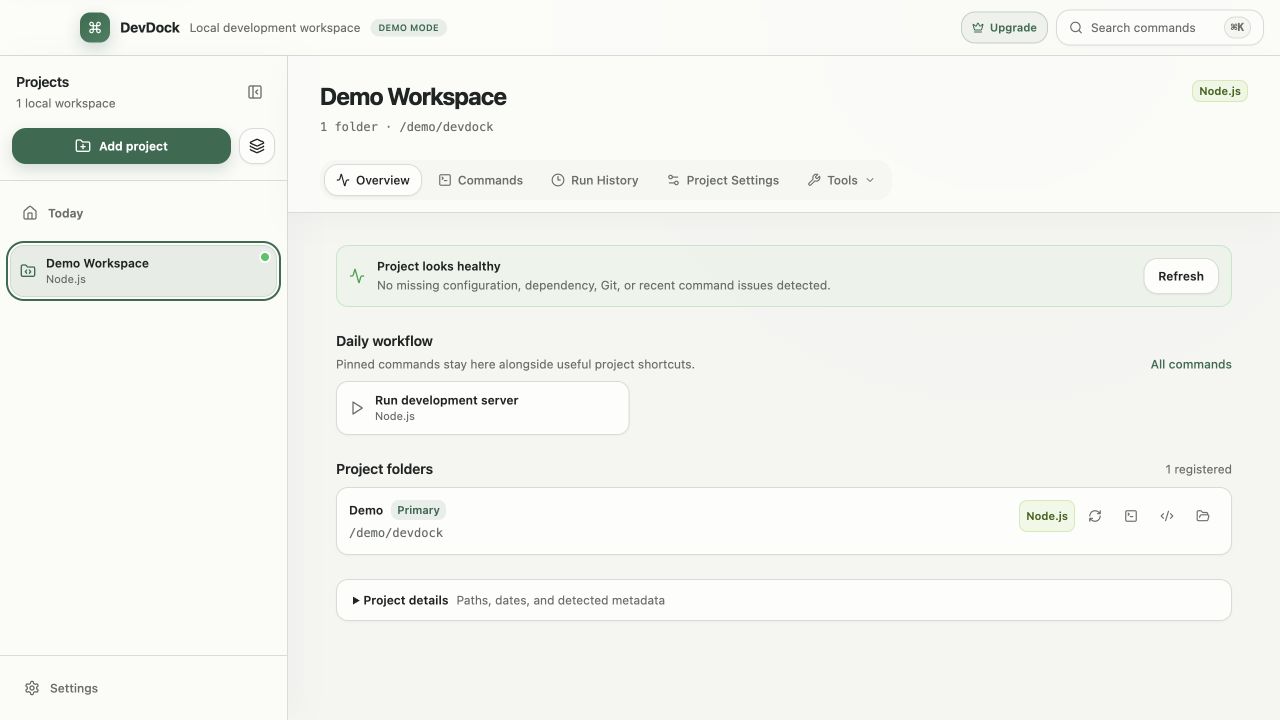
Use the project overview to distinguish configuration health from runtime health. A missing engine, unavailable Compose integration, stopped service, unhealthy container, or unexpected recent exit should point to a different corrective action.
Review the registered folders and detected project types beside the Docker status. This prevents a healthy container from hiding an unrelated missing SDK, and prevents a stopped optional service from making the whole product appear unusable.
Configure non-standard file sets
Add .devdock/docker.json when the repository uses custom Compose filenames, a deliberate sequence of Compose files, or explicit environment files. DevDock passes declared files to generated commands in the same order so overrides remain predictable.
Every configured path must be a relative file below the registered folder. This keeps project configuration portable between machines and prevents a repository manifest from silently reaching into unrelated local directories.
- List the base file before its overrides.
- Declare only environment files that are genuinely part of the workflow.
- Rescan after changing the configured file set.
- Review generated commands before the first start or down action.
Choose host or container execution
When a bind mount maps a detected project path into a Compose service, compatible tasks can run either on the host or inside that service. Choose the target that matches where dependencies and runtime tools are actually installed.
Selecting a preferred service ranks the expected target first but does not erase other valid choices. This matters in projects where a repository is mounted into a web service, a worker, and a one-off tooling container.
- Use the host target when the local toolchain owns dependencies and caches.
- Use an existing service when the environment is already running and correctly mounted.
- Use a disposable compose run --rm target for isolated, finite work.
- Keep direct executable and argument arrays as the safe default.
Build a repeatable development environment
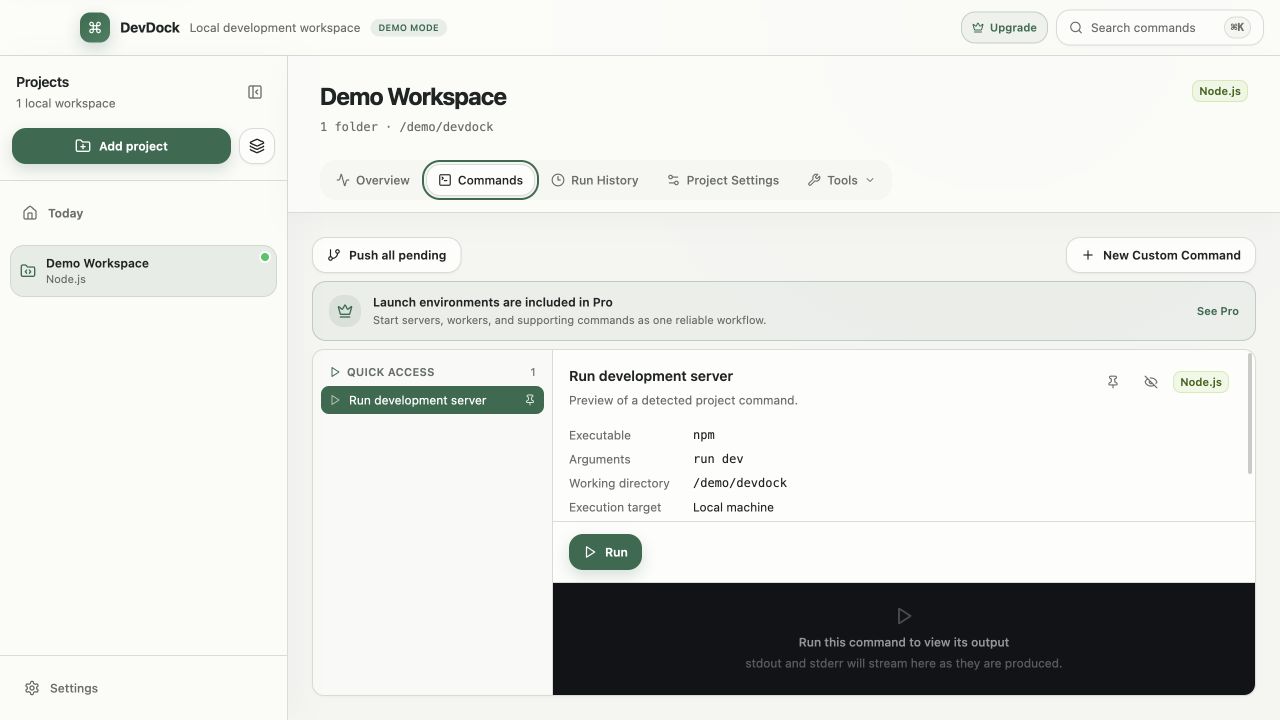
Create a saved workflow for the Compose start action and any dependent host processes that must run beside it. Order the steps, give the workflow a recognizable name, and add loopback readiness checks for local services when they provide a stable endpoint.
Run the complete workflow once from the project before pinning it to Today. Verify both the success path and stop behavior so DevDock can clean up managed processes without leaving a partial environment behind.
- Keep database migrations and destructive maintenance outside automatic startup.
- Use readiness checks for usability, not merely process existence.
- Pin the workflow only after its targets and stop behavior are verified.
Understand safety limits and recovery
Destructive Compose actions require explicit confirmation. Generated down actions preserve named volumes; DevDock does not turn global prune, arbitrary volume deletion, remote Docker contexts, Swarm, or Kubernetes into casual workspace buttons.
When a workflow fails, inspect the first failing step and its retained output before restarting everything. Confirm the engine is available, the configured file sequence is correct, required profiles are active, and the chosen service actually contains the expected executable.
- Prefer a targeted restart over a broad cleanup.
- Treat volume deletion as a separate, deliberate operation outside the normal daily workflow.
- Use run history to review the current failure beside earlier successful runs.
Free & Pro: what’s included
Available on the Microsoft Store. Free for up to three local projects with core commands, Git, Docker, project health checks, and security-audit tools. A one-time Pro purchase unlocks unlimited and multi-folder projects, custom workflows, full history and insights, database tools, SSH transfers, and configuration backup and restore.