Decide what the project represents
A DevDock project is a workspace for a product, not necessarily a single repository. Before adding anything, decide whether the sidebar entry should represent one codebase or a larger product made from a backend, web client, mobile app, and supporting services.
Choose the folder that gives DevDock the clearest starting point. Nothing is moved or copied: registration stores a reference to the local folder, and removing the project later removes that reference rather than deleting source files.
- Use the repository root for a conventional single-codebase project.
- Use the most central repository first for a split product, then attach the others in Project Settings.
- Prefer stable labels such as API, Web, Mobile, or Infrastructure over machine-specific folder names.
Register the first folder
Choose Add project, select the local folder, and review the proposed name and location. DevDock scans a bounded set of manifests and marker files to prepare the workspace; it does not run package managers, project scripts, or the application during this step.
Save the project when its identity and root folder are correct. The new workspace opens on Overview, where project health, registered folders, recent activity, and useful actions are collected into one place.
- Keep the generated display name if it is already recognizable in the sidebar.
- Correct the folder before saving if a parent directory was selected accidentally.
- Add secondary repositories after the first workspace is established.
Review detection before relying on it
Inspect the detected languages, frameworks, package managers, Docker targets, and source-control information. Detection explains what DevDock found and which file supported the result, so you can distinguish a genuine project type from an unrelated manifest in a nested tool folder.
Tool availability is reported separately. A project can be recognized correctly even when an SDK or executable is not installed on the current machine; that condition should appear as a health item, not change the project identity.
- Confirm that every generated command points at the intended working directory.
- Treat warnings as useful setup context rather than automatic project failure.
- Rescan after changing manifests, attaching folders, or restructuring a monorepo.
Read the project overview
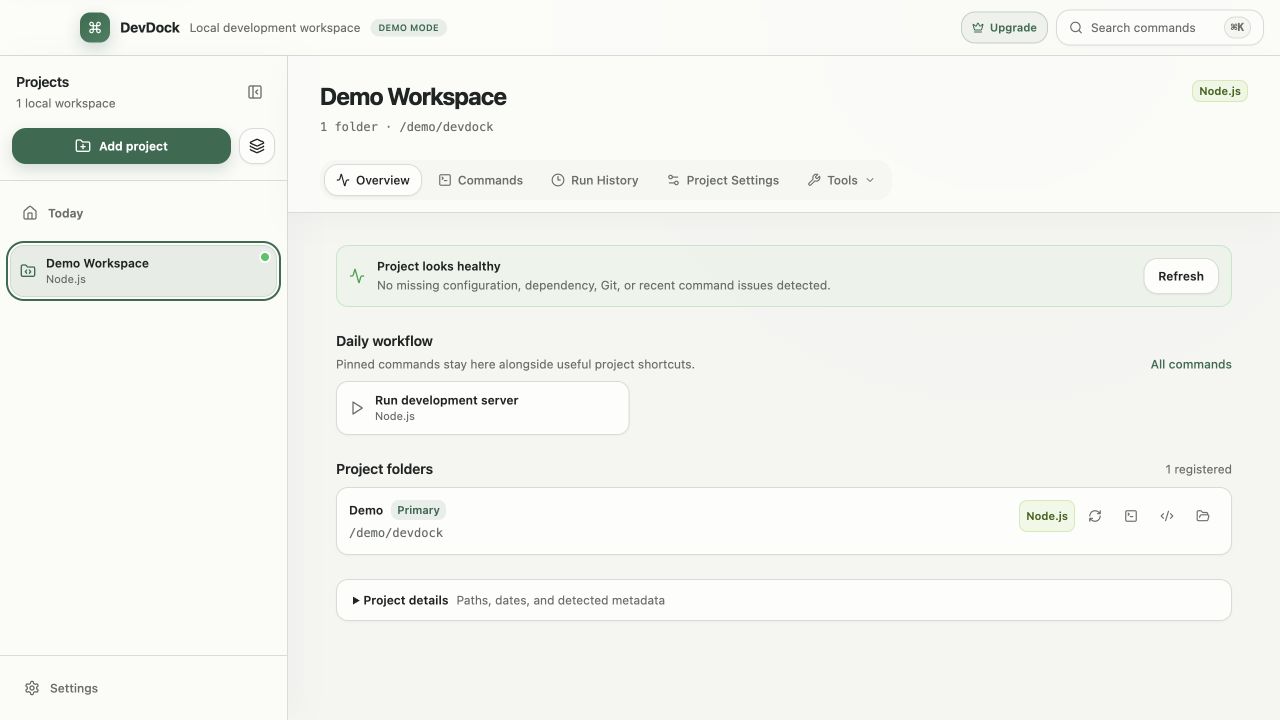
Start each work session on Overview. The page answers three practical questions: which folders belong to this product, whether its expected tools and configuration are healthy, and which action is most likely to move the work forward.
Health is intentionally descriptive. A missing executable, unusual Git state, failed recent command, or incomplete configuration remains visible without preventing you from opening folders or running unrelated tasks.
- Open a registered folder directly in Visual Studio Code, a terminal, or File Explorer.
- Use the health summary to decide what needs attention before starting a long-running environment.
- Check recent runs when a project was left in an uncertain state.
Run the first generated command
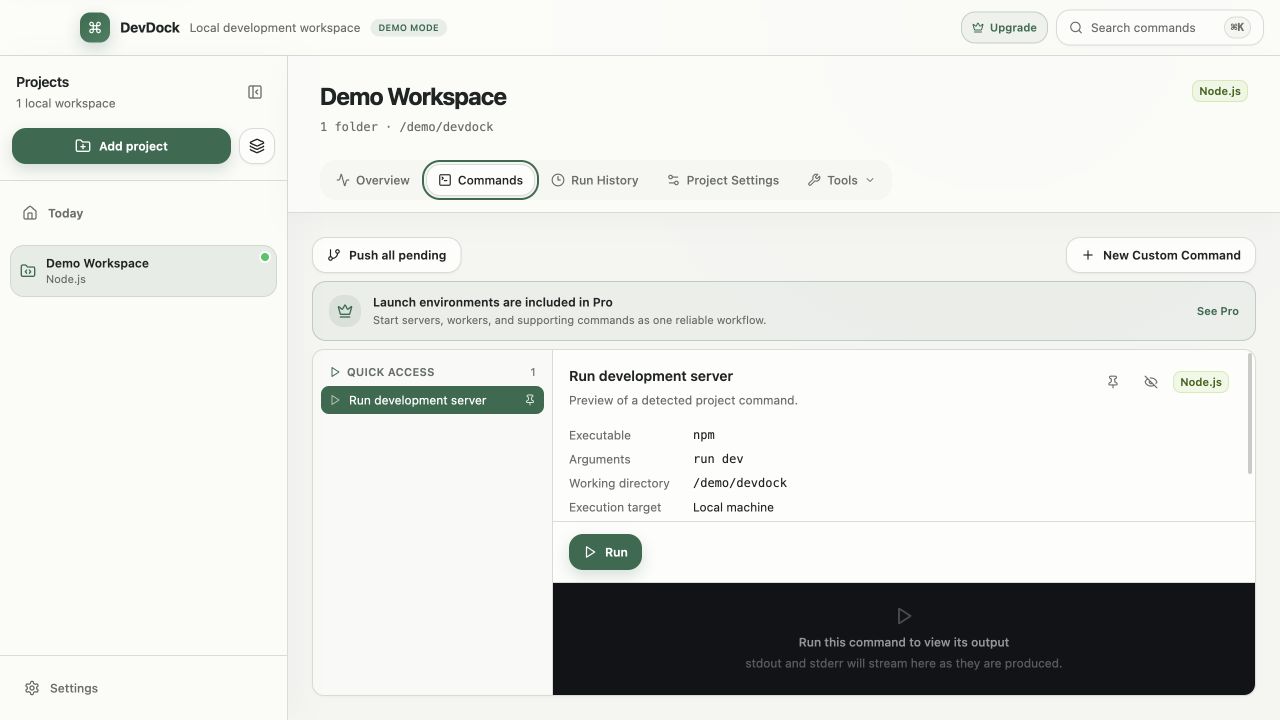
Open Commands and begin with a bounded task such as a type check, test suite, or status command. The command view keeps the task name, executable, arguments, working directory, and execution target visible before the process starts.
While a command runs, standard output and error output remain distinguishable. Long-running process trees can be stopped from the same view, and completed runs retain enough context to understand what was executed later.
- Review any confirmation prompt instead of treating it as a generic Continue button.
- Use a host target first when you are still validating project detection.
- Stop development servers from DevDock so their managed process tree is cleaned up together.
Create a daily workflow
A daily workflow groups the commands needed to make a project useful—typically an application server, asset watcher, worker, or supporting service. Pin an existing command sequence or create a saved environment with a clear name such as Local development.
Order dependent processes deliberately. When a service exposes a local readiness endpoint, use a loopback readiness check so DevDock can report when the environment is actually usable rather than merely when the process was spawned.
- Keep destructive maintenance commands out of an automatic startup sequence.
- Use recognizable workflow names that still make sense from Today.
- Test start and stop behavior once before depending on the workflow every morning.
Return to the project with context intact
Use Today to reopen a recent project or start a pinned workflow. This is where DevDock replaces the small reconstruction ritual of finding the right repository, remembering which processes matter, and searching shell history for the last useful command.
Keep the workspace accurate as the product evolves. Rename attached folders when their role changes, remove obsolete commands, rescan after structural changes, and use run history as a record of useful outcomes rather than an unlimited log archive.
Free & Pro: what’s included
Available on the Microsoft Store. Free for up to three local projects with core commands, Git, Docker, project health checks, and security-audit tools. A one-time Pro purchase unlocks unlimited and multi-folder projects, custom workflows, full history and insights, database tools, SSH transfers, and configuration backup and restore.