Choose the workspace boundary
Create one DevDock project for the unit of work you think about and ship together. A small library may map to one repository; a product may include several repositories and supporting folders under one sidebar entry.
The workspace boundary should make daily commands and health easier to understand. If two codebases are released and operated independently, separate DevDock projects may be clearer even when they share an organization.
- Group folders that contribute to the same product workflow.
- Split workspaces when ownership and release cycles are unrelated.
- Use a stable product name rather than a temporary initiative name.
Add and label folders
Multi-folder projects are part of DevDock Pro. Register the most representative folder first, then add related folders in Project Settings. Give each one a role-based label that remains clear in commands, health results, and shortcuts.
Labels do not rename directories on disk. They provide a human layer inside DevDock, so API can remain meaningful even if the actual repository folder is named with an internal code or organization prefix.
- Use Backend, Web, Mobile, Infrastructure, or Documentation where appropriate.
- Avoid duplicate labels.
- Confirm each folder path before saving.
Keep detection scoped
Each attached folder is scanned within its own boundary. Generated commands retain the working directory associated with the manifest that produced them, preventing similar tasks from different repositories from becoming interchangeable.
After adding or moving a folder, rescan and review the results. Removing a folder from the workspace removes its registration and derived context; it does not delete the directory.
Name commands for the whole product
When several folders expose Test, Build, or Start tasks, include the role in the visible task name. API tests and Web tests are immediately understandable from Today and run history; two generic Test entries are not.
Keep cross-folder workflows explicit about order. A workflow can start infrastructure, then the API, then the frontend without pretending those commands share one working directory.
- Include the component in ambiguous task names.
- Keep each task attached to its real folder.
- Use workflow steps to express product-level order.
Use project shortcuts
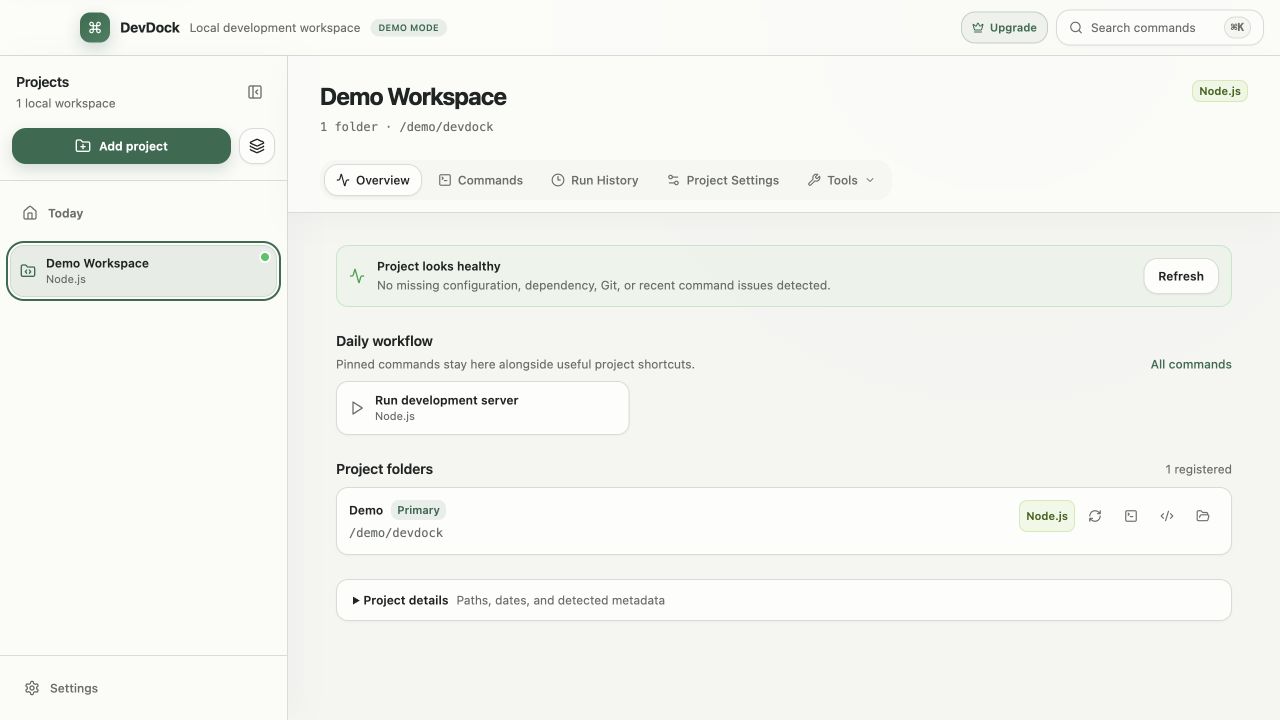
Folder shortcuts open the selected directory in a terminal, Visual Studio Code, or File Explorer. Use them when work becomes exploratory or one-off instead of turning every terminal action into a permanent DevDock task.
If a shortcut fails, verify that the application is installed and the registered folder is still available. The source folder may have moved since it was registered.
- Use saved commands for repeated work.
- Use shortcuts for ad hoc investigation.
- Update the registration when a repository moves.
Restructure without losing clarity
When a product moves from a monorepo to split repositories—or the reverse—update one folder at a time and rescan after each change. Review saved commands and workflows for stale working directories before using them again.
Remove obsolete folder registrations only after their useful tasks have been migrated. DevDock does not move source files, so repository restructuring remains an explicit filesystem or version-control operation outside the application.
Free & Pro: what’s included
Available on the Microsoft Store. Free for up to three local projects with core commands, Git, Docker, project health checks, and security-audit tools. A one-time Pro purchase unlocks unlimited and multi-folder projects, custom workflows, full history and insights, database tools, SSH transfers, and configuration backup and restore.