What project health means
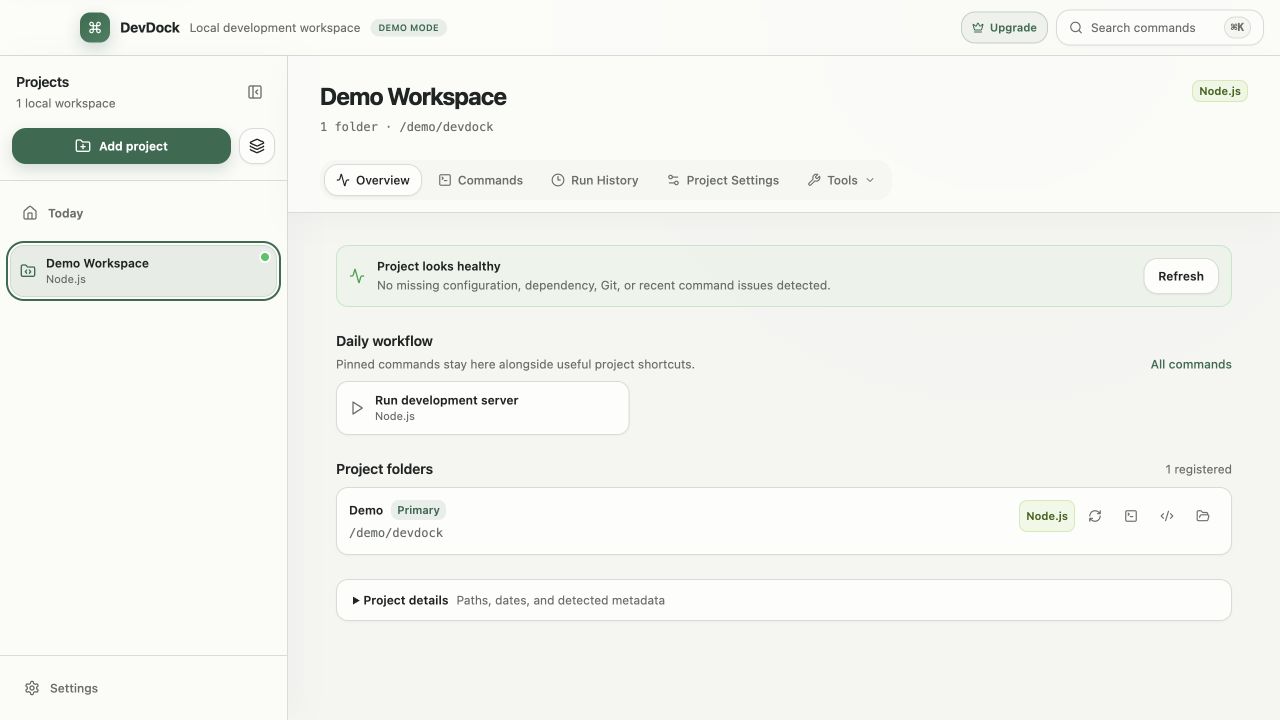
Project health summarizes facts DevDock can verify about registered folders, detected toolchains, Git, Docker, configuration, and recent managed runs. It is a diagnostic surface, not a single pass-or-fail score.
One warning should not imply that every part of the project is unusable. Read the affected component and evidence before choosing an action.
- Configuration describes what DevDock can understand.
- Toolchain health describes what is available locally.
- Runtime and recent-run health describe current or recent behavior.
Start with scope and evidence
Open the affected health item and identify its folder, technology, tool, or run. A missing executable for Mobile should not send you debugging the API, and a failed frontend test should not be treated as a Docker engine problem.
Check whether the item is current. If manifests or folder paths changed, rescan before troubleshooting a stale result.
Resolve missing tools
A detected technology can be valid even when its expected executable is unavailable. Confirm whether the tool should run on the host or inside a container, then install or configure it in that actual execution environment.
After changing PATH, SDK selection, or container configuration, restart or rescan as appropriate. Do not change detection markers merely to hide a legitimate missing-tool warning.
- Verify the selected execution target.
- Check version-manager activation for desktop launches.
- Confirm the executable is available from the environment DevDock inherits.
Investigate failed commands
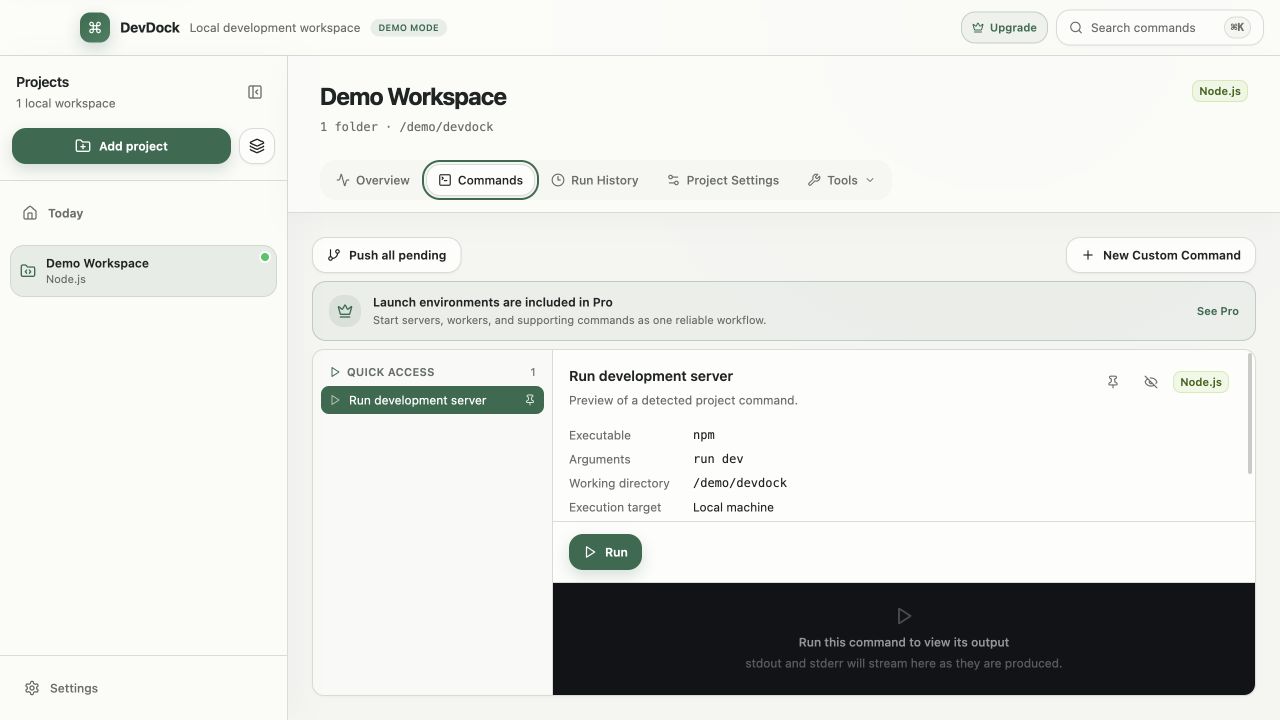
Open the failed run from history and verify the task, working directory, target, exit status, and first meaningful error. Compare it with the last successful run when available.
If the command succeeds in a separate terminal, compare environment values and execution target before assuming DevDock changed the command. Preserve the exact failing context while investigating.
Handle Git warnings
Git health can surface an unavailable repository, detached or unusual state, and other conditions relevant to returning to work. DevDock presents the state but does not decide how your branch history should be rewritten.
Use the folder shortcut to inspect complex Git situations in your preferred tool. Resolve repository ownership, worktree, merge, or rebase decisions deliberately rather than hiding the warning.
Recover workflows
When a multi-step workflow fails, start with the first failed or unready step. Stop the managed workflow before retrying so duplicate servers and stale process trees do not create misleading port or readiness failures.
Check readiness URLs, ports, and dependencies separately. A running process that never becomes ready is different from a process that exited immediately.
- Stop before restart.
- Verify the dependency order.
- Use loopback readiness checks only for local services.
- Review retained output for the first failure.
When to rescan or rebuild the workspace
Rescan after manifest changes, folder moves, new attached repositories, toolchain changes that affect detection, or repository-extension edits. A rescan refreshes derived project understanding without deleting source files.
If a saved task is obsolete, update or remove that task rather than repeatedly rescanning. If a folder no longer belongs to the product, remove its registration after confirming its useful workflows have been migrated.
Free & Pro: what’s included
Available on the Microsoft Store. Free for up to three local projects with core commands, Git, Docker, project health checks, and security-audit tools. A one-time Pro purchase unlocks unlimited and multi-folder projects, custom workflows, full history and insights, database tools, SSH transfers, and configuration backup and restore.