Capability overview
How can I use per-app push setups in TestDock?
With Pro, save Expo Push, Firebase Cloud Messaging, and, on iOS, APNs provider setups and device push targets for each app profile. Device tokens, optional Expo access tokens, APNs signing credentials, and Firebase service-account JSON stay in operating-system secure storage.
Keep your mobile app’s test links together and open them on the device where your app runs. Paste or type any URL to open it right away, share a link in from Slack, Mail, or Safari, and save the routes you check often so the next test starts with the right input.
Building blocks
Targets, providers, and templates are saved separately
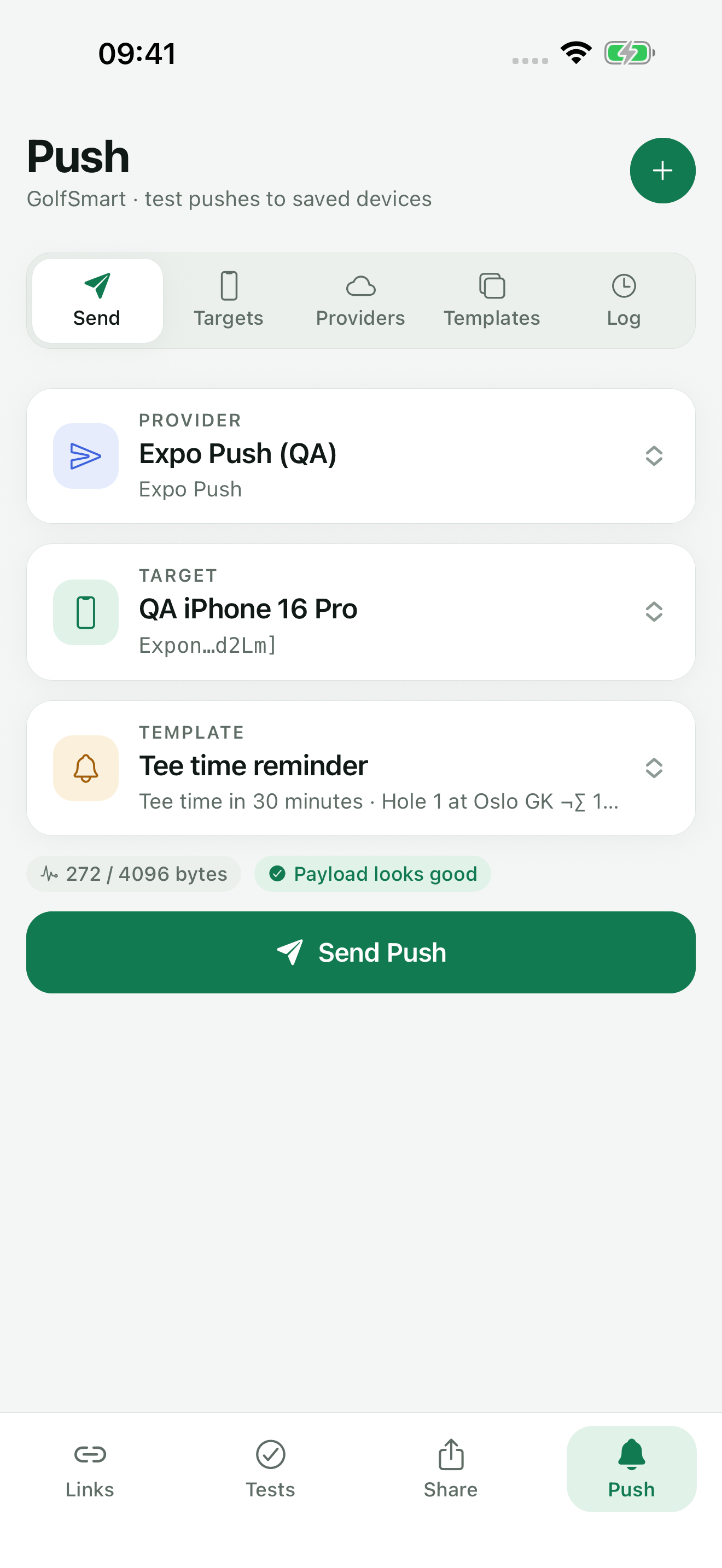
Push testing in TestDock uses three kinds of saved items per app profile. A saved push target is a named device token from the app under test. A provider setup holds the delivery service settings and credential. A notification template holds the message. You pick one of each when you send.
Because they are separate, one device token can be tested against more than one setup of the same provider, and one provider setup can serve several test phones. The target and the setup must use the same provider. Push testing is part of TestDock Pro.
Providers
Expo Push, APNs, and Firebase / FCM
APNs is offered only when TestDock runs on iOS. On Android, the provider choices are Expo Push and Firebase / FCM.
For APNs and FCM you save the long-lived credential once. When you send, TestDock signs the temporary APNs provider token or requests the Google access token itself, so there is no short-lived token to paste before each session.
- Expo Push: the target is an ExpoPushToken[…] or ExponentPushToken[…]. An Expo access token is optional and only needed when Expo Push access-token security is enabled.
- APNs: enter the APNs topic, which is the target app's bundle identifier, and choose the Sandbox or Production gateway. Paste one JSON object with key_id, team_id, and private_key from your .p8 key. The target is a hexadecimal device token.
- Firebase / FCM: paste the service-account JSON. If the Firebase project ID field is empty, TestDock reads it from that JSON. The target is an FCM registration token.
iOS and Android
The same template, adapted to the phone you test on
Templates are either a Visible alert with a title and body, or Background data. Templates also hold custom data fields, delivery priority, time to live, and a collapse ID, and alerts can add a sound and badge number. On Android you can add a notification channel ID; on iOS, a notification category ID for action buttons.
Firebase / FCM messages are shaped for the platform TestDock runs on. On iOS, TestDock adds the APNs section with sound, badge, category, or the background push headers. On Android, it adds the Android section with priority, time to live, collapse key, and channel.
Credential storage
Tokens and credentials go into the device's secure storage
Device tokens and provider credentials are written to the operating system's secure storage, not to TestDock's database. The provider list only shows whether a credential is saved, and saved targets show a short token hint. When editing, leave the credential or token field empty to keep the saved value.
Set a setup's Availability to Disabled to stop using it without deleting it. Delete All Targets removes every saved device token for the profile and keeps provider setups and templates. Profile exports and duplicates never include tokens or credentials.
In the workflow
How to use it
Save the device token
On the Push tab, open Targets, tap Save target, choose the token provider, and paste the token from the app under test.
Add a provider setup
Open Providers, tap New provider, choose the provider, and paste the credential. For APNs, also set the topic and gateway.
Create a template
Open Templates and save a visible alert or background data message with the fields your app reads.
Send and review
In Send push, pick the setup, target, and template, send, and check the result in the Log.
Useful in practice
When to use it
Related manual
Test push delivery and repeatable app flows
Configure provider-specific push targets, reuse payload templates, and combine delivery checks with observable manual scenarios.
Read the guideDirect answers
Questions about per-app push setups.
Why is APNs missing from the provider list?
TestDock is running on Android. APNs is offered only when TestDock runs on iOS; on Android, use Firebase / FCM or Expo Push.
Do I have to create a new APNs or Google token for each test session?
No. Save the .p8 key details or the service-account JSON once. TestDock creates the temporary authorization token when it sends.
Can a saved target be used with any provider setup?
No. The target and the setup must use the same provider. TestDock reports a mismatch before sending.
Are tokens copied when I export or duplicate a profile?
No. Target names and setup settings are copied, but tokens and credentials are not. Copied setups start disabled until you restore their credentials.
Free & Pro: what’s included
Available on the App Store and Google Play. Free includes one app profile with unlimited saved links, Quick open, Paste, sharing links in, home-screen shortcuts, and the sample scenario plus one scenario of your own. A one-time Pro purchase unlocks unlimited profiles and scenarios, share fixtures, push testing, association inspection, links created from an apple-app-site-association file on iPhone, and profile or scenario import and export.