The job to be done
Find out which part of the push path failed
When a test notification never appears, the cause could be the provider credential, the device token, the payload, the gateway, or the app's own handling. Sending through your backend adds the server code to that list.
TestDock sends from the test phone straight to Expo Push, Firebase Cloud Messaging, or, on iOS, Apple Push Notification service, and saves the provider's answer in a log for that app.
You need TestDock Pro to send test pushes. Each app profile has its own targets, setups, and templates, so one app's token is never offered for another.
Recommended path
Send one known-good push, then change one thing at a time
Start with the simplest notification the app should display. Once it arrives, vary the template or its data values to test routing and background handling.
Copy the token from the app under test
Have a debug build print or display its push token, then save it under Targets with a name that identifies the phone.
Add the provider setup
Under Providers, choose Expo Push, Firebase / FCM, or, on iOS, APNs, and paste the credential. For APNs, set the bundle identifier as the topic and the gateway that matches the build's signing.
Save a template per behavior
Create a Visible alert for what users see and a Background data template for silent updates. Add the custom data keys your app reads, such as a conversation ID.
Fix the diagnostics, then send
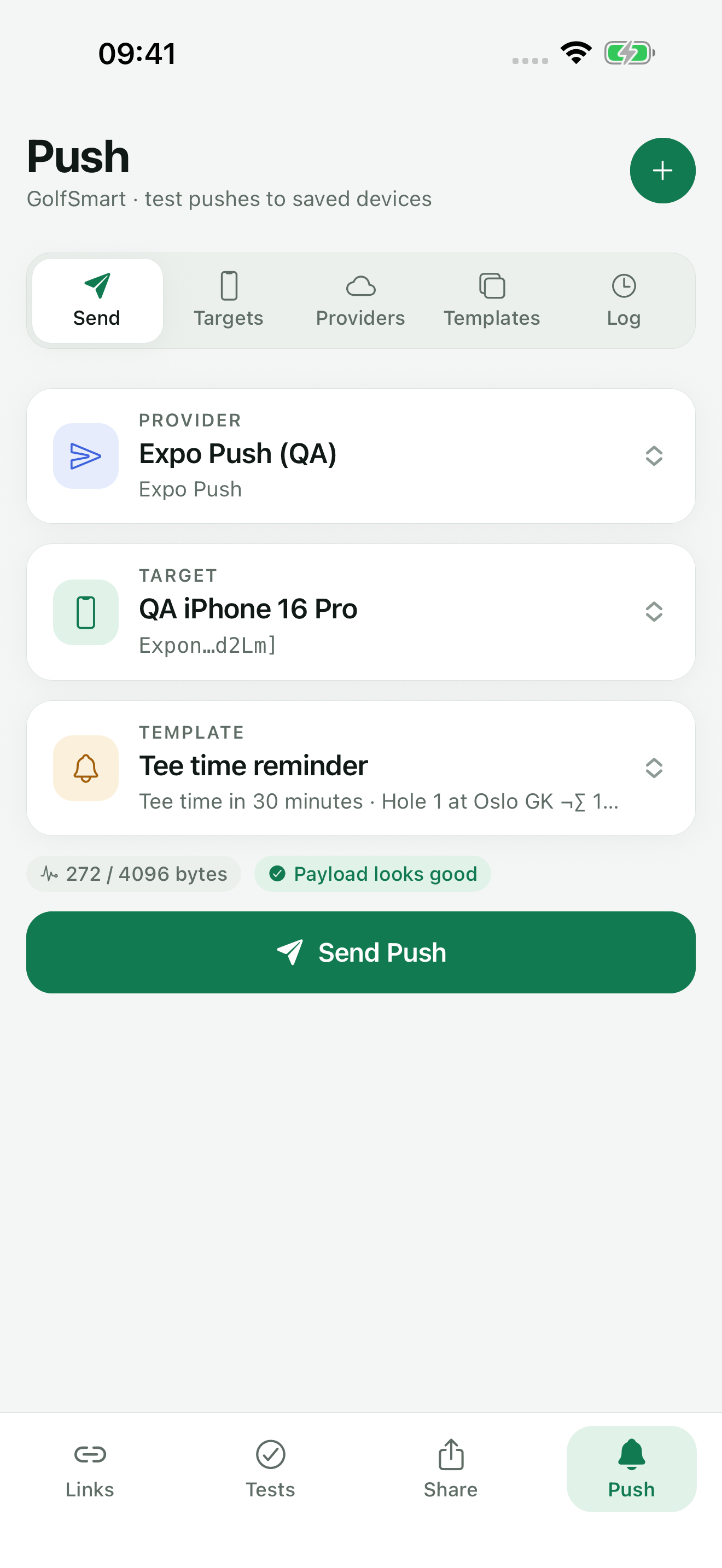
In Send push, select the setup, target, and template. TestDock lists payload errors and the byte count below them, and Send Push stays disabled until every error is resolved.
Compare the log with the phone
The Log shows whether the provider accepted, rejected, or failed the request, with guidance for common errors. Then check the phone for the notification and what a tap on it did.
Capabilities involved
The push tools used in this workflow
Limits to know
What the provider's answer does and does not tell you
An accepted status only means the provider took the request. Delivery to the phone and the app's handling are things you check on the device.
TestDock offers APNs only on iOS. Expo Push and Firebase / FCM work on both platforms, so an Android phone sends through one of those two.
Every push feature, from saved targets to the log, requires Pro; the free version covers deep links and one scenario of your own for one app profile.
TestDock cannot read another app's push token; the app under test has to expose it. Tokens can change after a reinstall, so replace a saved target when the provider reports it as unregistered.
Related manual
Test push delivery and repeatable app flows
Configure provider-specific push targets, reuse payload templates, and combine delivery checks with observable manual scenarios.
Its sections cover create a provider setup and a push target, build a reusable payload, validate, send, and inspect, turn behavior into a scenario. Use it when you are ready to reproduce this workflow with your own project data.
Read the guideDirect answers
Questions about this use case.
Can I test a development build and a TestFlight build from one profile?
Yes. Save one APNs setup for the Sandbox gateway and one for Production, plus a target for each build's token, then pick the pair that matches the installed build.
Can I try a different conversation ID without editing the template?
Yes. Send Push opens a dialog where you can change the title, message, and data values for that one send. The saved template does not change.
How do I test a notification that should not show an alert?
Choose Background data when you create the template. It leaves out the visible alert, sends your custom data, and uses each provider's background delivery options; the operating system still decides when the app receives it.
How long does the push log keep entries?
Until you clear the profile's log, or until entries pass the History retention period in Settings (30 days by default) and you save settings.
Free & Pro: what’s included
Available on the App Store and Google Play. Free includes one app profile with unlimited saved links, Quick open, Paste, sharing links in, home-screen shortcuts, and the sample scenario plus one scenario of your own. A one-time Pro purchase unlocks unlimited profiles and scenarios, share fixtures, push testing, association inspection, links created from an apple-app-site-association file on iPhone, and profile or scenario import and export.