Capability overview
How can I use repeatable manual scenarios in TestDock?
Run ordered manual steps with pass, fail, or skip outcomes, notes, photo and screenshot evidence, and shareable results. Copy a test link into a ticket to start the scenario on a phone with its values filled in. Free includes the sample scenario and one scenario of your own; Pro makes scenarios unlimited.
Keep your mobile app’s test links together and open them on the device where your app runs. Paste or type any URL to open it right away, share a link in from Slack, Mail, or Safari, and save the routes you check often so the next test starts with the right input.
Building a scenario
Ordered steps, each with a stated expected result
A scenario is a named list of steps for one app profile, with a description and an estimated duration in minutes. Each step has a type, a title, instructions, an expected result, and a Required switch. In the editor you can move steps up or down, duplicate them, or delete them.
The Smoke test and Deep-link validation templates fill in starting steps. With Pro, Add Example Scenarios creates up to three ready-made scenarios from the profile's saved deep links.
- Instruction: an action the tester performs in the app
- Checklist: what to verify on screen
- Open deep link: opens one of the profile's saved links during the run
- Open URL: opens a URL you enter
- Expected result: a state to confirm
- Note: space for observations
Running
Mark each step and attach photo evidence
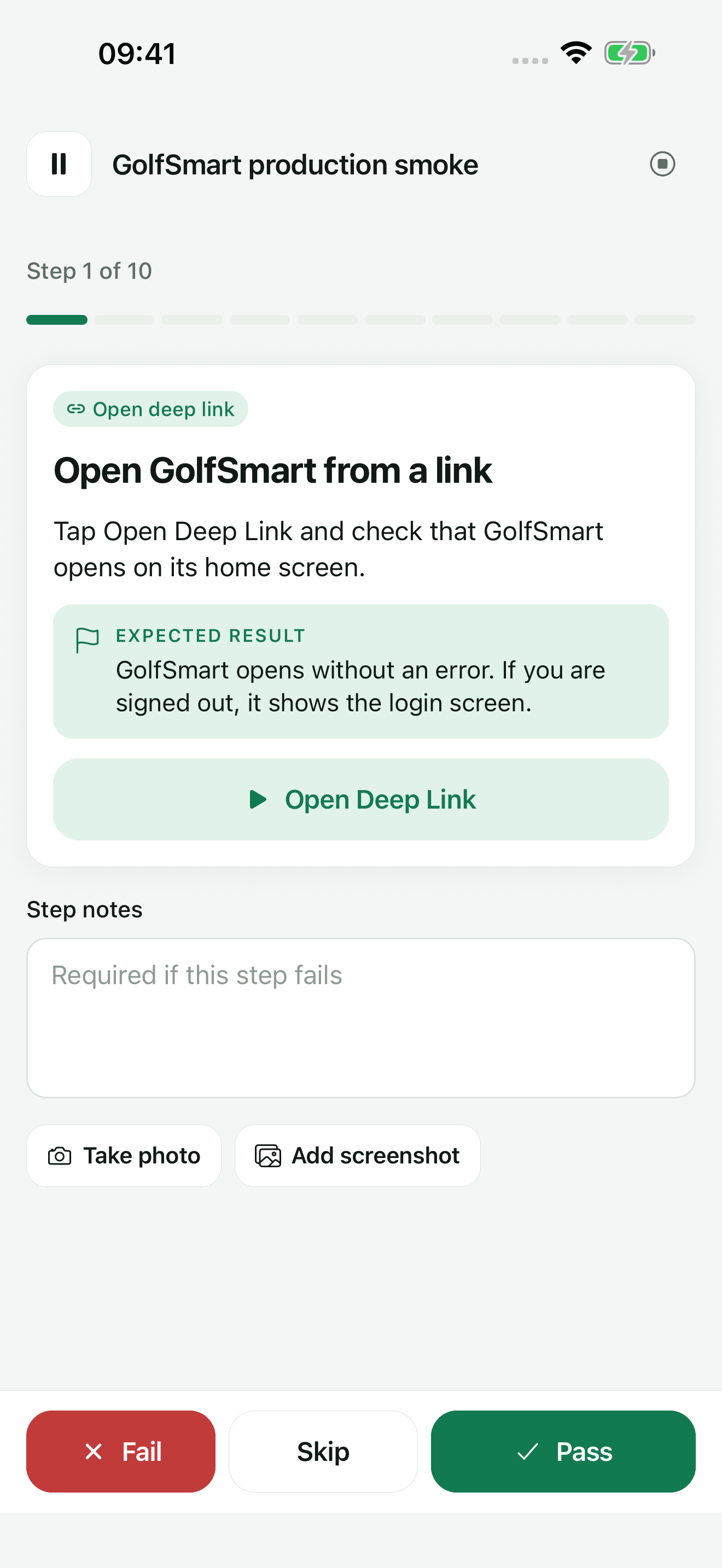
Start Scenario records the device model, operating system version, and TestDock version, then shows one step at a time. Mark each step Pass, Fail, or Skip and add step notes. A failed step marked Required cannot be recorded without a note.
Take photo uses the camera, and Add screenshot picks an image from the photo library. Link steps show an Open Deep Link or Open URL button; TestDock reports whether the system accepted the request, and you judge the screen that appears.
Pause a run and resume it later from the scenario. Cancelling a run keeps the results already recorded.
Results and reports
Share the result, then rerun only what failed
The Scenario result screen counts passed, failed, and skipped steps and shows notes and evidence photos. Share report sends the result as Markdown, PDF, JSON, or plain text through the share sheet, and the PDF includes the photos. Bearer tokens and token, API key, password, or secret query parameters in notes and expected results are masked in reports.
Rerun failed steps starts a new run with only the failed steps. Duplicate as new run repeats the whole scenario. Each run keeps a copy of the scenario as it was at the start, so later edits do not change earlier results.
Test links
Start a run from a link in a ticket
Copy test link on a scenario produces a testdock://run link to paste into a ticket or message. Opening it on a phone with TestDock and the matching scenario shows that scenario and starts a run after one tap.
The link can carry run values, for example orderId=1234, which fill the matching variables in the scenario's link steps. Some issue trackers only make http and https links clickable, so the link may appear as plain text there.
Limits
Plan for platform, retention, and Pro
TestDock Free includes the sample scenario and one scenario of your own: create it, run it, attach photos and screenshots, and share the result report. Pro makes scenarios unlimited and adds scenario import and export.
A scenario belongs to the platform of its profile. Completed runs and their photos older than the History retention setting are removed when you save settings, so share any report you need to keep.
With Pro, Share Scenario JSON exports the steps and the saved deep links they use. It does not include runs, notes, or evidence.
In the workflow
How to use it
Draft the steps
Tap New scenario, start from a template or add steps, and write an expected result for each one.
Start the run
Open the scenario on the test device and tap Start Scenario.
Record each step
Follow the instructions, mark Pass, Fail, or Skip, and add notes or photos where the status alone is not enough.
Share and repeat
Share a report from the result screen, and after a fix use Rerun failed steps to check the same steps again.
Useful in practice
When to use it
Related manual
Test push delivery and repeatable app flows
Configure provider-specific push targets, reuse payload templates, and combine delivery checks with observable manual scenarios.
Read the guideDirect answers
Questions about repeatable manual scenarios.
If I edit a scenario, do earlier results change?
No. Each run stores a copy of the scenario from when it started, so earlier results keep the steps they were run against.
Can a teammate run the same scenario?
Yes, with Pro on both devices. Share Scenario JSON and have them use Import package on the same platform. The saved deep links the steps use are included. Once they have the scenario, a test link starts it on their phone.
How many scenarios are free?
The sample scenario plus one scenario of your own. Pro makes scenarios unlimited.
Does TestDock know whether a link step reached the right screen?
No. It reports whether the system accepted the open request. You mark the step Pass or Fail based on what the app shows.
How long are completed runs kept?
Until you delete them or until they are older than the History retention setting when you save settings. The default is 30 days.
Free & Pro: what’s included
Available on the App Store and Google Play. Free includes one app profile with unlimited saved links, Quick open, Paste, sharing links in, home-screen shortcuts, and the sample scenario plus one scenario of your own. A one-time Pro purchase unlocks unlimited profiles and scenarios, share fixtures, push testing, association inspection, links created from an apple-app-site-association file on iPhone, and profile or scenario import and export.