Screen Studio Kit 1.5.1 sends your Windows screenshots straight from the project to your Microsoft Store listing. Pick the languages and sizes, check the batch, confirm, and every language listing in Partner Center gets its new set.
Microsoft Store publishing works in Store Sync, the same place that already publishes to App Store Connect and Google Play. It is part of Screen Studio Kit Pro and works in both the Mac and the Windows version of the app.
01 / The problem
Every language means another round of uploads
A Microsoft Store listing keeps a separate set of screenshots for each language. Updating them by hand means opening the listing for one language in Partner Center, removing the old images, uploading the new files in the right order, and doing it again for the next language.
The work grows with the release. Eight screenshots in five languages is forty files to place by hand, and each one has to land in the right language. A missed file or a wrong language is easy to make and hard to spot until a customer sees it on the store page.
Screen Studio Kit already keeps the design, the translated copy and the app captures for every language in one project. Version 1.5.1 closes the last step: the same project now delivers the finished screenshots to Partner Center.
02 / New in 1.5.1
From the project to the store listing
Open Store Sync from the More menu and choose Microsoft Store. Select the languages and Windows sizes you want to publish. Screen Studio Kit renders each screenshot for each selected language and uploads them to the matching language listings of your app.
Publishing covers the Windows desktop screenshots and, for MSIX apps, the 16:9 super hero art. Existing screenshots for the language and size groups you publish are replaced by the new set, so each listing shows the set you approved.
Each project language is matched to a listing language that already exists in Partner Center. A project language such as German matches the store's German listing; if your app has two regional listings for one language, such as English (United States) and English (United Kingdom), use the regional code in the project so each set goes to the right place.

03 / Setup
What you need before the first upload
The connection uses Microsoft's Partner Center API. You set it up once per app, and the credential file stays on your computer: Screen Studio Kit does not copy its contents into the project.
The app's Store ID
The ID Partner Center shows for your app, so Screen Studio Kit updates the right product.
The package type
Choose MSIX, or MSI or EXE. The two types publish in different ways, described below.
A Partner Center credential file
A JSON file with the tenant ID, client ID and client secret of a Microsoft Entra app that you have added to Partner Center with the Manager role. MSI and EXE apps also need your seller ID in the same file.
Existing language listings
Every language you publish must already have a listing in Partner Center. An MSIX app must also have been published at least once.
The reviewed publishing page lists the same connection details for App Store Connect and Google Play.
04 / Review first
Check the whole batch, then publish it
Before anything is uploaded, click Run dry preview. Screen Studio Kit renders every screenshot, lists each file with its language and size, and checks the counts against the store's limits: up to 10 desktop screenshots per language across all desktop sizes, and exactly one super hero image.
The dry run also signs in to Partner Center, matches each project language to an existing listing, and checks that no other submission for the app is already in progress. If something does not fit, it tells you what to fix. The dry run uploads nothing and changes nothing in the store.
Publish screenshots unlocks only after a dry run of the same project state, languages, sizes and connection. If you edit the project afterwards, run the dry run again. When you publish, the confirmation names how many screenshots will be uploaded and states that the existing screenshots in those groups will be replaced.
05 / After the upload
How the update reaches your store page
MSIX apps
Screen Studio Kit starts a new submission from your last published one, replaces the screenshot and super hero art groups you selected, and submits it for certification. Partner Center applies listing changes for MSIX apps only through a certification submission.
MSI and EXE apps
Screen Studio Kit replaces the screenshots in the draft listing. Submit for certification after upload is on by default. Turn it off to keep the new screenshots in the draft and submit it yourself in Partner Center.
Once Microsoft completes certification, the new screenshots appear on your store page in every language you published.
06 / Windows artwork
Screenshots made for the Microsoft Store
The Microsoft Store presets range from 1366 × 768 to 3840 × 2160, including a 1080 × 1920 portrait desktop size, and a dedicated 1920 × 1080 page for super hero art. Microsoft Store presets accept PNG only, and Screen Studio Kit blocks a JPEG export for them before it reaches the store.
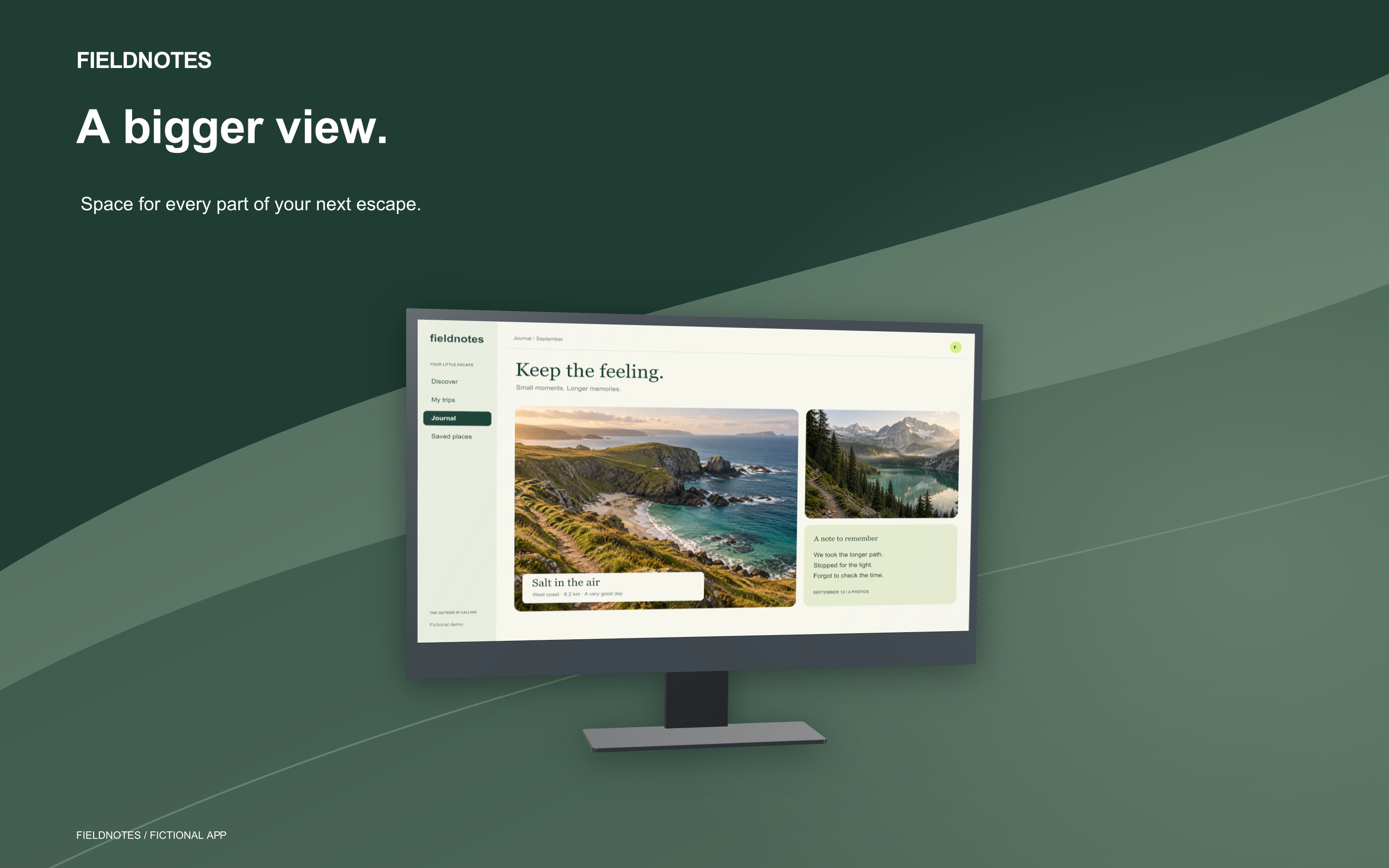
A device frame set to Automatic shows a PC monitor on Microsoft Store sizes. The same project can hold your App Store and Google Play screenshots, so one design serves every store you sell in.
For every pixel size and file rule in one place, see screenshot sizes for the App Store, Google Play and the Microsoft Store.
07 / Questions
Common questions about Microsoft Store publishing
Do I need a Windows PC to publish to the Microsoft Store?
No. Microsoft Store publishing is available in the Mac App Store version and the Microsoft Store version of Screen Studio Kit. In the Mac version, choose the credential file again after you relaunch the app.
Can I still change the listing text and logos?
Yes, in Partner Center. Store Sync publishes Windows desktop screenshots and, for MSIX apps, super hero art. Store logos, listing text and other Windows device families stay in Partner Center, and super hero art for an MSI or EXE app is uploaded there too.
Does any AI see my screenshots or my credentials?
No. Screen Studio Kit uses no AI. Projects are edited and rendered on your computer, and screenshots leave it only when you confirm an upload to your own Partner Center account.
Can the same project publish to the App Store and Google Play?
Yes. Store Sync also publishes to App Store Connect and Google Play with Pro, each with its own connection and dry run.
08 / Free and Pro
Try the design for free; publish with Pro
Screen Studio Kit Free includes the complete editor, local projects, asset management, preview, validation, device-frame editing, one output size and one language per export, and up to 10 full-resolution exported images per local day. You can design your Windows screenshots, export them and upload them in Partner Center yourself.
Microsoft Store publishing requires Screen Studio Kit Pro, a one-time purchase through the Mac App Store or the Microsoft Store. Pro also unlocks unlimited, multi-size and multi-language exports, all built-in and custom templates, multiple languages with CSV translation workflows, and App Store Connect and Google Play publishing.
Your next Windows release can update every language listing in one run.
Design once. Check the batch. Publish to Partner Center.
- Build and preview your Microsoft Store screenshots in the Free editor
- Render every language and size with Pro
- Review a dry run, then replace the screenshots in Partner Center