Problem solved by DevDock Windows

Turn an AI-generated project into a workflow you can resume

Audit the folders, commands, runtimes, health, and recent evidence around an AI-generated Windows project, then keep the working path in DevDock.

See it in the app

A focused workflow, on your computer.

Local project data, operating-system secret storage, read-only local audits, and no source upload.

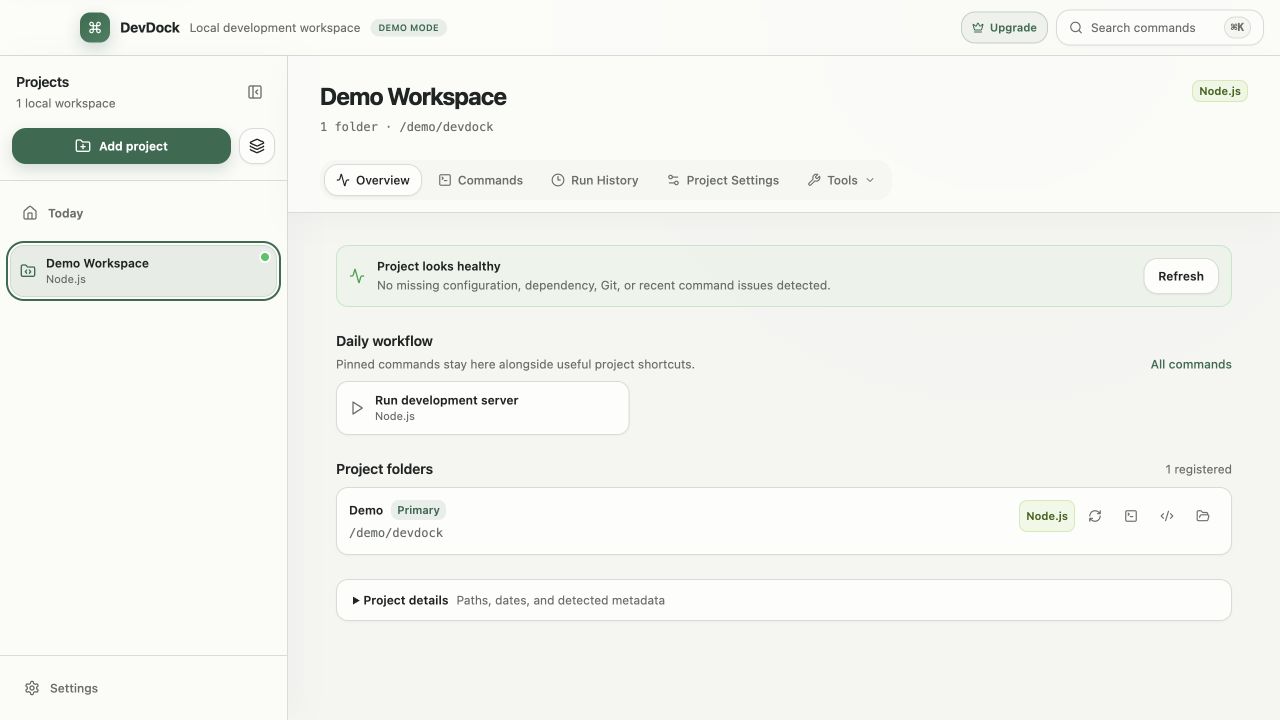
DevDock project overview showing project health, daily workflow, and registered folders
DevDockDevDock keeps the local folders, recurring commands, health, and recent activity around one Windows project.

The problem

Why the usual workflow gets in the way.

Generated code can arrive faster than the project context needed to operate it. The source may run once, but its real boundary, startup order, runtime targets, database context, and last known result are still scattered across a chat, terminal history, and several folders.

The solution

How DevDock handles it.

Treat the generated code as a normal local software project. DevDock registers the existing folders, keeps recurring commands with their working directories and host-or-container targets, and retains project health and run evidence so returning to the work does not depend on reconstructing the original prompt session.

Free local diagnostic

Find the missing workflow context first

The browser checklist adapts to multi-folder, Docker, and database projects. It creates a local readiness report without uploading the answers.

Run the Windows project checklist

01 / Project recovery

Inventory the project that actually exists

Begin with the filesystem and manifests, not the prompt that produced them. Identify the primary folder, related repositories, package or solution files, environment templates, Compose configuration, migrations, and the commands that have actually run.

AI-generated code does not need a special project category. It needs an explicit boundary that shows which local folders are operated and released together.

  • Keep repositories in their existing locations.
  • Give related folders role-based names.
  • Separate generated suggestions from commands you have verified.

02 / Project recovery

Make every recurring command reviewable

A command without its working directory and runtime target is incomplete. Record the executable, arguments, folder, and whether it runs on the Windows host or inside a container before turning it into a reusable task.

If several processes form one environment, capture their dependency order and readiness checks. Do not treat one successful launch as proof that the path will remain repeatable after a reboot or dependency change.

  • Keep secrets out of visible arguments.
  • Start dependencies before consumers.
  • Use bounded checks before long-running processes.

03 / Project recovery

Keep evidence from the last real run

Record Git, toolchain, Docker, database, and recent-run state separately. Detecting a framework does not prove that its executable, engine, service, or connection is currently available.

When something fails, retain the exact task, directory, target, exit state, and output. That evidence is more useful than asking a new chat session to guess what changed.
Clear answers

Common questions about organize an AI-generated Windows project.

Does DevDock generate the project or rewrite its code?

This workflow does not depend on DevDock generating code. DevDock organizes and operates the existing local project by keeping its folders, tasks, health, shortcuts, and run history together.

Can the project contain more than one repository?

Yes. One DevDock project can represent one repository, a monorepo, or several separately located folders. Multi-folder projects are a Pro feature.

Does the checklist or project detection upload source code?

No. The checklist runs in the browser tab and project detection works against registered local folders. Neither workflow requires uploading the source.

Three short steps

Move the useful context out of the chat and into the project.

  1. 01

    Run the free checklist against the current local project.

  2. 02

    Register the folders that form the real product boundary.

  3. 03

    Save the verified commands, targets, and return path in DevDock.

Available for Windows

Solve it with DevDock.