DevDock 1.4 makes active work easier to follow: which project has an AI agent working in it, which Git operation is still running, and whether stopping a command really stopped everything it started.
A normal day can include a Claude Code session editing one project, a push running hooks in another, and a dev server launched from a saved command. Version 1.4 brings more of that state into the places you already use: the project row, the title bar, and the command workspace.
01 / AI agent presence
See when Claude Code is working in a project
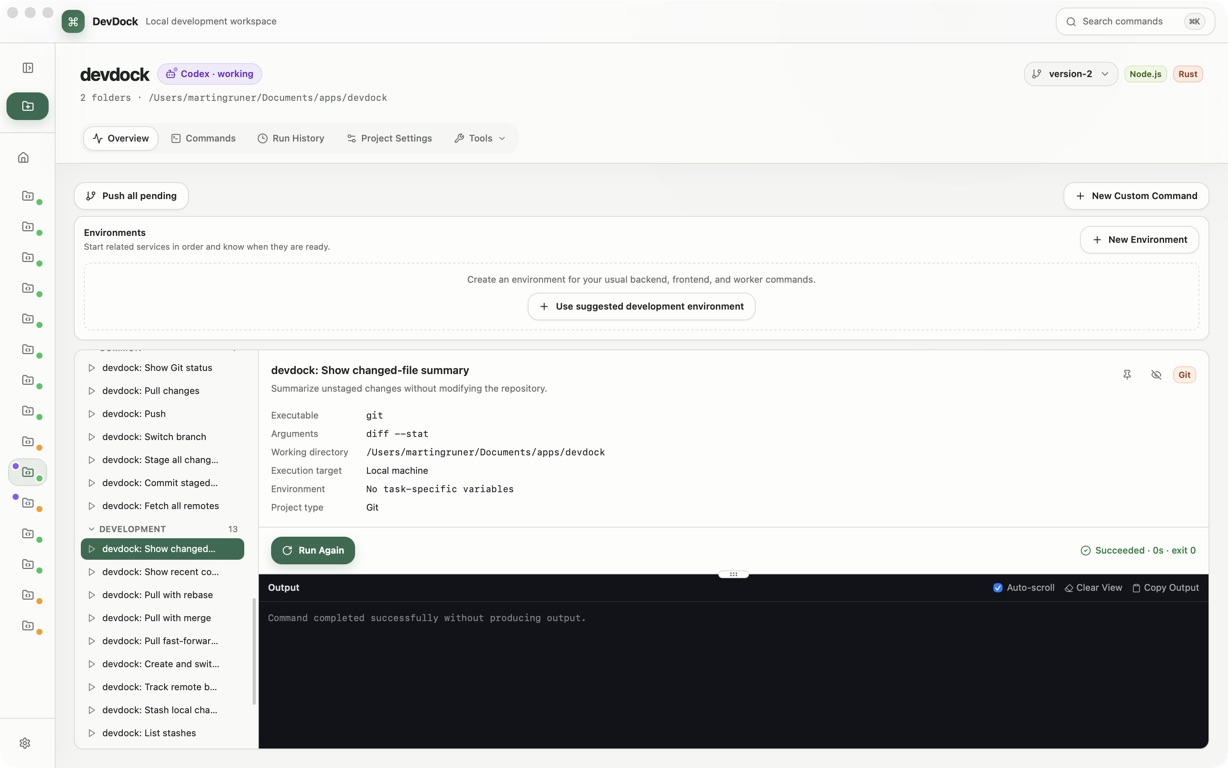
DevDock now marks a project while Claude Code is working in it. The project row and dashboard show a Claude Code working badge together with the session title or latest prompt.
This includes sessions started in a terminal and from the Claude desktop app. DevDock reads the recent local transcripts that Claude Code already keeps in ~/.claude/projects; there is no account connection and no change to how you start a session.
DevDock already showed Codex activity at the project level. With both integrations in place, the sidebar can warn you that an agent is changing a project before you switch branches, start a build, or edit the same files. Agent presence is included in DevDock Free.
02 / One place for running work
The Activity center shows what is running and what just happened
The new bell button in DevDock’s title bar opens the Activity center. Its badge shows when work is still running or a new result has arrived.
Running Git operations appear first. Select one to reopen its progress window with the current step and live output. Recent notifications appear below, so success and failure messages remain available after their toast disappears. Clear notification history removes those messages when you no longer need them.
If you are not sure whether a push finished, the answer is one click away in the title bar.
03 / Keep working
Git operations keep running in the background
Commits, pushes, fetches, pull-before-push, and branch-switch recovery can take a while, especially when repository hooks run tests or a build. Their progress windows now have a Hide progress button. The window says so plainly: hiding it does not stop the running operation.
While the operation runs, you can open another project, read a health check, or start a different command. The operation stays in the Activity center, and you can reopen it from there at any time.
Pull-before-push continues normally while hidden. If DevDock needs to pull remote changes first, a successful pull still continues into the original push. The final notification explains what happened; anything that needs attention remains available from the Activity center.
04 / Clean stops
Stop now ends the whole command, including what it started
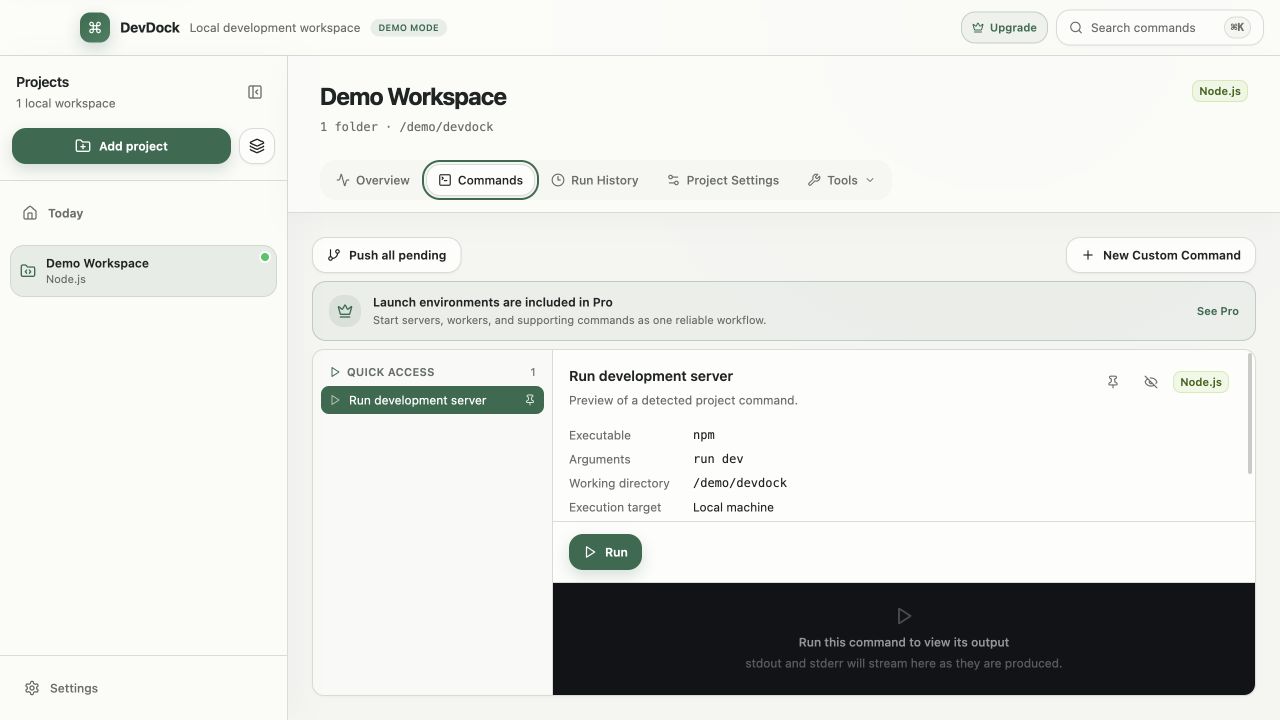
Many project commands start other programs. An npm run dev script, for example, can start a dev server that keeps running on its own. Previously, stopping such a command in DevDock ended only the program DevDock launched directly. The dev server could keep running and keep its port busy.
In 1.4, DevDock tracks every process a command starts. When you stop the command, all of them stop. The same happens when you quit DevDock, so closing the app no longer leaves servers or watchers running in the background.
In practice, this means you can stop a dev server and start it again right away without hunting for a leftover process in Task Manager.
05 / Everyday improvements
Clearer status and feedback across the app
Smarter toolchain checks in Project health
The Toolchain compatibility check now finds tools the way your project uses them:
- Java is found through
JAVA_HOME. - The Python version is read from the project’s
.venvwithout running Python. - The Flutter version is read from the Flutter SDK itself.
- A tool that is installed but fails its version check is reported as one that could not report its version, instead of “not installed”.
- A Node project with
node_modulesinstalled shows “Project dependencies installed · runtime not verified” instead of an error.
Live output reconnects on its own
If the live connection that streams command output is interrupted, DevDock tells you, retries, and then confirms when live updates are restored. A finished command no longer looks as if it is still running for the rest of the session.
Clearer feedback when you start something
Quick actions on Today and environment buttons now show their own spinner or “Starting…” state instead of disabling the whole surface while one action starts. If an environment’s URL never becomes ready, DevDock warns you.
Cross-project actions report how many requested commands actually started. Project health buttons show “Pulling…”, “Fetching…”, or “Running…” while they work, and actions that previously failed silently now explain what could not be completed.
Smoother Git sign-in
When you choose an SSH key for a push, DevDock reuses its passphrase for the other push destinations instead of asking again. If Git requests another credential, the follow-up prompt clarifies that it is continuing the same sign-in flow rather than rejecting what you already entered. A branch whose remote state could not be checked is now labelled “Upstream status unavailable”.
Faster everyday actions
- The commit shortcut in the Daily workflow on the project overview opens the commit dialog directly.
- Check in Ports & services now tells you whether the service is “Responding” or “Not responding”.
- Confirmations for stopping an environment, deleting a history entry, or removing a project now appear as DevDock dialogs instead of plain browser pop-ups.
06 / Fixes
Fixes
- Files no longer appear as modified after a line-ending change, such as a switch between CRLF and LF.
- A slow or failing check of a Git remote no longer disables pull, fetch, and push with a “no remotes” message.
- An old failure warning is hidden while a newer attempt runs, for example when you retry after signing in.
- The first click after returning to the DevDock window is no longer lost.
- Dragging in the sidebar and resizing panels recover correctly when the window loses focus.
- Finished Git dialogs close reliably.
- Saving settings and adding, renaming, or removing projects no longer wait for background refreshes to finish.
- Workflow preferences retry saving and show a warning after three failed attempts.
- Buying DevDock Pro and restoring an existing purchase through the Microsoft Store work reliably again. If a restore failed in an earlier version, try it again after updating.
DevDock 1.4
Get DevDock 1.4
If you already use DevDock, the Microsoft Store usually installs the update automatically. To get it now, open the Microsoft Store, go to Library, and select Get updates.
New to DevDock? DevDock Free supports up to three local projects with core commands, Git, Docker, Project Doctor, and security audits. Start with the getting-started guide.
Explore DevDock →