A Git conflict, a database migration, and a changed notebook each need a different kind of review. Diff Anything 1.7 brings them into one app: resolve merge conflicts with Pro, compare SQLite schemas and rows, inspect binary changes in hex, and review Jupyter notebooks by cell. You can also filter timestamps, IDs, and comments out of noisy diffs, and use the app in German or French.
Everything still runs on your Mac or Windows PC. Your files are never uploaded, there is no account, and no AI is involved.
One app for the comparisons you actually do
Merge, compare, and check, without uploading a file.
- Resolve Git merge conflicts, with JSON, YAML, TOML, and INI merged by their data
- Compare SQLite databases by schema and rows, and binary files in a hex view
- Ignore timestamps, UUIDs, and comments, and line up the lines you choose
01 / Merge
Resolve Git merge conflicts in one window
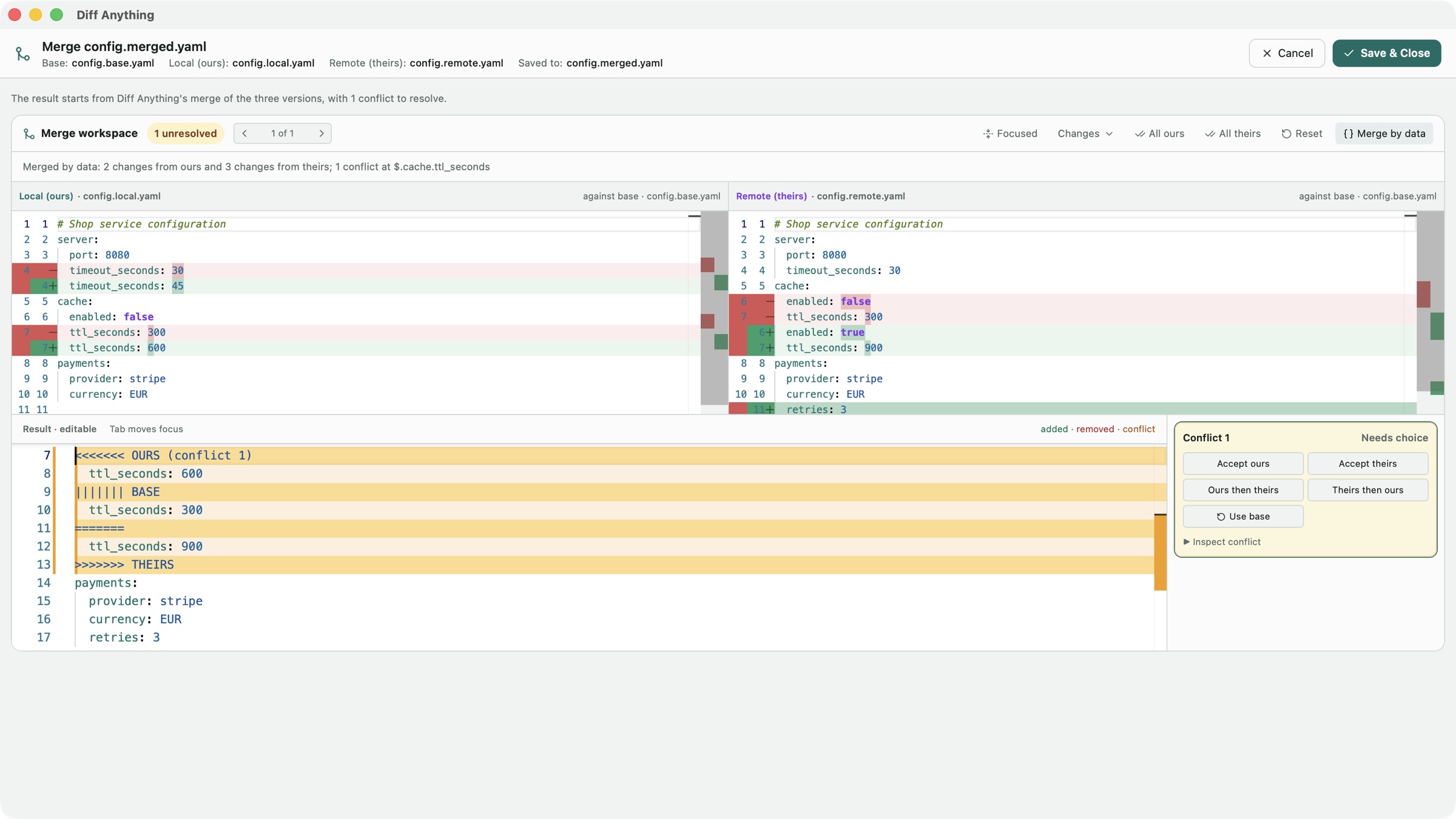
After you set up Diff Anything as your Git merge tool, run git mergetool when Git stops with a conflict. Diff Anything opens your version, their version, and the result below, starting from everything that merged cleanly. Pick a side for each conflict, edit the result directly, and choose Save & Close. Return to Git to finish the merge.
Configuration files merge by their data. In JSON, YAML, TOML, and INI files, Diff Anything merges value by value, so two branches that changed different keys in the same block merge without a conflict. A conflict appears only where both sides changed the same value differently, and your comments and layout stay as they were.
A file that already contains conflict markers from Git, Mercurial, or Subversion shows how many conflicts it has. Resolve opens them in the same merge workspace, and the file is saved in its own encoding and line endings.
Merging needs Pro; the free version shows how many conflicts a file has. On Windows, the Microsoft Store version is Git's merge tool directly. On a Mac, install the free command-line helper, which lets Git start the Mac App Store version.
02 / Databases
Compare two SQLite databases
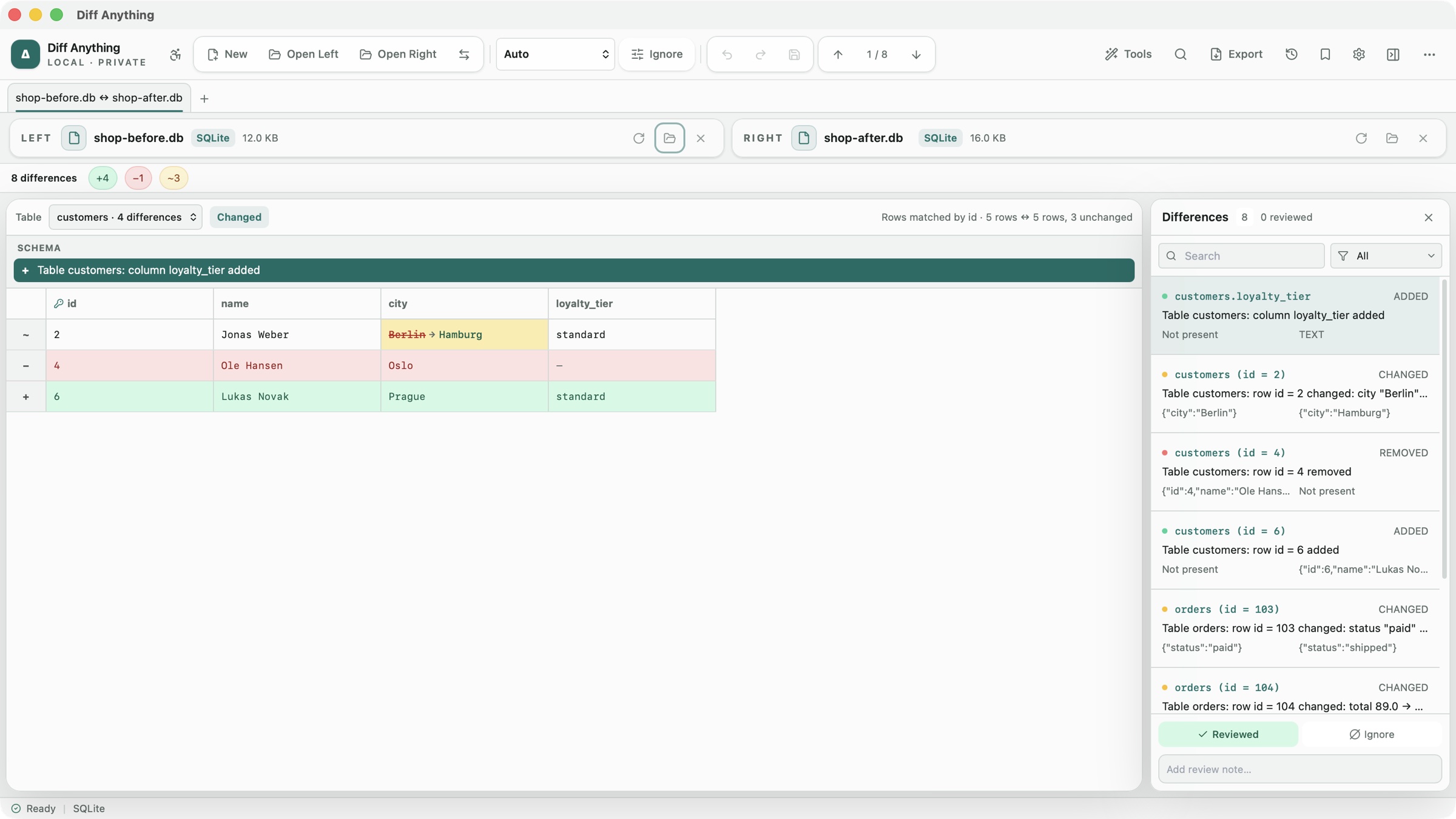
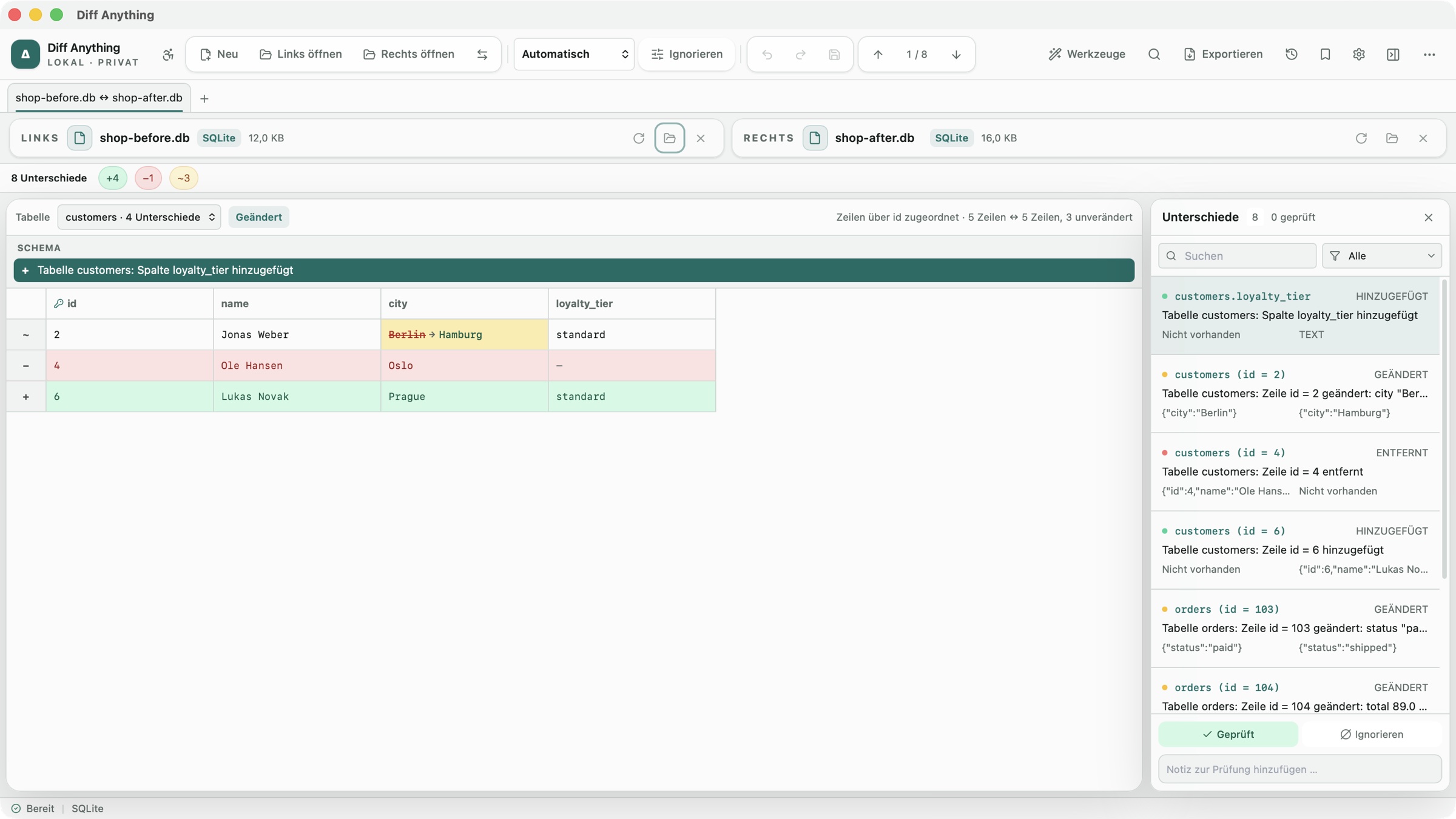
Open two SQLite files and see changes to tables, columns, indexes, views, triggers, and rows. Rows are matched by a shared primary key, or by rowid when there is no shared key, so a changed row shows the old and new value of each column that changed.
This is useful after a migration, before shipping an app with a bundled database, or when two copies of the same data have drifted apart. Both databases are opened read-only, so the comparison never writes anything to them.
Use consistent database copies for the comparison. Changes still held in a separate write-ahead log are not included; review any Unverified warning before relying on the result.
03 / Binary files
Compare binary files byte by byte in hex
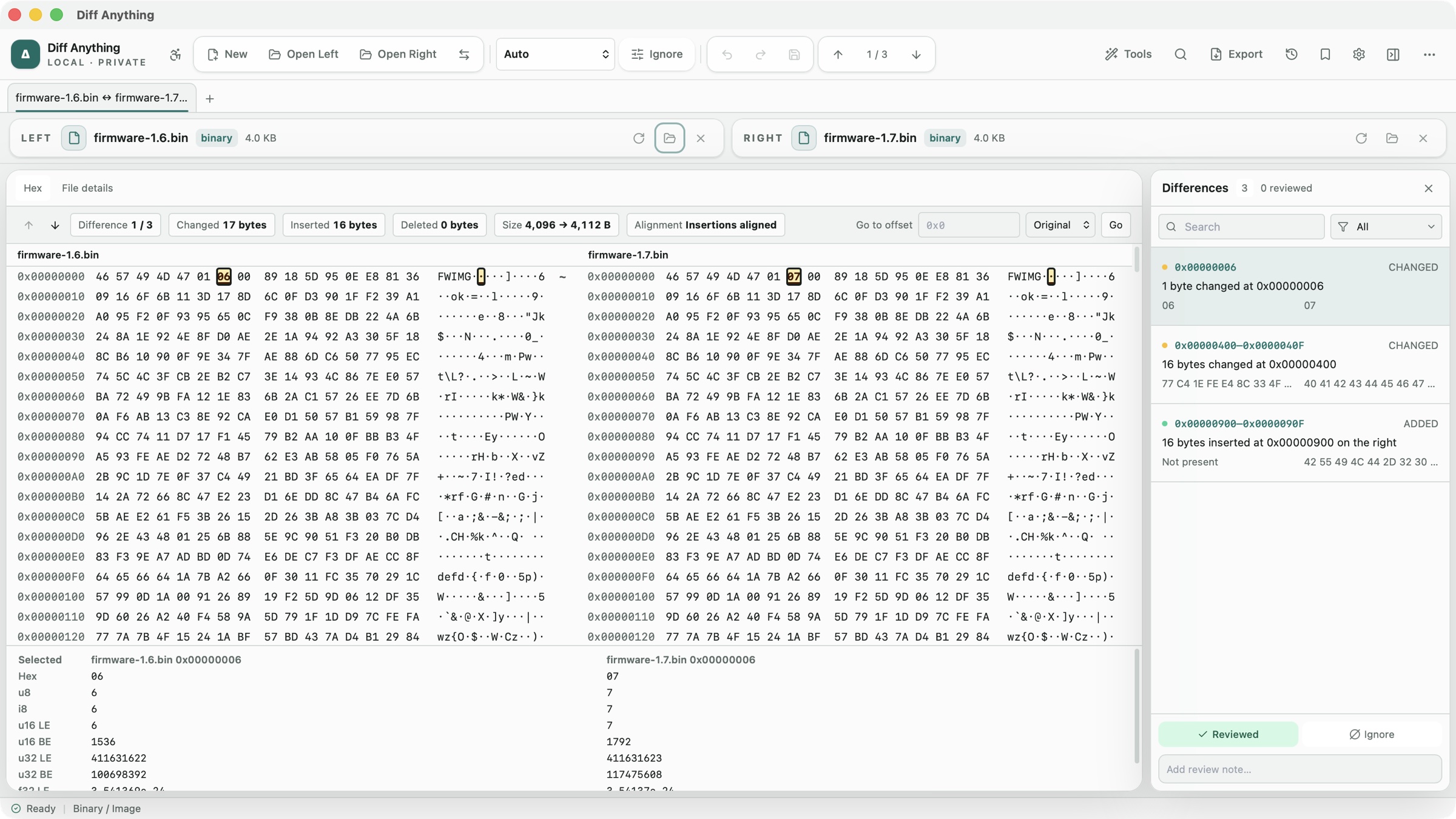
Firmware images, game assets, compiled output, and any other file without a text format now compare in a hex view. The two files scroll together, and an inserted block is shown as an insertion, so the bytes after it still line up.
Step through changed ranges, jump to an offset, and read selected bytes as numbers in the data inspector. With Pro, you can inspect files of several gigabytes. Free previews list the first 100 changed ranges within the free file-size limit; Pro removes that preview limit. If the comparison reaches a safety limit, it marks the remaining content as unverified.
04 / Notebooks
Compare Jupyter notebooks by cell
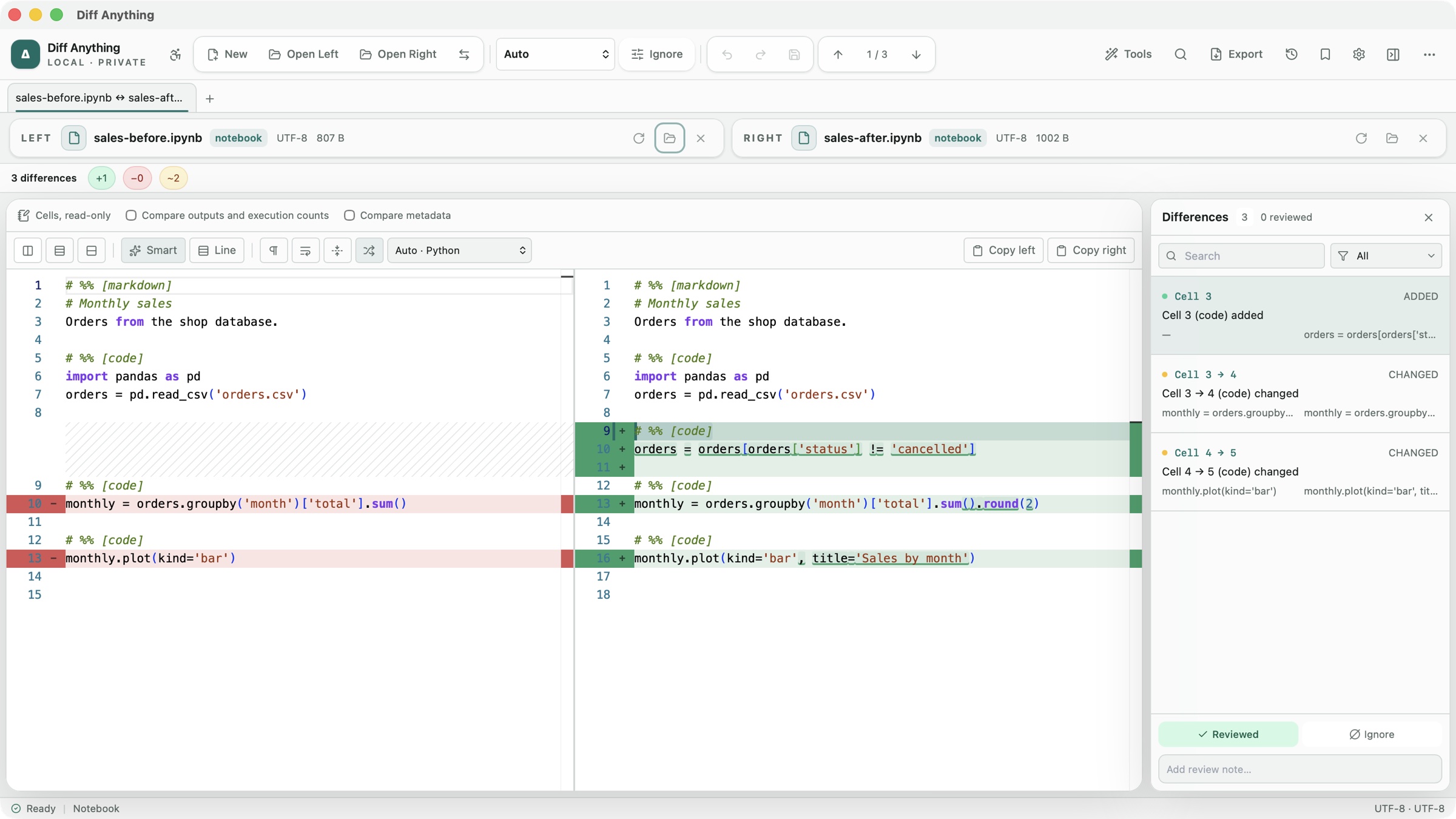
A notebook file is JSON full of outputs and execution counts, which makes a plain diff hard to read. Diff Anything compares notebooks by their cells instead. An inserted cell is one difference, and each difference names its cell, such as “Cell 3 → 4 (code) changed”.
Outputs, execution counts, and metadata are left out unless you ask for them, so re-running a notebook does not bury the code changes. Notebook comparison is included in the free version.
05 / Less noise
Leave timestamps, IDs, and comments out of a comparison
Logs and generated files differ on every line because of a timestamp or an ID. In 1.7, ignore any text that matches a pattern, or whole matching lines. One-click presets cover ISO 8601 and log timestamps, UUIDs, memory addresses, long numeric IDs, and durations. You can also ignore comments in languages whose comment syntax is known, and fixed character columns for mainframe and fixed-width files.
When two files are too different for the lines to match up by themselves, choose two lines and Align these lines. The text before and after that point is then compared separately.
The video shows the simplest case: a code file after a formatter, where ignoring whitespace, blank lines, and comments leaves only the real changes.
06 / And more
Everything else in 1.7
- Folders: ZIP and other archives inside a folder compare by their contents, a folder can be compared with an archive, results filter by size and date, and .gitignore rules can be respected. Save a folder snapshot and later compare the folder with it to see what changed (saving snapshots needs Pro). See how to check that a backup matches the original folder.
- Images: HEIC, AVIF, PSD, RAW, TIFF, EXR, and SVG, large camera photos, animation frames, ignore regions, offsets, automatic alignment, and metadata. On Windows, HEIC, AVIF, and RAW need Windows' image extensions from the Microsoft Store.
- Spreadsheets: match rows by content or key columns, and compare formulas between supported workbooks of the same format, such as two XLSX files. See how to compare two Excel files.
- Documents: Word and OpenDocument comparisons show formatting changes, such as a word made bold or a changed paragraph style.
- Data files: TOML, INI, and property lists, and files in different formats, such as JSON against YAML, compared by their data.
- Your way of working: a top-and-bottom layout, a choice of encoding, customizable shortcuts, and tabs that reopen at the next launch. With Pro: side-by-side HTML reports, printing, patches, and JSON Patch export.
- Starting a comparison: the Compare with Diff Anything command in File Explorer on Windows, Finder's Quick Actions and Services and AppleScript on a Mac, and diffanything:// links on both.
07 / Languages
Diff Anything in German and French
The whole interface is now available in German and French as well as English. Diff Anything follows your system's language, and you can change it under Language in Settings. The new language applies at once, without a restart.
The next merge, migration, or build check is a few clicks away.