Capability overview
How can I use three-way merge and git merge tool in Diff Anything?
With Pro, merge three versions of a file in one window and resolve each conflict there. JSON, YAML, TOML, and INI files merge by their data, value by value, keeping your side's comments and formatting, with conflicts only where both sides changed the same value differently. A file that already contains conflict markers from Git, Mercurial, or Subversion shows how many conflicts it has; with Pro, Resolve opens them in the merge workspace, and the resolved file is saved in its own encoding and line endings. On Windows, git mergetool opens each conflicted file in Diff Anything's merge window and waits for Save & Close.
Seeing the conflicts in a file is free; resolving them, the merge workspace, the merge driver, and the merge tool are part of Pro.
The merge tool also works with Mercurial, Subversion, Perforce, and TFVC on Windows. The Mac App Store version runs in Apple's App Sandbox and cannot be started as a merge tool by a version control system; on a Mac, open the conflicted file in the app and choose Resolve.
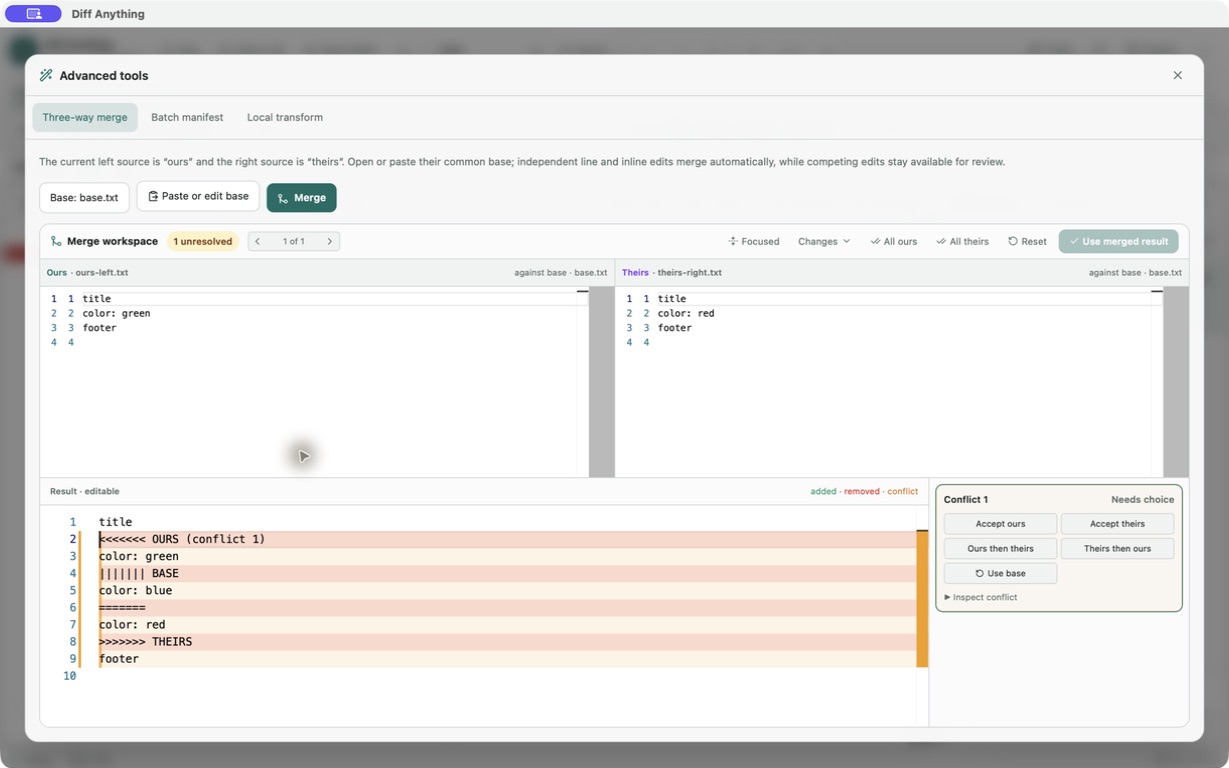
The merge workspace
Three versions, one result you can edit
A merge needs three versions: the common original (Base), your version (Ours), and the other version (Theirs). Put Ours on the left and Theirs on the right, open Tools, choose Three-way merge, and select or paste Base. Changes made on only one side are combined automatically, and so are edits to separate words of the same line. Everything else becomes a conflict that you decide.
Step through the conflicts and choose Accept ours, Accept theirs, Ours then theirs, Theirs then ours, or Use base, or edit the result directly. The Changes panel shows each side against Base, and the result keeps the syntax highlighting of the file.
Merging data files
JSON, YAML, TOML, and INI merge value by value
Two people editing different settings of the same configuration file often touch neighbouring lines, and a line merge reports a conflict where there is none. Diff Anything merges JSON, YAML, TOML, and INI files by their data instead: a value only one side changed takes that change wherever it is, a value both sides changed alike is taken once, and only a value both sides changed differently is a conflict, named by its path, such as $.server.port.
Lists of records with an id, _id, uuid, or key field merge record by record. Key order, indentation, and quoting never conflict. The result is written into your side's text, so its comments and formatting stay, and the workspace says how it merged, for example "Merged by data: 3 changes from ours and 1 change from theirs; 1 conflict at $.server.port". Merge by data switches to the line merge, and a file that is not valid in its format is merged by lines, with the reason.
Conflict markers
Resolving a file that Git already marked
When Git, Mercurial, or Subversion cannot merge a file, it writes both versions into it between conflict markers. Open such a file in Diff Anything, on either side of a comparison, and it shows "This file has N merge conflicts" with Resolve.
Resolve opens exactly those conflicts in the merge workspace; every line outside them stays as the version control system merged it. When the markers record a base (Git's diff3 or zdiff3 style), Use base can choose it. Save resolved file writes the result to the same file in its own encoding, byte-order mark, and line endings, and asks first when the file changed on disk. Markers that do not form complete conflicts are reported with their line instead of being guessed at.
Git merge tool
git mergetool opens the merge in a window (Windows)
On Windows, the Microsoft Store version can be Git's merge tool. git mergetool starts it for each conflicted file and waits: the window shows the base, local, and remote versions and the result, starting from the conflicts Git left, so every line Git merged is kept. Save & Close (Control-S) writes the merged file and exits with 0, which Git takes as resolved; Cancel or closing the window exits with 1 and leaves the file as Git wrote it. A result with unresolved conflicts is saved only after a confirmation.
The merge driver, set with merge.diff-anything.driver and assigned in .gitattributes, merges the same way without a window whenever Git merges, writing conflict markers only around the values both sides changed differently. The merge tool also works with Mercurial, Subversion, Perforce, and TFVC, and --cli --integration-help prints the settings.
The Mac App Store version runs in Apple's App Sandbox, which does not let it read the files a version control system names, so it cannot be started as a merge tool. On a Mac, open the conflicted file in the app and choose Resolve.
- git config --global merge.tool diff-anything
- git config --global mergetool.diff-anything.cmd 'diff-anything --merge-tool "$BASE" "$LOCAL" "$REMOTE" "$MERGED"'
- git config --global mergetool.diff-anything.trustExitCode true
Free and Pro
What the free plan includes
Seeing the conflicts in a file is free, in the app and with --cli --conflicts on the command line. The merge workspace, resolving conflicts, the merge driver, and the merge tool are part of Pro. On the free plan, the merge tool window offers Pro and exits without changing the merged file.
In the workflow
How to use it
Open the conflicted file
Open a file with conflict markers in the app, or let git mergetool start Diff Anything on Windows.
Choose Resolve
The conflicts open in the merge workspace, with every other line as the version control system merged it.
Decide each conflict
Accept ours, Accept theirs, both in either order, or Use base, or edit the result by hand.
Save
Save resolved file, or Save & Close in the merge tool window, writes the file in its own encoding and line endings.
Useful in practice
When to use it
Related manual
Choose the right comparison mode
Choose sources, understand automatic detection, and select the engine that answers the question you are actually asking.
Read the guideDirect answers
Questions about three-way merge and git merge tool.
Does Diff Anything merge JSON and YAML by their data?
Yes. JSON, YAML, TOML, and INI files are merged value by value, with conflicts only where both sides changed the same value differently. Merge by data switches to a line merge when you want one.
Can I resolve a file that already has <<<<<<< markers in it?
Yes, with Pro. Open the file and choose Resolve. Its conflicts open in the merge workspace, and the resolved file is saved in its own encoding and line endings.
Can Diff Anything be my git mergetool on a Mac?
Not with the Mac App Store version, which cannot read the files Git passes to a merge tool. Resolve conflicted files by opening them in the app. On Windows, the Microsoft Store version is the merge tool.
Which version control systems does the merge tool work with?
Git, Mercurial, Subversion, Perforce, and TFVC, on Windows. Run diff-anything --cli --integration-help for the settings of each.
Free & Pro: what’s included
Available on the Mac App Store and Microsoft Store. Free desktop use lets you try every comparison engine for files up to 5 MiB per side and 10 new comparison sessions per local day; collection previews show the first 100 items, binary comparisons the first 100 byte differences, and PDF previews the first 3 pages. Plain text, JSON, and Jupyter notebook comparison are complete, and opening files from Finder or File Explorer, diffanything:// links, and AppleScript are free. The free CLI supports text, JSON, and notebooks. A one-time Pro purchase removes the preview and session limits and unlocks larger sources within technical limits, saved profiles and history, saving folder snapshots, report export and printing, JSON Patch export, applying patches, three-way merge and conflict resolution, the Git merge driver and merge tool, folder synchronization, batch manifests, trusted preprocessors, and every CLI mode.