To test a deep link on a real phone, most mobile developers paste it into Notes, send it to themselves in Slack, or email it to their own address. Then they tap it and hope it opens the right screen. When the order number changes, they do it all again.
Push notifications are worse. You either wait for the backend to send one, or you put together a curl command with a device token copied from a log.
TestDock is an iPhone and Android app that keeps all of this on the phone you test with. Version 1.1 speeds up the slowest step: getting the link onto the phone in the first place.
01 / The problem
A phone has no good place to keep test links
Opening a deep link once is easy. Opening it many times with different values, across builds, while remembering which links you already checked, is not. Notes and chat threads don’t keep variables, don’t show whether a link opened, and don’t keep one app’s links apart from another’s.
It gets harder when someone else reports the bug. The ticket says “open this link on a device and check the order screen.” Someone has to get that link onto a phone, open it, and write down what happened.
02 / What TestDock does
One place per app for links, push notifications, and tests
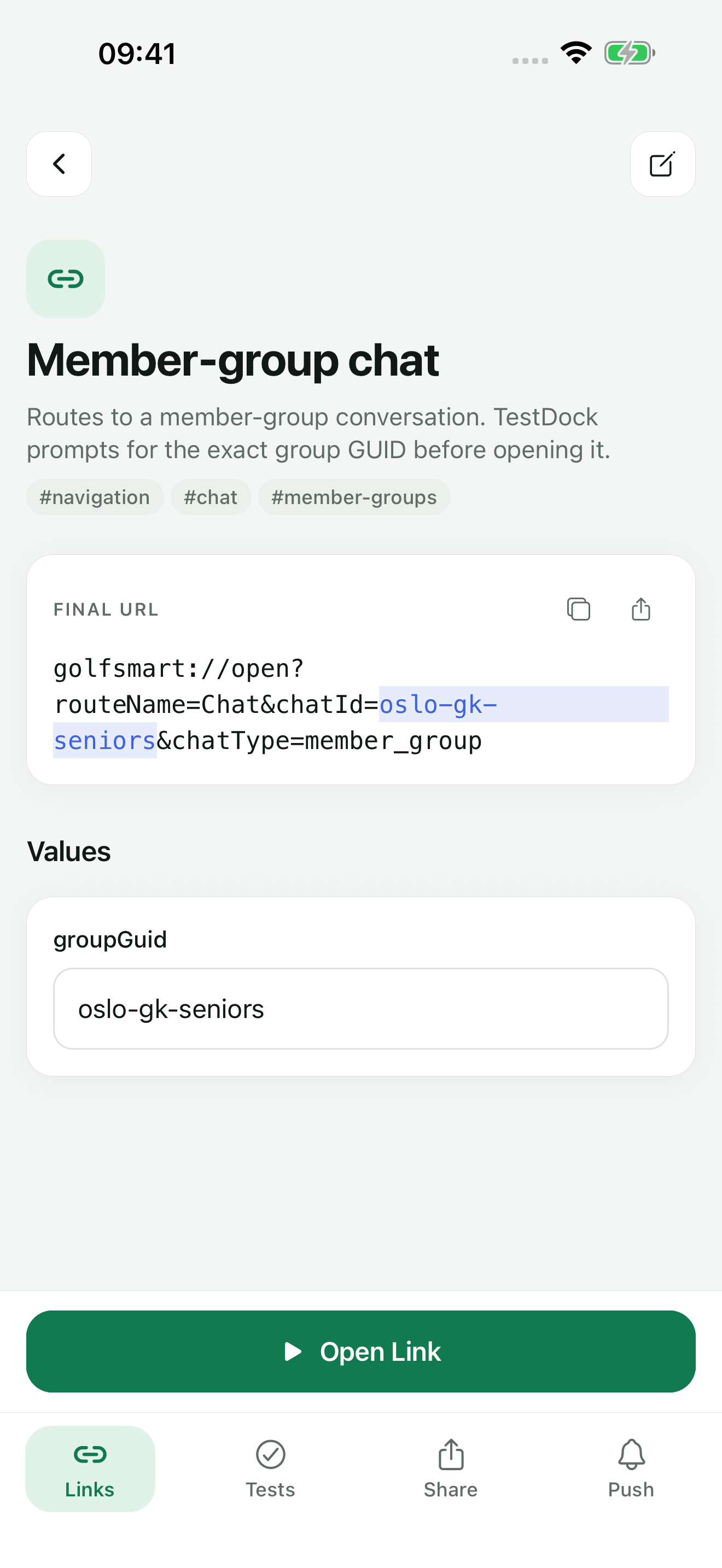
In TestDock, each app you test gets its own profile. The profile keeps that app’s URL schemes, saved links, push setups, and tests together.
- Saved links with values. Save
myapp://orders/{{orderId}}once with a default value, and change the value when you open it. - One tap to open. Every open is recorded with whether the phone accepted the link, so you can see what you already tried.
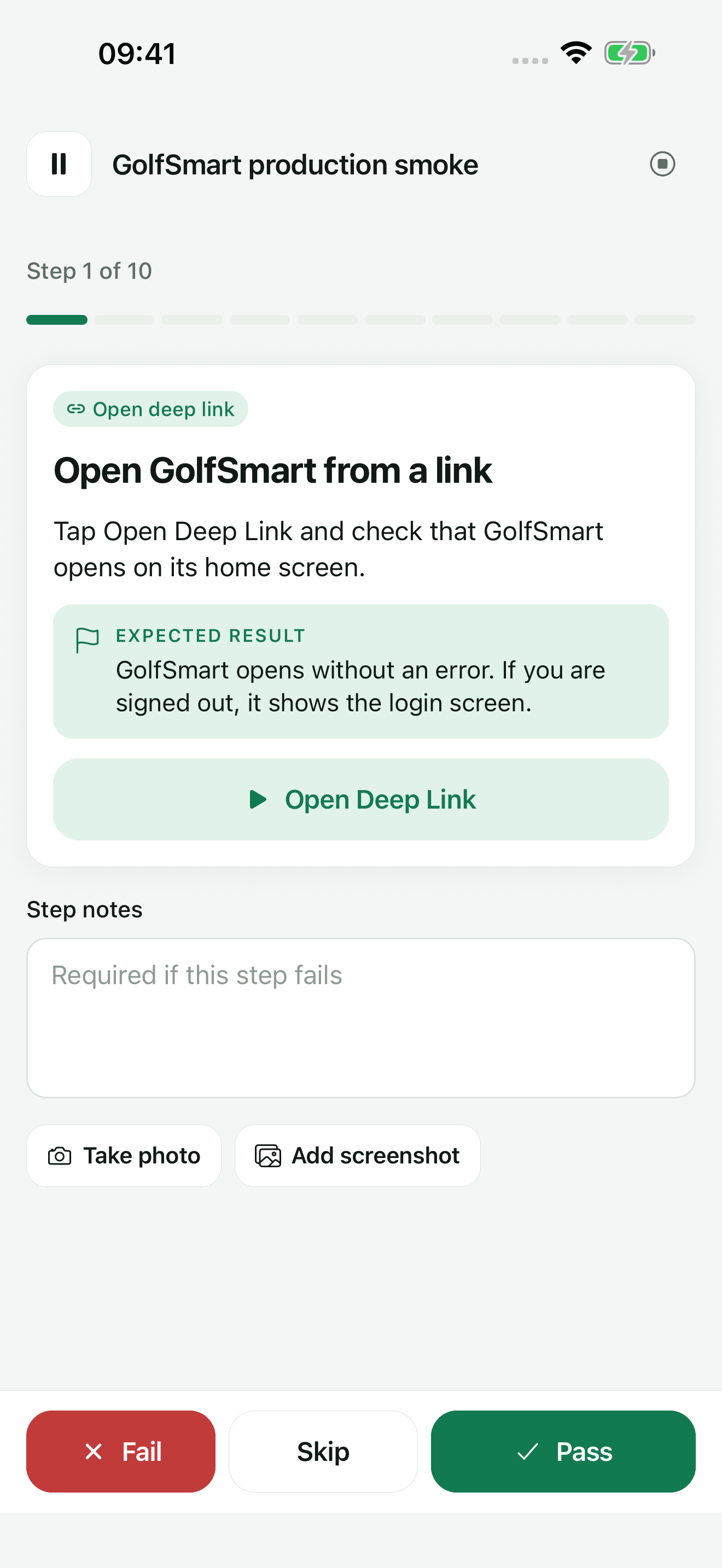
- Tests you can share. A test is a list of steps: open a link, check the expected result, add a note. Mark each step Pass, Fail, or Skip, attach a photo or screenshot, and share the result as Markdown, PDF, JSON, or text. Tokens and passwords in links are masked in the shared result.
With TestDock Pro you can also:
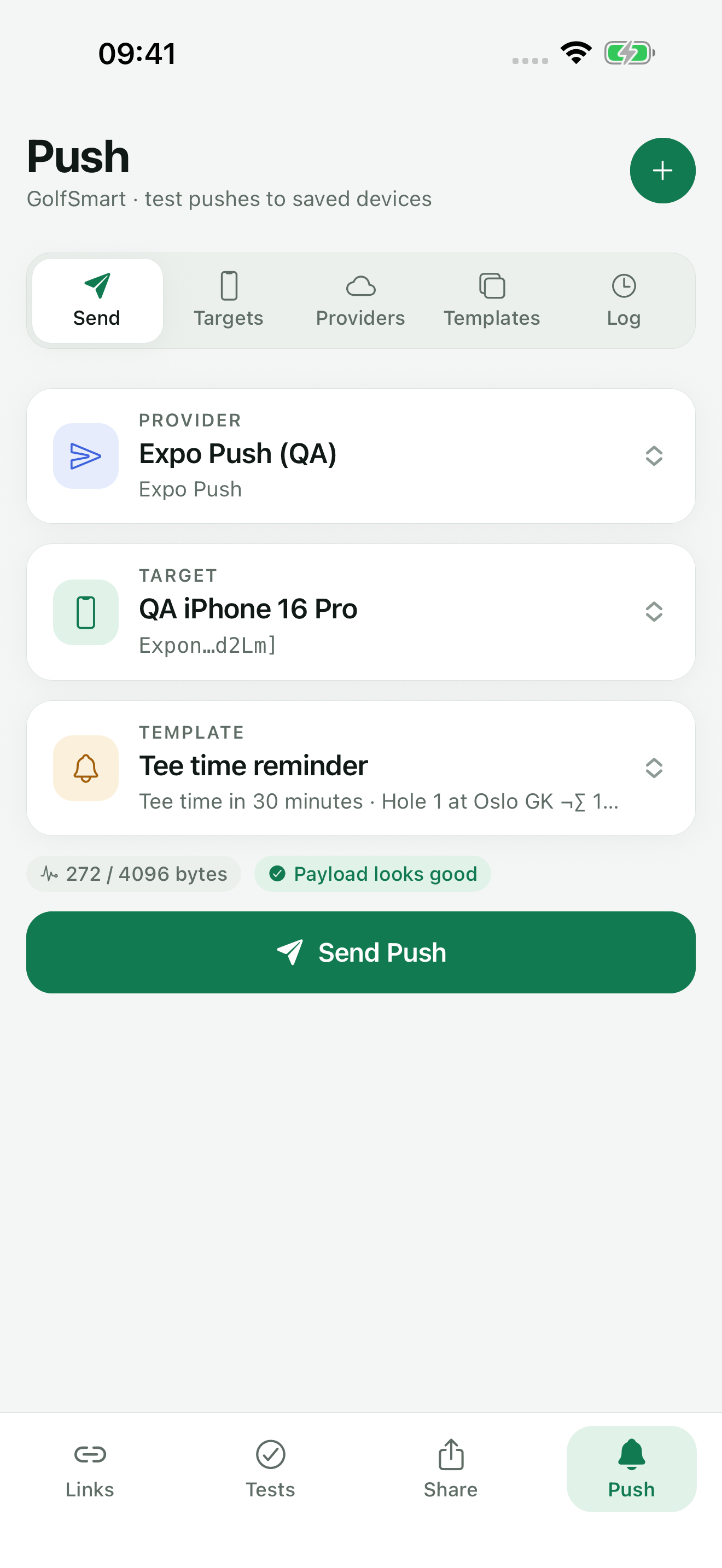
- Send test push notifications through Expo Push or Firebase Cloud Messaging, and through APNs on iPhone. Before sending, TestDock checks the payload size, the target, and the provider settings. It explains common provider errors in plain language and keeps a delivery log.
- Test share-sheet input with saved text, links, and files.
- Inspect your apple-app-site-association or assetlinks.json file for a domain.
03 / What’s new in 1.1
Getting a link into TestDock now takes one tap
Paste and open
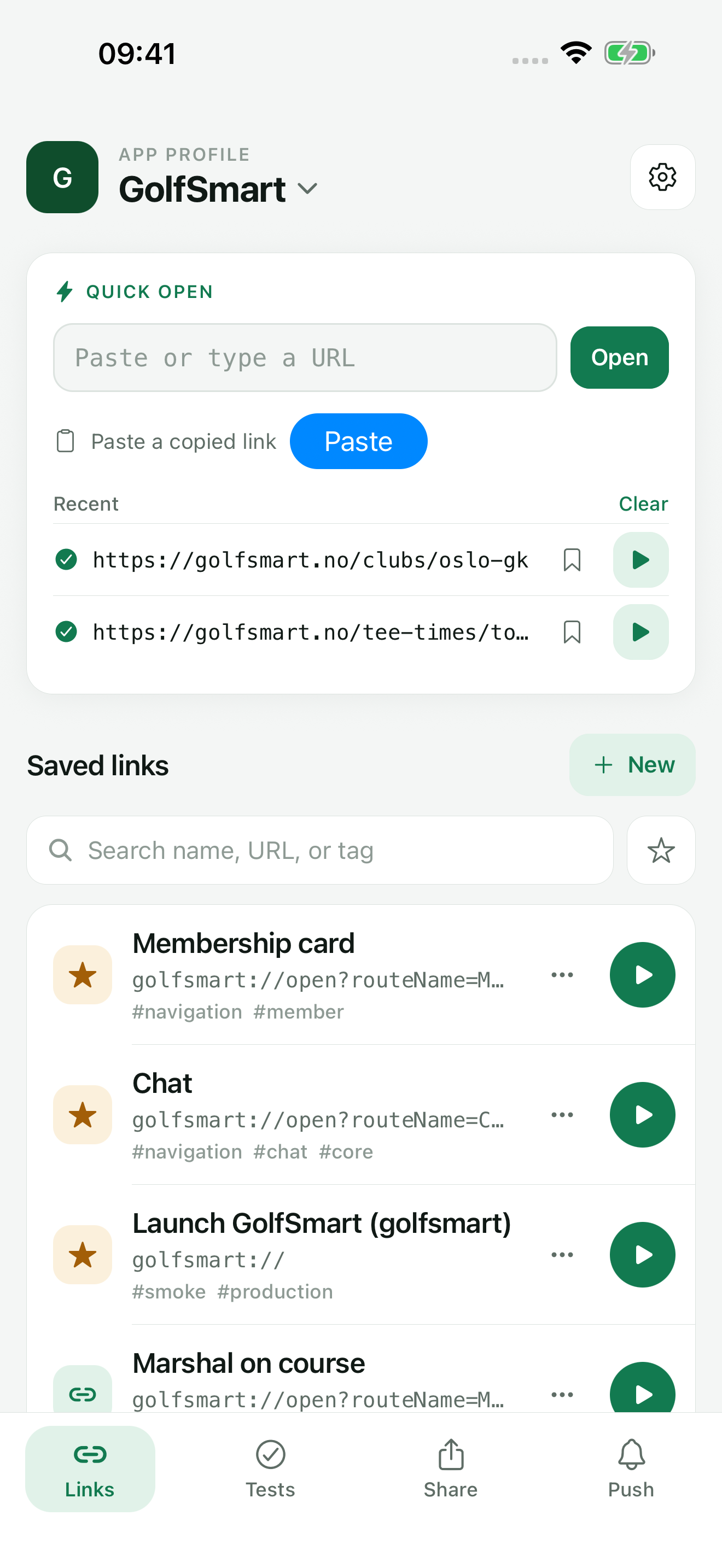
Copy a link anywhere and TestDock shows a Paste button. On iPhone it uses Apple’s own paste button, so there’s no “Allow Paste” prompt. TestDock finds the link inside whatever text you copied and opens it.
Quick open
Type or paste any URL and open it without saving it first. Your last five links stay in the list, each marked as opened or failed, with a button to save it.
Paste a whole list
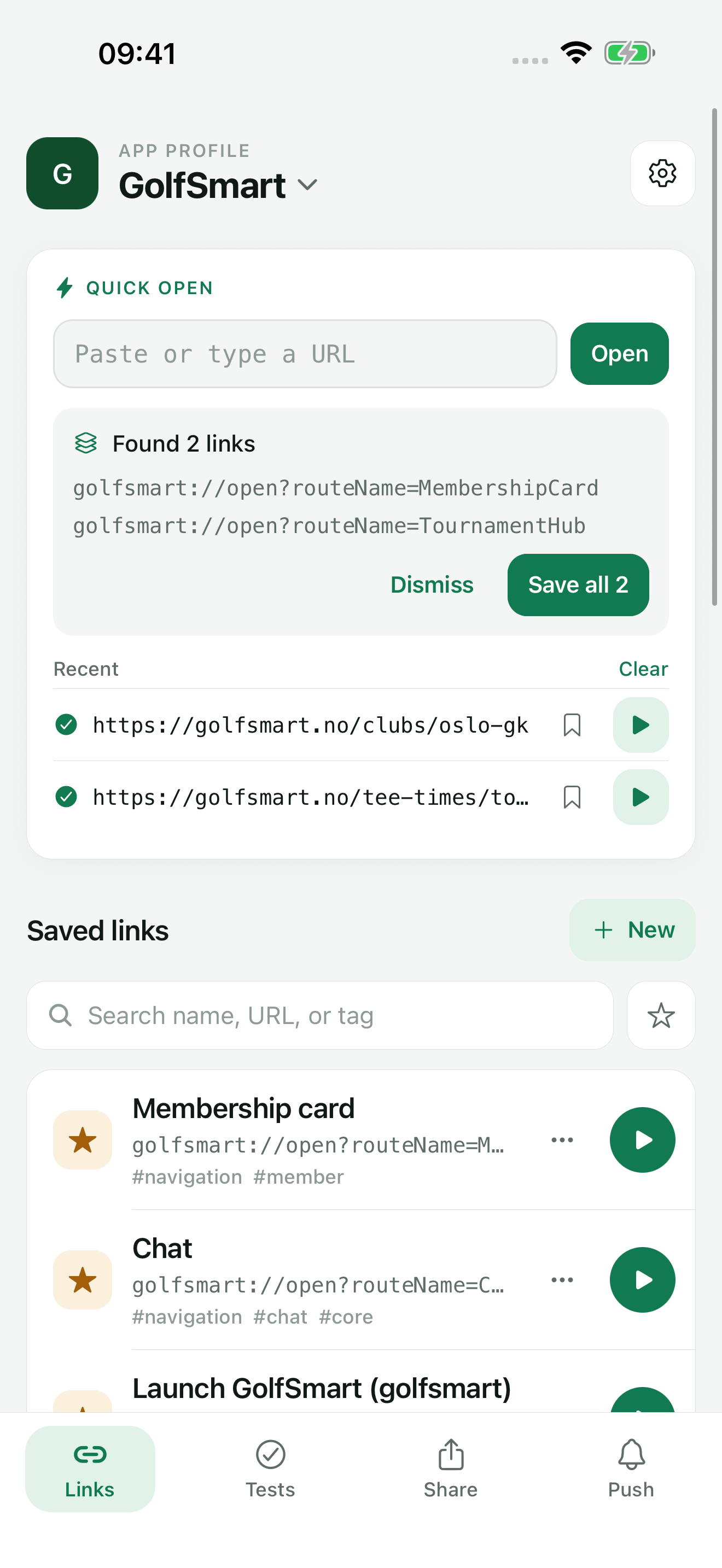
Paste text that contains several links and TestDock offers to save all of them at once. It skips links you already saved and names each new one for you.
Share into TestDock
Share a link from Slack, Mail, Safari, or any other app that shares text or links, and it arrives in TestDock’s Quick open, ready to open or save.
Test links for bug tickets
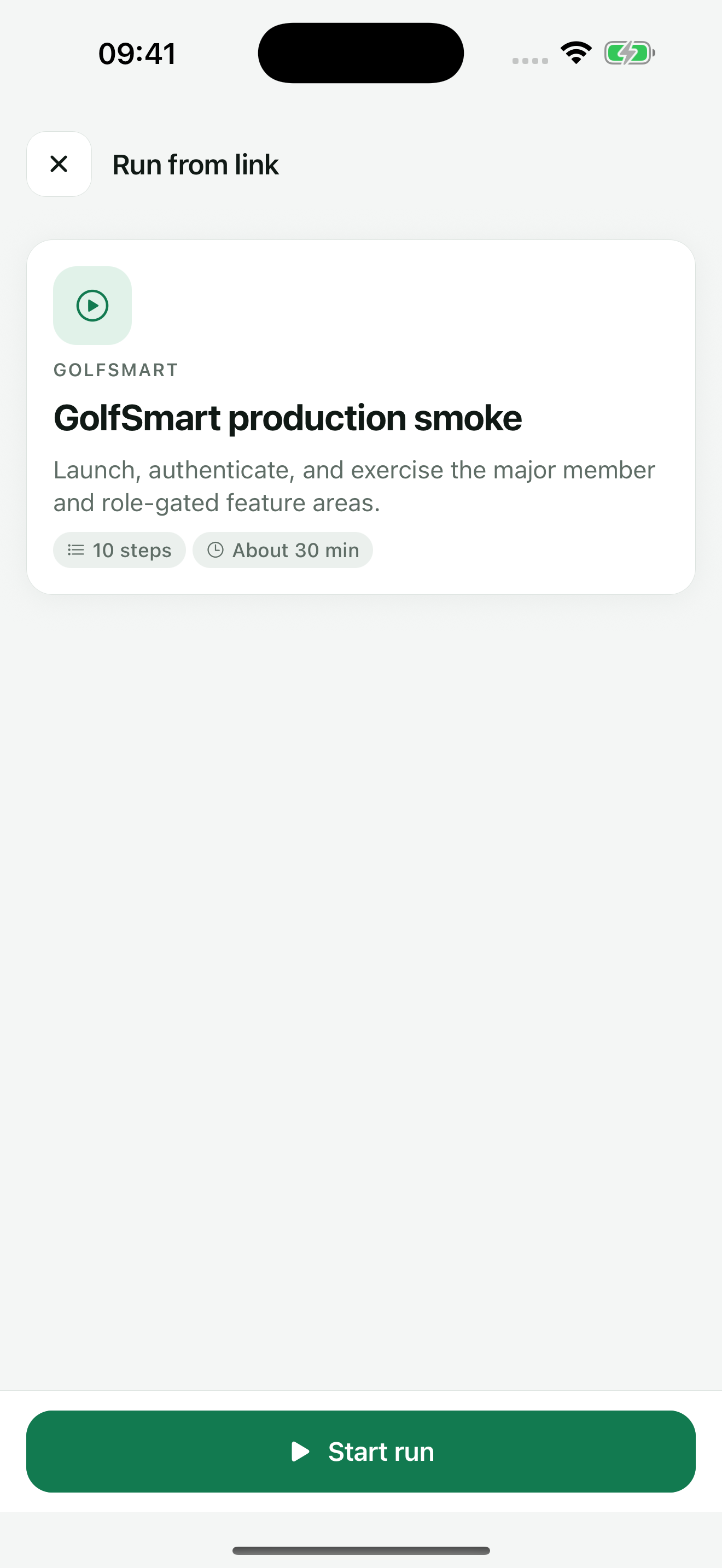
Copy a test link for any test and paste it into a ticket. Whoever opens it on a phone with TestDock sees which test it is and starts it with one tap. The link can also carry the values for the run, such as orderId=1234, so the tester doesn’t have to type them.
Shortcuts on the app icon
Long-press the TestDock icon to go straight to Quick open or one of your top three links. Favorites come first, then the links you opened most recently.
Picks up where you left off
TestDock reopens the last app profile you used, on the Links tab.
Your first test is free
The sample test and one test of your own now work without Pro. That includes running it, adding photos, and sharing the result.
Create links from your AASA file (Pro, iPhone)
After TestDock inspects your apple-app-site-association file, it lists the paths the file declares for your app. Choose the ones you want and TestDock saves them as links. Wildcards become values you fill in.
Faster, with a cleaner layout
The app is faster, and it’s organized into four tabs: Links, Tests, Share, and Push. Every saved link has its own open button.
04 / From ticket to test
What this looks like on a normal day
A tester reports that the order screen shows the wrong total when it’s opened from a link. They put a TestDock test link in the ticket.
You open the ticket on your phone and tap the link. TestDock shows the “Order deep link” test with the order number already filled in, and you start it. You step through it, mark the step that fails, attach a screenshot, and share the result back to the ticket as Markdown. After the fix, you run the same test again from the same link.
The link in the ticket is the test. Nobody has to copy a URL onto a phone by hand.
05 / Privacy
Your data stays on your phone
TestDock has no account and no server. Profiles, links, and test results are stored on the phone. Push credentials are kept in the phone’s secure storage and are never included in exports. TestDock connects to the internet only when you open a link, send a push notification, or inspect an association file.
TestDock 1.1
Free and Pro
TestDock is free for one app, with unlimited saved links, Quick open, Paste, sharing into TestDock, app-icon shortcuts, and one test of your own.
TestDock Pro is a one-time purchase. It adds unlimited apps and tests, push notification testing, share-sheet testing, association file inspection, and profile import and export.
Already using TestDock? The App Store and Google Play install the update automatically, or you can update from the store now. New to TestDock? Start with the first project guide.
Explore TestDock →