Capability overview
How can I use connected pdf review in Diff Anything?
Review rendered PDF pages, move between them, zoom the originals, or switch to extracted text. Visual diff compares page pixels, highlights changed regions, and reports a per-page visual-match percentage; selecting a wording difference keeps Extracted text active. Free shows the first 3 rendered page previews; Pro removes that preview cap.
Spot meaningful code changes with Smart Diff across 117 editor languages. Switch to Line Diff whenever you want an exact line-by-line review. Both views keep syntax highlighting and editing close at hand.
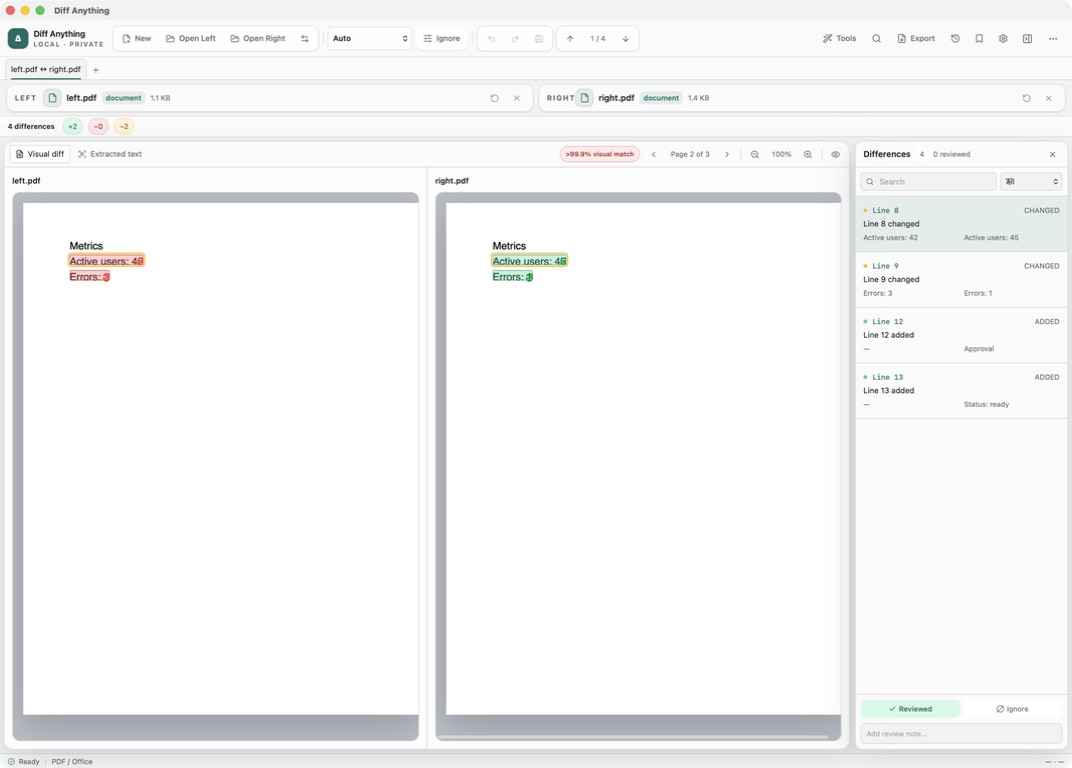
Two kinds of change
Did the page change, or did the wording change?
A PDF can change in two separate ways. The printed page can look different, because a logo moved, a font was swapped, or a table got wider. Or the words can be different, even when the page looks almost the same. Visual diff answers the first question and Extracted text answers the second.
The two often disagree, and that is useful. One added sentence can push text down on every later page, so Visual diff marks all of those pages while Extracted text shows a single insertion. A replaced chart with identical captions shows up only in Visual diff. Checking both tells you which kind of change you are dealing with.
Typical cases are a contract returned by the other side, a print proof from a designer, or an invoice template after a software update.
Visual diff
Reading the rendered-page comparison
Visual diff shows the same page of both PDFs next to each other, with changed areas highlighted. A badge reports how closely the rendered pages match; hover over it to see how many of the sampled pixels differ. If a page cannot be rendered, the badge reads Visual check unavailable instead of a number.
Move with the page arrows beside Page 1 of 12, zoom from 25% to 300%, and click the zoom value to return to actual size. The eye button turns the highlights off so you can read the page underneath.
Extracted text
Comparing the wording page by page
Extracted text pulls the text out of each page and compares it with the same engine used for plain text. The Ignore menu applies here, so Ignore whitespace and Ignore blank lines can hide differences caused by line breaks in the PDF. Differences made only of blank space are dropped.
Selecting a wording difference in the Differences pane also moves the page view to the page where that text appears, so you can switch to Visual diff and see it in context.
Limits and plans
Size limits and what each plan shows
Visual diff is available when both PDFs are 20 MB or smaller. Larger files are still compared as extracted text, with a notice. Extracted text is always available, including for files too large for Visual diff. A scanned PDF without a text layer has little or no text to extract, so use Visual diff for it. Matching pages do not prove that metadata, tagging, or hidden content match, and matching text does not prove the layout is the same.
The free plan shows the first 3 pages in Visual diff and compares the extracted text of the whole document, for files up to 5 MB per side. Pro shows every page, opens larger files, and exports the wording changes as a report. The same mode also accepts Word, PowerPoint, and RTF files, which are compared as extracted text.
In the workflow
How to use it
Open both PDFs
Choose the approved version and the new one. They open in PDF / Office mode with Visual diff shown first.
Scan the pages
Page through Visual diff and watch the match badge to find pages that look different.
Read the wording
Switch to Extracted text and step through the wording changes in the Differences pane.
Record the result
Mark each change Reviewed or add a note, and export a report with Pro.
Useful in practice
When to use it
Related manual
Compare folders, spreadsheets, documents, and images
Review cross-format spreadsheet values, release trees, documents, and visual assets with purpose-built navigation, safety checks, and rollback.
Read the guideDirect answers
Questions about connected pdf review.
Why does every page after my edit show as changed in Visual diff?
Added or removed text pushes the rest of the document down, so later pages look different. Extracted text shows the actual edit.
Is there a size limit for Visual diff?
Yes. Both files need to be 20 MB or smaller. Larger PDFs are compared by extracted text only.
Can I compare scanned PDFs?
Visual diff works on scanned pages. Extracted text needs a text layer, so a scan without one gives little or no text to compare.
Does the free plan compare the whole PDF?
The extracted text of the whole document is compared. Visual diff shows the first 3 pages; Pro shows all of them.
Free & Pro: what’s included
Available on the Mac App Store and Microsoft Store. Free desktop use lets you try every comparison engine for files up to 5 MiB per side and 10 new comparison sessions per local day; collection previews show the first 100 items and PDF previews show the first 3 pages. The free CLI supports text and JSON. A one-time Pro purchase removes the preview and session limits and unlocks larger sources within technical limits, saved profiles and history, report export, three-way merge, folder synchronization, batch manifests, trusted preprocessors, and every CLI mode.