Capability overview
How can I use local review workspace in Diff Anything?
Start each new comparison with the collapsible Differences pane visible, then work across in-memory tabs with search and filters, reviewed or ignored states, notes, a command palette, cancellable comparisons, diagnostics, density controls, and display scaling. Pro adds saved profiles and local history snapshots.
Spot meaningful code changes with Smart Diff across 117 editor languages. Switch to Line Diff whenever you want an exact line-by-line review. Both views keep syntax highlighting and editing close at hand.
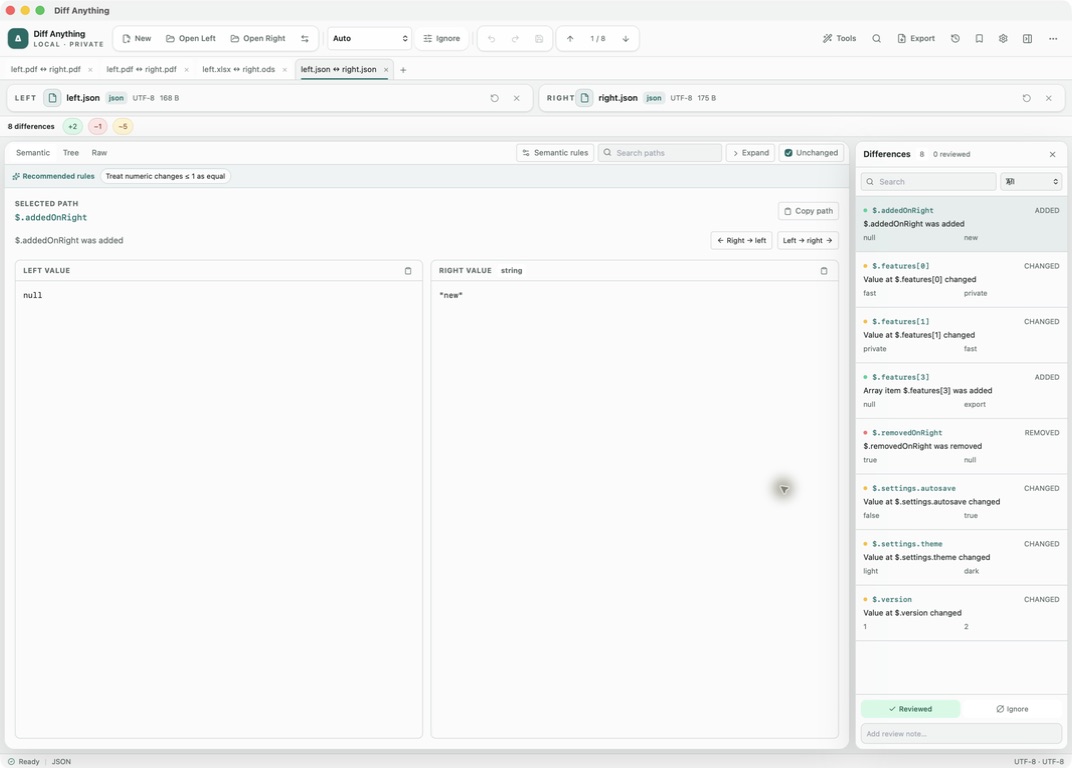
Tabs and sources
Keeping several comparisons open at once
Each tab holds its own left and right source and its own mode, and is named after the two files it compares. Use the plus button or the command palette to open another tab, so a folder review, the JSON file you found in it, and a PDF from the same release can stay open side by side.
Sources can be opened with Open Left (⌘O) and Open Right (⌘⇧O), dropped onto the window, or pasted into a side. Swap Sides (⌘⇧X) flips them, and the Replace and Clear buttons beside each source change or remove one side without touching the other. Tabs live for the current session; closing a tab or quitting with unsaved edits asks first.
Differences pane
Working through the list of differences
The Differences pane lists every change with its location, type, and both values, and can be resized or hidden. Search narrows the list, and the filter menu offers All, Added, Removed, Changed, Types, Warnings, Breaking, Pending review, Reviewed, and Ignored. F7 and F8 move to the previous and next difference, and the toolbar counter shows your position, such as 3 / 12.
Select a difference to mark it Reviewed or Ignore, or type into Add review note…. Filtering by Pending review then shows only what is left, which is the fastest way to finish a long review.
Palette and settings
Keyboard access and display settings
The command palette (⌘K on Mac) runs any main action by name, for example Swap left and right sources, Save modified files, Export current comparison, or Open merge, batch, and transform tools. A long comparison can be stopped with Cancel in the status bar.
Settings sets the Theme, the Default text layout, the Default comparison mode, Interface density (Comfortable or Compact), and Interface scale (100%, 110%, or 125%). Maximum automatic text size, 20 MB by default and up to 100 MB, sets how large a text file is opened automatically; archives, documents, and binary files are not affected by it. Export diagnostics… saves a small support file with the app version, operating system, and processor type; file contents and paths are left out.
History
Returning to earlier comparisons (Pro)
Recent comparisons lists finished comparisons of files on disk with their mode and date. Search it, Pin the ones you use often, remove single entries, or use Clear Unpinned History to remove everything you have not pinned. Only comparisons of files or folders on disk are recorded; pasted content is not. Reopen reads the current files again.
With Keep small text snapshots so history can reopen them switched on, files up to the Maximum saved snapshot size are kept with the entry, and Open saved snapshot shows the comparison as it was, even after the files changed. Maximum history entries sets how many unpinned comparisons are kept, from 0 to 500; 0 turns history off, and pinned comparisons are always kept. Environment-file snapshots keep variable names only, with values masked. History, profiles, and settings are stored on the computer.
In the workflow
How to use it
Open the first pair
Drop or open two files or folders. Open more tabs for related pairs as you find them.
Filter the list
Use the Differences pane filters and search to focus on one kind of change at a time.
Mark as you go
Mark items Reviewed or Ignore and add notes, then filter by Pending review to see what is left.
Come back later
With Pro, reopen the comparison from Recent comparisons or save it as a profile.
Useful in practice
When to use it
Related manual
Profiles, rules, review state, and reports
Turn a useful one-off comparison into a repeatable review with explicit ignore rules, notes, and, with Pro, saved profiles and exported reports.
Read the guideDirect answers
Questions about local review workspace.
Are open tabs restored after I quit?
No. Tabs last for the current session. With Pro, use Recent comparisons or a saved profile to return to a comparison.
Can I review without a mouse?
Yes. F7 and F8 move between differences, and the command palette runs the main actions by name.
Does history keep copies of my files?
Only if snapshots are on, and only for files up to the size you set. Turn snapshots off in Settings to keep only file locations, dates, and comparison settings.
What is in a diagnostics export?
A small JSON file naming the app and its version, your operating system and processor type, and when it was created. File contents and paths are left out.
Free & Pro: what’s included
Available on the Mac App Store and Microsoft Store. Free desktop use lets you try every comparison engine for files up to 5 MiB per side and 10 new comparison sessions per local day; collection previews show the first 100 items and PDF previews show the first 3 pages. The free CLI supports text and JSON. A one-time Pro purchase removes the preview and session limits and unlocks larger sources within technical limits, saved profiles and history, report export, three-way merge, folder synchronization, batch manifests, trusted preprocessors, and every CLI mode.