Capability overview
How can I use hex comparison of binary files in Diff Anything?
Compare any two files byte by byte in a hex view: offsets, hex values, and printable characters in two panes that scroll together, aligned across inserted and deleted bytes, with gaps where only one file has bytes. Step through the changed ranges, jump with Go to offset, read the selected bytes in the data inspector, and scroll to any row of multi-gigabyte files.
The free plan lists the first 100 byte differences; Pro lists every one. Images offer the hex view beside their pixel views.
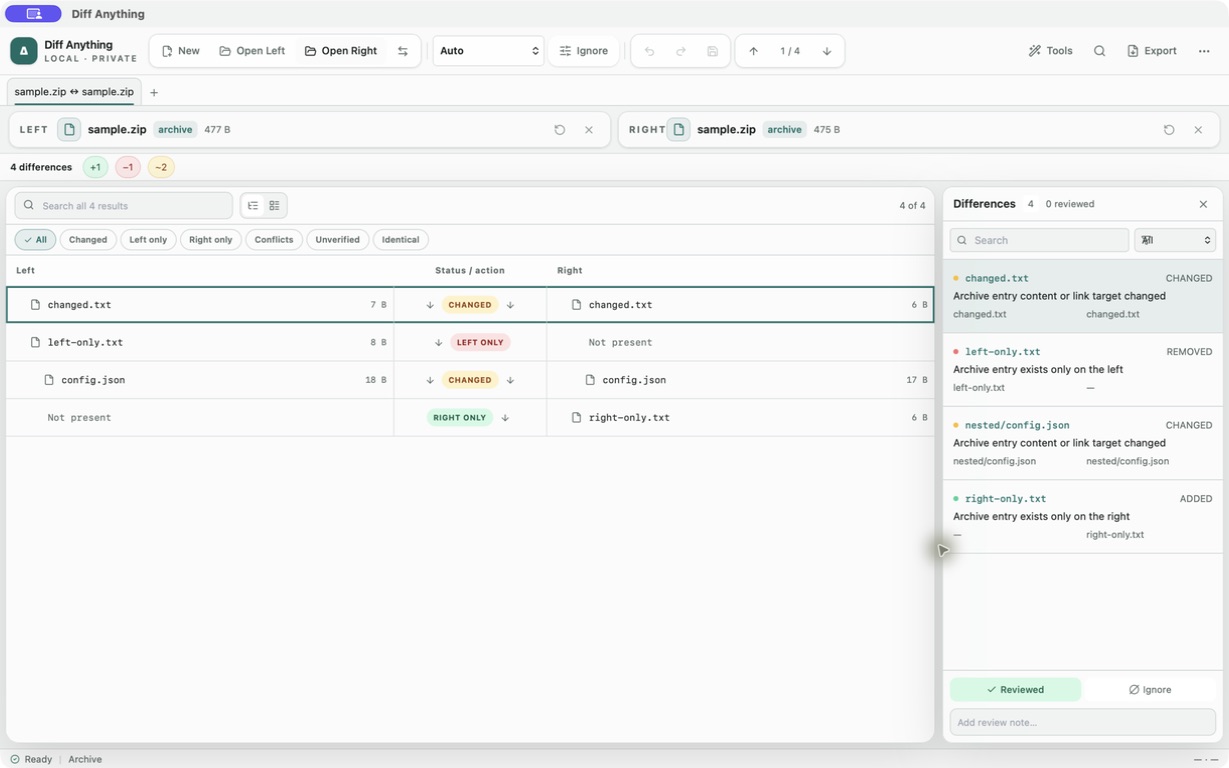
The hex view
Every byte, side by side
When two builds, firmware images, or data files differ, the question after "are they the same?" is "where?". The hex view shows both files in two panes that scroll together of 16 bytes a row: the offset, the hex values, and the printable characters, with changed, inserted, and deleted bytes in the difference colours.
Insertions and deletions are aligned, so one inserted byte does not make the rest of the file look changed. Where only one file has bytes, the other pane shows a gap.
Limits
Free plan and command line
The free plan lists the first 100 byte differences and the rows up to them, for files up to 5 MB; Pro lists every range and removes the size limit. A result stops after 10,000 ranges and names the offset where it stopped.
On Windows, the Pro command line prints the same ranges with their offsets and first bytes, in terminal or JSON output.
In the workflow
How to use it
Open the two files
Choose two binaries. Non-text files open in Binary / Image mode.
Open the hex view
See the changed, inserted, and deleted ranges side by side.
Step through the ranges
Use F7 and F8, or the Differences pane, and read values in the data inspector.
Jump to an offset
Use Go to offset when you know where to look.
Useful in practice
When to use it
Related manual
Compare folders, spreadsheets, documents, and images
Review cross-format spreadsheet values, release trees, documents, and visual assets with purpose-built navigation, safety checks, and rollback.
Read the guideDirect answers
Questions about hex comparison of binary files.
Does Diff Anything have a hex compare view?
Yes. Any two files can be compared byte by byte in a side-by-side hex view, aligned across inserted and deleted bytes.
How large can the files be?
The hex view scrolls to any row of multi-gigabyte files. The free plan compares files up to 5 MB and lists the first 100 byte differences.
Can I see the bytes of an image?
Yes. Images offer a Hex view beside their pixel views.
Free & Pro: what’s included
Available on the Mac App Store and Microsoft Store. Free desktop use lets you try every comparison engine for files up to 5 MiB per side and 10 new comparison sessions per local day; collection previews show the first 100 items, binary comparisons the first 100 byte differences, and PDF previews the first 3 pages. Plain text, JSON, and Jupyter notebook comparison are complete, and opening files from Finder or File Explorer, diffanything:// links, and AppleScript are free. The free CLI supports text, JSON, and notebooks. A one-time Pro purchase removes the preview and session limits and unlocks larger sources within technical limits, saved profiles and history, saving folder snapshots, report export and printing, JSON Patch export, applying patches, three-way merge and conflict resolution, the Git merge driver and merge tool, folder synchronization, batch manifests, trusted preprocessors, and every CLI mode.