Capability overview
How can I use semantic structured diffs in Diff Anything?
Compare JSON, YAML, XML, CSV, OpenAPI, and JSON Schema by parsed keys, paths, rows, values, and compatibility rather than line position alone. JSON and YAML lists of records are matched by an id, _id, uuid, or key field automatically, numbers compare by value, and XML elements are matched by a key attribute such as id or name, with readable XPath locations. API mode also provides explicitly limited contract review for GraphQL types and SQL CREATE TABLE definitions.
Spot meaningful code changes with Smart Diff across 117 editor languages. Switch to Line Diff whenever you want an exact line-by-line review. Both views keep syntax highlighting and editing close at hand.
How it works
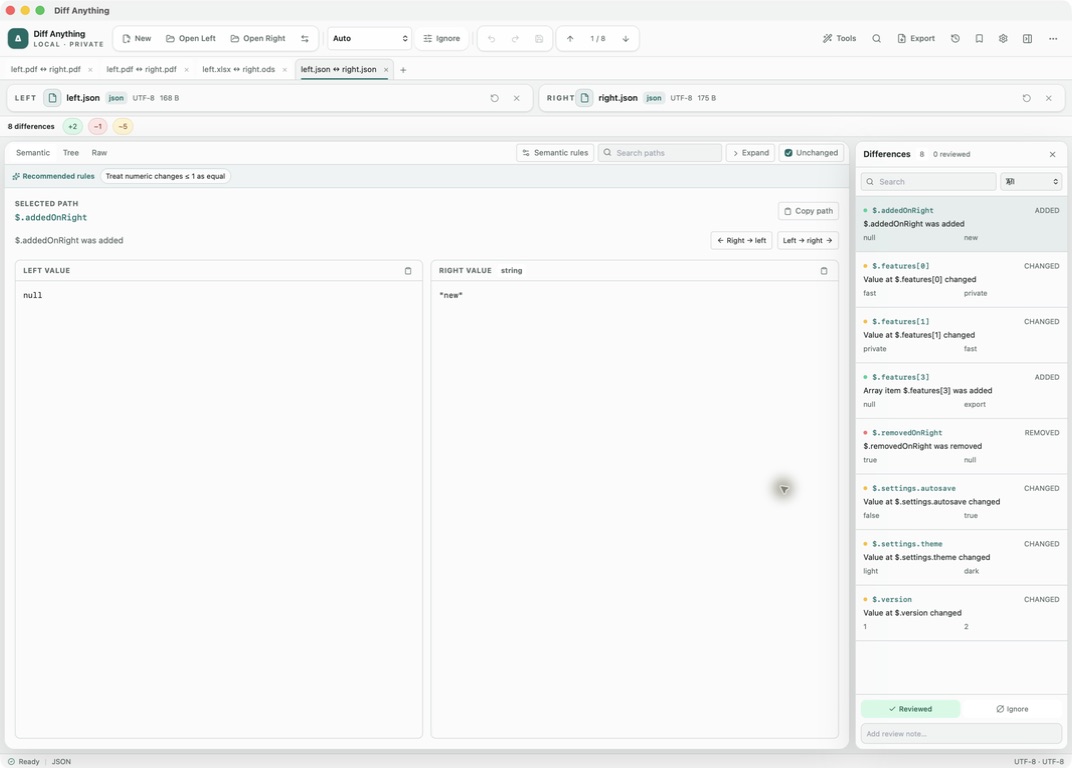
Both files are parsed into data before anything is compared
A configuration file or API definition can be rewritten by a tool without any value changing: keys sorted differently, indentation widened, XML attributes listed in another order. A line diff reports all of it. Structured modes read both files into data first, so only differences in the data itself are listed.
Each result names the location of the change, such as $.server.port, the kind of change (added, removed, changed, or a type change), and the value on each side. Lists of records with a unique id, _id, uuid, or key field are paired by that field, so an inserted record shows as added rather than shifting the rest. When an array holds the same items in a new order, that is reported once as a reorder rather than as a change at every position.
Three views show the same result in different ways. Semantic is the list of differences. Tree shows both documents as expandable trees next to each other. Raw shows both sides as normalized text. Search paths filters the list, clearing the Unchanged checkbox hides values that match, and Copy path puts the selected location on the clipboard.
Formats
What each structured mode reads
Pick the mode from the Comparison mode menu, or let Auto choose it from the extension and the content:
- JSON: objects compared by key, numbers by value, comments allowed, and a warning when a key appears twice. Semantic rules can hide expected noise.
- YAML: compared as data, so comments and layout never count as changes, with the same Semantic rules as JSON.
- XML: elements, attributes, and text, with readable XPath locations. Namespace prefixes are matched by the namespace they point to. Repeated elements are matched by name and a key attribute such as id or name, and Unordered elements ignores child order under a parent you list.
- CSV: rows and cells, with the delimiter detected for each file (comma, tab, semicolon, or pipe) unless you type one in the Delimiter box, and rows paired by row index or by the columns you choose in the Key menu and under CSV options.
- API Schema: OpenAPI and JSON Schema in JSON or YAML, plus GraphQL types and SQL CREATE TABLE statements. Likely breaking changes carry a rule code and appear under the Breaking filter.
Copying values
Moving a value from one file into the other
To bring one value across, pick it in the list and click the arrow button that points toward the file you want to change: Right → left or Left → right. To move several at once, mark them Reviewed in the Differences pane and use Apply reviewed left or Apply reviewed right.
JSON and HTTP Response targets are edited in place, so their comments, indentation, and layout are kept. YAML and XML targets are rebuilt from their data, and the app asks for confirmation first because comments and layout are not kept; an API Schema in JSON keeps its layout, and one in YAML is rebuilt after a confirmation. Undo reverses the change, and nothing is written to disk until you choose Save modified files. CSV results have no copy buttons; they are for review.
Free and Pro
How much of this the free plan covers
JSON is complete on the free plan, including every semantic rule and copying values. YAML, XML, CSV, and API Schema are marked Preview in the mode menu, and YAML can use the same semantic rules: each shows its full result for files up to 5 MB per side, except CSV, which shows the first 100 rows. All of them count toward 10 new comparison sessions per day.
Pro removes those limits, saves your rules and review marks in a profile, exports reports, and runs every structured mode from the command line. The API Schema rule codes are a review aid: $ref references are not resolved, and request and response schemas are checked with the same rules, so read each flagged item before acting on it.
In the workflow
How to use it
Open the two files
Choose the old and new version. Check the Comparison mode menu to see which mode Auto picked.
Remove expected noise
Add JSON or YAML Semantic rules, XML Unordered elements, or CSV key and ignored columns for values you expect to differ.
Review the Semantic list
Filter by Added, Removed, Changed, or Types and open the Tree view when you need the surrounding structure.
Copy what belongs
Mark the changes you accept as Reviewed, apply them to the other side, and save.
Useful in practice
When to use it
Related manual
Choose the right comparison mode
Choose sources, understand automatic detection, and select the engine that answers the question you are actually asking.
Read the guideDirect answers
Questions about semantic structured diffs.
Does changing key order create differences?
No. Objects are compared key by key, and XML attributes by name, so the same data in another order compares as equal.
Which structured modes have settings?
JSON and YAML have Semantic rules, XML has Unordered elements, CSV has the Key menu and CSV options, and HTTP Response has Ignored headers. API Schema compares with fixed rules.
Why did my JSON file lose its comments after I copied a value?
Copying a value rebuilds the target from its parsed data and writes it back pretty-printed. Comments are not part of the data. Use Undo if you want the original text back.
Is API Schema mode a complete compatibility check?
No. It labels changes that often break clients, such as a removed operation or a new required field. It does not resolve $ref references, so each flagged item still needs a person to check it.
Free & Pro: what’s included
Available on the Mac App Store and Microsoft Store. Free desktop use lets you try every comparison engine for files up to 5 MiB per side and 10 new comparison sessions per local day; collection previews show the first 100 items and PDF previews show the first 3 pages. The free CLI supports text and JSON. A one-time Pro purchase removes the preview and session limits and unlocks larger sources within technical limits, saved profiles and history, report export, three-way merge, folder synchronization, batch manifests, trusted preprocessors, and every CLI mode.