Capability overview
How can I use folder snapshots in Diff Anything?
Save snapshot… records a folder's entries, sizes, modification times, permissions, link targets, and SHA-256 hashes, with the members of the archives it holds, in a .dasnapshot file, never any file's content. Open the snapshot later as either side of a comparison to see what changed in the folder since, or compare two snapshots, with the same statuses, filters, reports, and accessible workspace as two folders.
Saving a snapshot is part of Pro. Opening and comparing one works on the free plan as a folder comparison preview, which lists the first 100 results. A snapshot holds no files, so copying and synchronizing are not offered on its side.
What is recorded
A folder's state in one small file
To know later what changed in a folder since a release, a backup, or a handover, you need its earlier state, not a full copy. Save snapshot… records each entry's relative path, type, size, modification time, permissions, and link target, and the SHA-256 hash of each file, in a .dasnapshot file you choose. Archives in the folder are recorded with their members.
A snapshot never holds any file's content. It records the options that chose its entries, such as ignore patterns and .gitignore rules, so a later comparison looks at the same files.
Comparing
Compare the folder now with the state it recorded
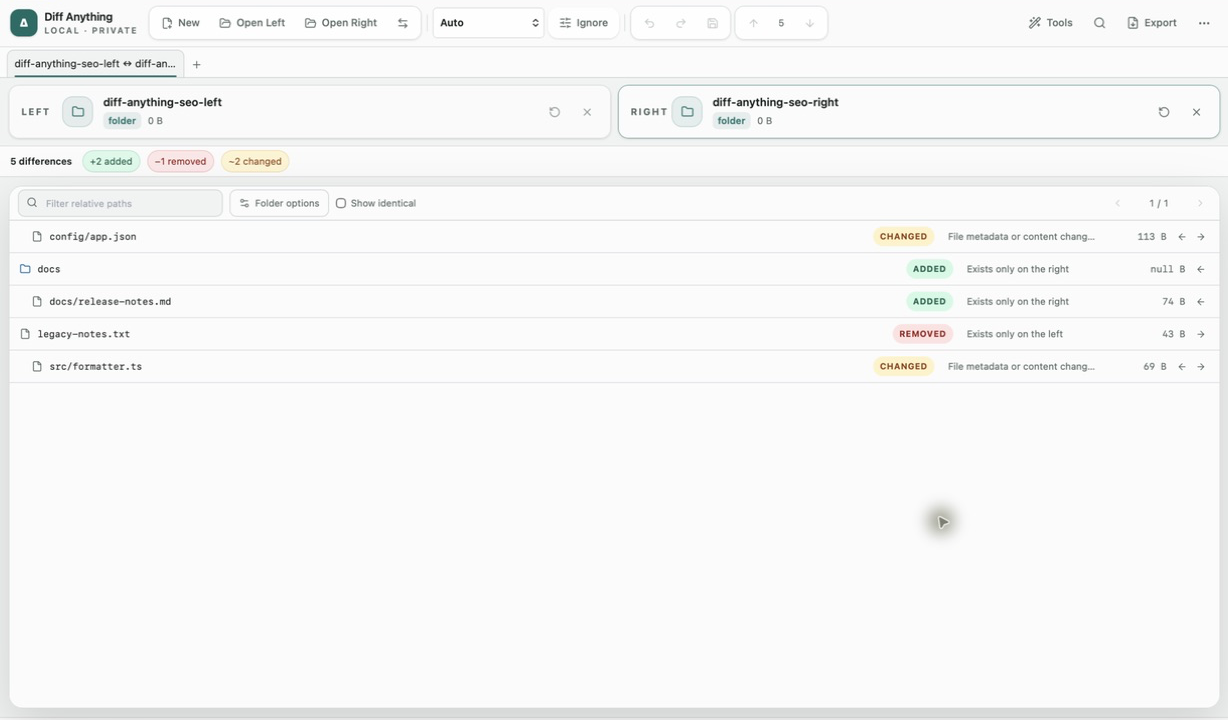
Open a snapshot as either side, by choosing or dropping it, and compare it with the folder as it is now, with another folder, or with another snapshot. The result uses the folder comparison's statuses, filters, search, reports, and accessible workspace, and moved files are found by their hashes.
A file the snapshot recorded without a hash, because it was too large or could not be read, is listed as unverified with the reason. A snapshot holds no files, so comparing a pair of files as text, copying, and synchronizing are shown unavailable on its side.
Free and Pro
Saving needs Pro; opening is a free preview
Saving a snapshot is part of Pro, in the app and, on Windows, with --save-snapshot on the command line. Opening and comparing a snapshot works on the free plan as a folder comparison preview, which lists the first 100 results.
In the workflow
How to use it
Save a snapshot
With Pro, choose Save snapshot… on a folder and pick where the .dasnapshot file goes.
Keep working
Release, back up, or hand over the folder as usual.
Open the snapshot later
Put the snapshot on one side and the folder on the other.
Review what changed
Filter added, removed, changed, and moved files since the snapshot.
Useful in practice
When to use it
Related manual
Compare folders, spreadsheets, documents, and images
Review cross-format spreadsheet values, release trees, documents, and visual assets with purpose-built navigation, safety checks, and rollback.
Read the guideDirect answers
Questions about folder snapshots.
Does a snapshot contain my files?
No. It records names, sizes, dates, permissions, link targets, and hashes, never any file's content.
Can I compare two snapshots?
Yes. Two snapshots compare with each other as two folders would.
Do I need Pro to open a snapshot?
No. Opening and comparing one is a free preview of the first 100 results. Saving one needs Pro.
Free & Pro: what’s included
Available on the Mac App Store and Microsoft Store. Free desktop use lets you try every comparison engine for files up to 5 MiB per side and 10 new comparison sessions per local day; collection previews show the first 100 items, binary comparisons the first 100 byte differences, and PDF previews the first 3 pages. Plain text, JSON, and Jupyter notebook comparison are complete, and opening files from Finder or File Explorer, diffanything:// links, and AppleScript are free. The free CLI supports text, JSON, and notebooks. A one-time Pro purchase removes the preview and session limits and unlocks larger sources within technical limits, saved profiles and history, saving folder snapshots, report export and printing, JSON Patch export, applying patches, three-way merge and conflict resolution, the Git merge driver and merge tool, folder synchronization, batch manifests, trusted preprocessors, and every CLI mode.