Direct answer
Can Diff Anything compare YAML semantically?
Diff Anything parses YAML into a structured comparison rather than treating indentation and key order as the whole result. The JSON semantic rules work in YAML too: ignore paths, keyed or unordered lists, case rules, and numeric tolerance, and Pro profiles save them. With Pro on Windows, the CLI compares YAML as well.
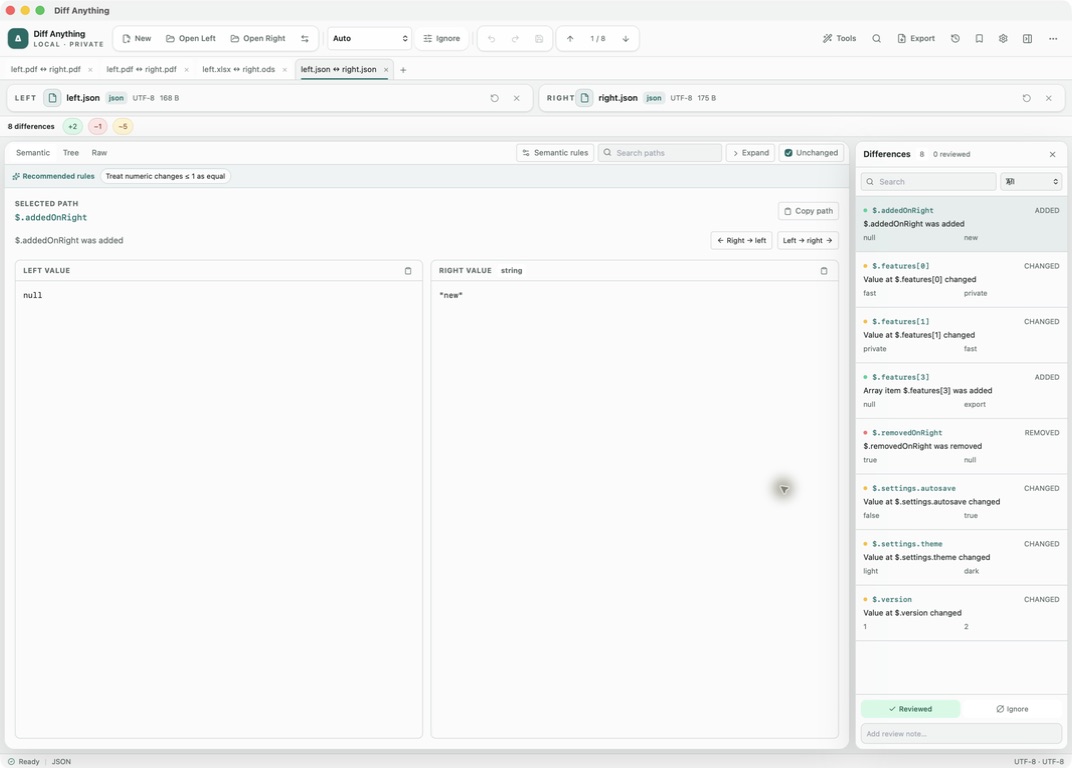
Parsed YAML
Compare the data the YAML describes, not its layout.
The same YAML configuration can be written with different indentation, quoting, key order, and comments. A text diff reports all of that. Diff Anything reads both files as data, so moving a key, re-indenting a block, or editing a comment does not produce a difference.
Changes are listed with their location, for example $.spec.template.spec.containers[0].image. A value that changes type, such as a number replaced by a quoted string, is reported as a type change.
Lists of records with a unique id, _id, uuid or key field are paired by that field, as in JSON. Other lists are compared by position; when a list holds the same items in a different order, the result reports a reorder instead of a change to every item.
YAML features
Anchors, tags, and multiple documents.
Anchors and aliases are resolved before the comparison, so you see the values each side produces, with a warning that the original formatting was not kept. Merge keys (<<) are applied, so the merged mapping is what gets compared.
A file with several documents separated by --- is compared document by document, as $[0], $[1] and so on. Tags are not compared as values; each one is listed as a warning, and a tag that only one file has counts as a difference.
YAML against JSON
Check a format conversion directly.
Open a JSON file on one side and a YAML file on the other, and Auto compares them as YAML, with the same semantic rules. This is a quick way to confirm that a configuration converted between the two formats still contains the same values.
The Semantic view lists each difference. The Raw view shows both sides as normalized JSON, which is useful when you want to read the parsed values next to each other.
Rules and limits
Use the JSON rules on YAML, and know what changes on apply.
Open Semantic rules to use the same rules as JSON mode: Ignore paths, Unordered array paths, Ignore case at paths, Array keys and Numeric tolerance, plus one-click Recommended rules. In a file with several documents, rule paths start with the document's position, for example $[1].build. A file that repeats a key is reported as an error instead of being compared.
Copying a change into a YAML file rewrites that file from its data. The confirmation says so before anything changes: values, tags, and documents are kept, but comments and layout are not, and anchors are written out as plain values. A file that cannot be rewritten without losing data is refused instead.
On the free plan, YAML shows its complete result in the app, within 5 MB per file and 10 comparisons per day. YAML from the command line requires Pro.
Best for
Where this workflow fits.
- Kubernetes, CI, and application configuration that is reformatted or re-ordered
- Checking a YAML file against the JSON it was converted from, or the other way round
- Multi-document YAML files that combine several resources
No accounts, cloud comparison service, analytics, or telemetry.
Relevant capabilities
What Diff Anything brings to the job.
Practical workflow
From setup to a reviewed result.
Open the two YAML files
Choose the current and previous configuration, or put the JSON source on one side.
Read the Semantic list
Start with the list of added, removed, changed and type-changed values and their paths.
Check the warnings
Look for warnings about resolved anchors or ignored tags, and for lists reported as reordered.
Apply with care
Copy a change across only after reading the confirmation, since the target file is rewritten without its comments and anchors.
Useful in practice
Direct answers
Questions about YAML diff tool.
Can Diff Anything compare YAML semantically?
Diff Anything parses YAML into a structured comparison rather than treating indentation and key order as the whole result. The JSON semantic rules work in YAML too: ignore paths, keyed or unordered lists, case rules, and numeric tolerance, and Pro profiles save them. With Pro on Windows, the CLI compares YAML as well.
Does YAML comparison ignore comments and indentation?
Yes. Comments and layout are not part of the parsed data, so changing them does not create a difference.
Can I compare a multi-document YAML file?
Yes. Documents separated by --- are compared in order, with locations such as $[0] and $[1].
Are anchors and aliases compared as written?
No. Aliases are resolved and merge keys (<<) are applied first, so the comparison shows the values each file produces.
Can I ignore a field in a YAML comparison?
Yes. Add its path under Ignore paths in Semantic rules, for example $.metadata.annotations. YAML uses the same rules as JSON, and Pro profiles save them for the next run.
Go deeper
Choose sources, understand automatic detection, and select the engine that answers the question you are actually asking.
Read Choose the right comparison modeFree & Pro: what’s included
Available on the Mac App Store and Microsoft Store. Free desktop use lets you try every comparison engine for files up to 5 MiB per side and 10 new comparison sessions per local day; collection previews show the first 100 items and PDF previews show the first 3 pages. The free CLI supports text and JSON. A one-time Pro purchase removes the preview and session limits and unlocks larger sources within technical limits, saved profiles and history, report export, three-way merge, folder synchronization, batch manifests, trusted preprocessors, and every CLI mode.