Capability overview
How can I use responsive templates in Screen Studio Kit?
Start from 26 built-in layouts, including editorial, product, comparison, and multi-device treatments. Three are included in Free; Pro unlocks all 26. Every generated layer stays editable and responsive.
With Pro, save a working page as a custom project template for the next release.
Templates adapt to the selected output size instead of producing a flattened mockup.
Template library
Start from a layout built for store screenshots
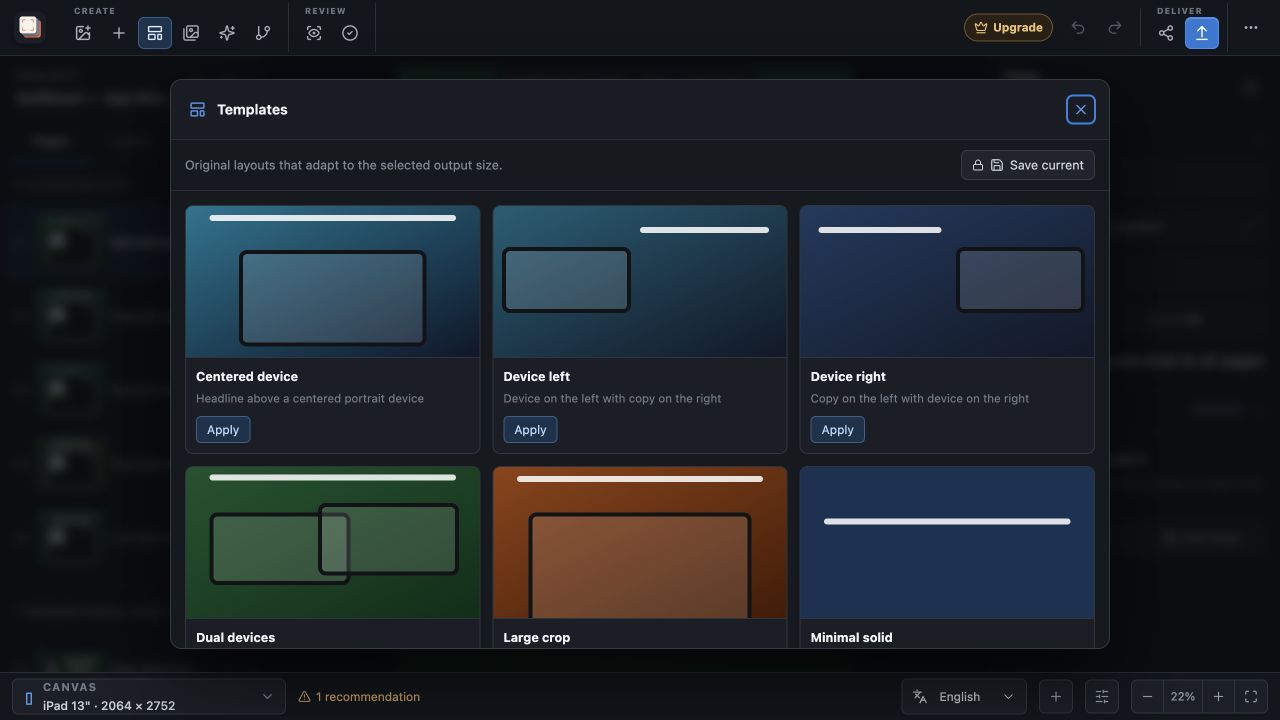
The Templates panel shows each built-in layout with a small preview and a one-line description. Layouts range from straightforward arrangements such as Centered device, Device left and Device right to styled treatments such as Editorial cream, Dark premium, Finance trust, Health calm, SaaS grid and Gaming neon.
Several templates are built around more than one device, including Dual devices, Duo staggered, Trio showcase and Before and after. Hardware scenes cover other device families: iPhone + Apple Watch, Android + circular watch, Television cinema, MacBook hero, iMac focus and Windows workstation, which pairs a PC monitor with a laptop.
You can choose a template when you create a project or apply one later from the Templates panel. A blank page is always available if you would rather build the layout yourself.
Choose by the job of the page. Typography first pairs a large headline with a supporting product glimpse, Feature card focuses on one capability, Large crop shows an oversized device cropped at the bottom edge, and Panorama clean is an edge-to-edge foundation for a seamless set.
What Apply does
A template becomes ordinary editable layers
Apply replaces the current page's background and layers with the template's own. Text, shapes and device frames arrive as normal layers, and device frames are filled with the first image in your asset library, so a real capture appears straight away.
Template positions are stored relative to the canvas, so the same layout adapts to each selected output size. Most templates use Automatic for preset frames, which switch between iPhone, Android, Mac and other hardware as you change sizes; the hardware scenes keep the device they were designed for.
Apply templates before you translate a page. Applying one replaces the text layers, so any translations stored for that page are removed with them.
If a template does not suit the page, Cmd/Ctrl+Z restores the previous layers and background.
Custom templates
Save your own layout for the next release
With Pro, Save current in the Templates panel stores the current page's background and layers as a custom template under a name you choose. Custom templates are saved in the project, appear after the built-in ones and can be deleted when you no longer need them.
A saved template is useful for a page type you repeat, such as a feature page with a callout or a closing page with a rating widget.
Free and Pro
Three templates in Free, the full library with Pro
Free includes Centered device, Device left and Device right. Every other built-in template and all custom templates require Pro; their Apply button shows a lock and opens the upgrade dialog. Pro is a one-time purchase through the Mac App Store or Microsoft Store.
In the workflow
How to use it
Import your captures first
Add at least one app screenshot so the template's device frames are filled with your own interface.
Apply a template
Open Templates and choose Apply on a layout that matches the message of the page.
Replace the sample copy
Edit the headline on the canvas and change colours or the background to match your app.
Check other sizes and save
Switch output sizes to review the layout, then save the page as a custom template with Pro if you will reuse it.
Useful in practice
When to use it
Related manual
Create your first screenshot project
Set up target stores, organize assets, create pages, and build a reusable composition that survives the next release.
Read the guideDirect answers
Questions about responsive templates.
Which templates are included in Free?
Centered device, Device left and Device right. Pro unlocks the rest of the built-in library and custom templates.
Does applying a template affect other pages?
No. It replaces the background and layers of the current page only. Other pages keep their content.
Are template layers locked or flattened?
No. Every text, shape and device frame from a template is an ordinary layer that you can move, restyle or delete.
Can I use my custom templates in another project?
Custom templates are saved inside the project where you create them. Duplicating that project keeps them.