Comparison and merge tool
Available on macOS and Windows · Available on the Mac App Store and Microsoft Store
Diff AnythingFile and folder comparison for Mac and Windows
Find the changes that matter in your code, files, and folders.
Compare code, spreadsheets, documents, databases, images, archives, and folders in one desktop app. Review exact differences, merge and resolve conflicts with Pro, and keep compared files on your computer.
See every change. Keep every source local.
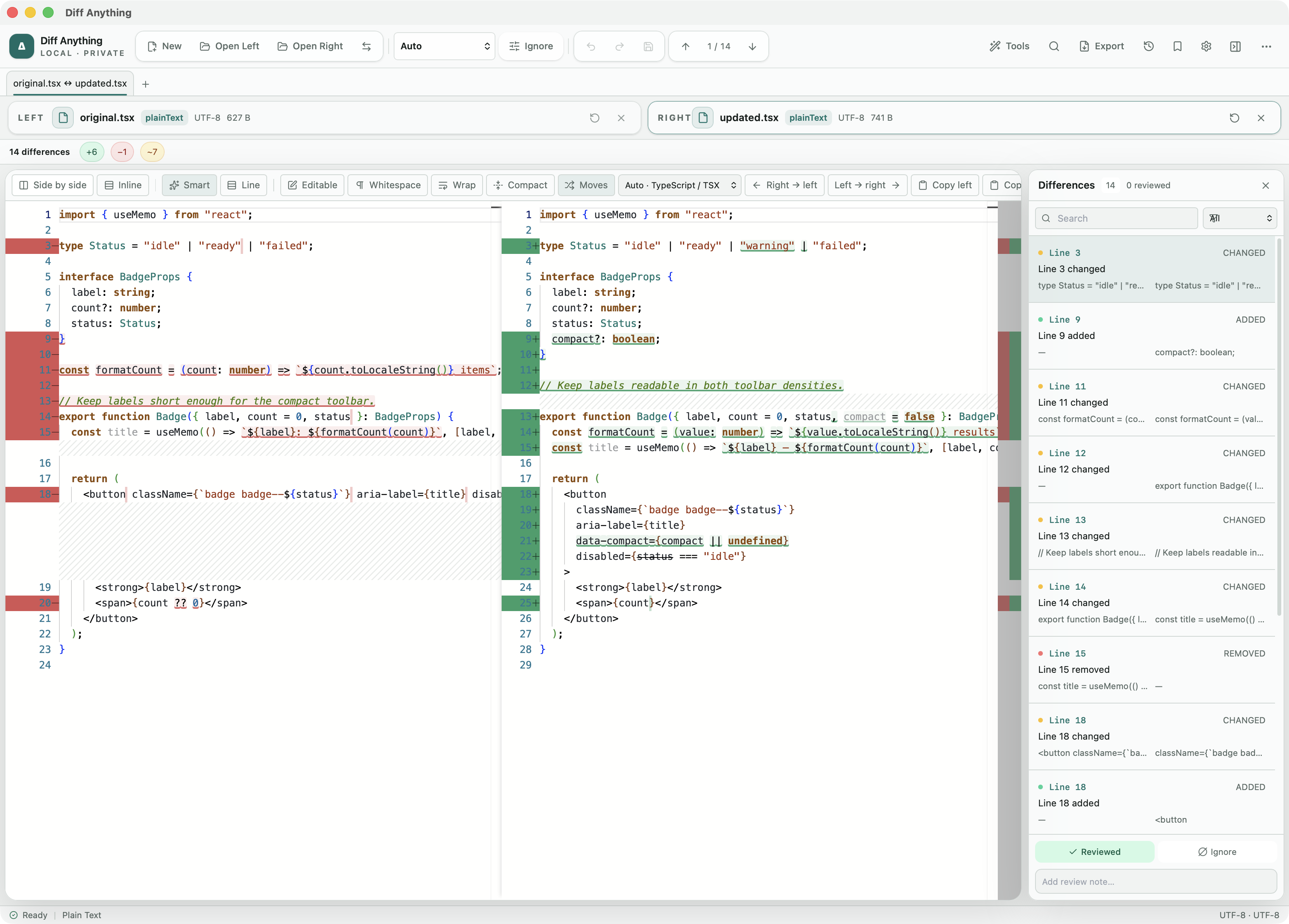
Spot meaningful code changes with Smart Diff across 117 editor languages. Switch to Line Diff whenever you want an exact line-by-line review. Both views keep syntax highlighting and editing close at hand. Ignore rules leave timestamps, IDs, comments, or fixed columns out of a text comparison, and Align these lines pairs two lines by hand where the automatic match is not the one you want.
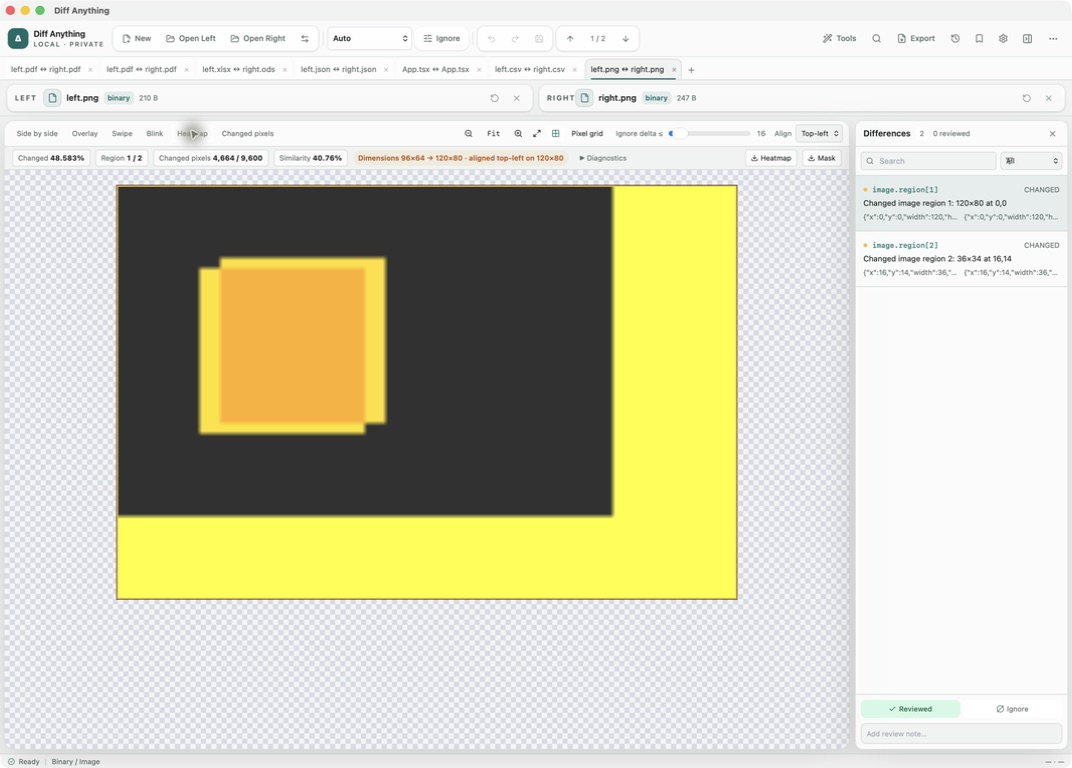
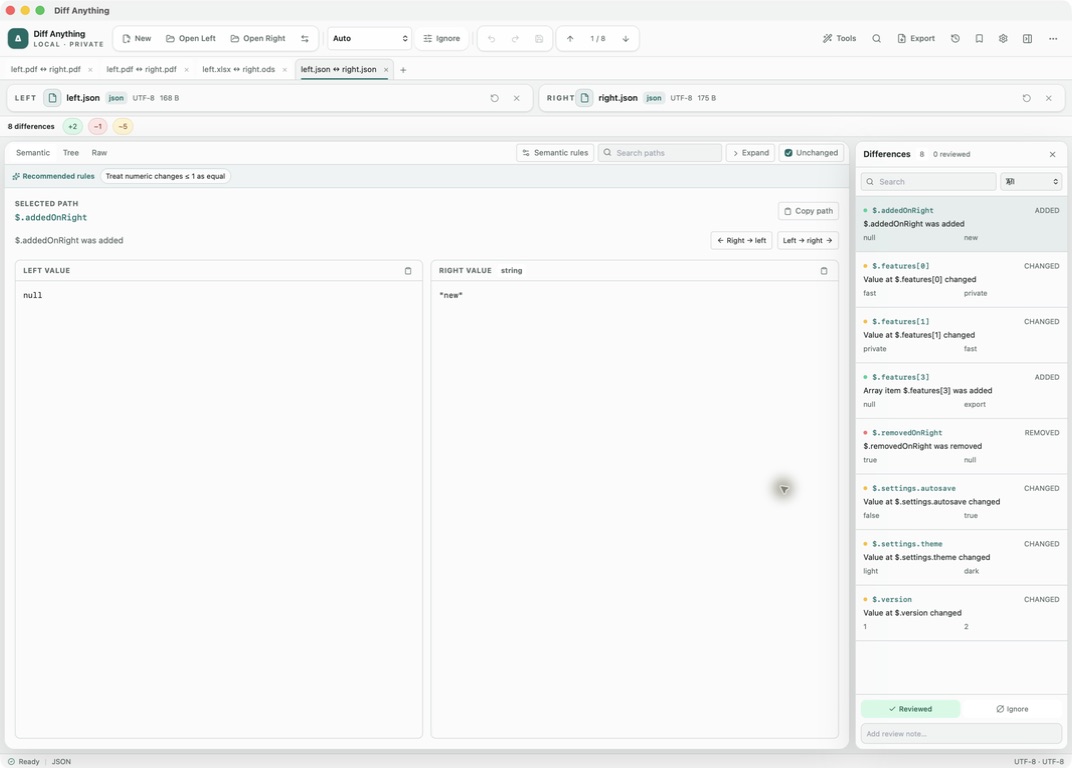
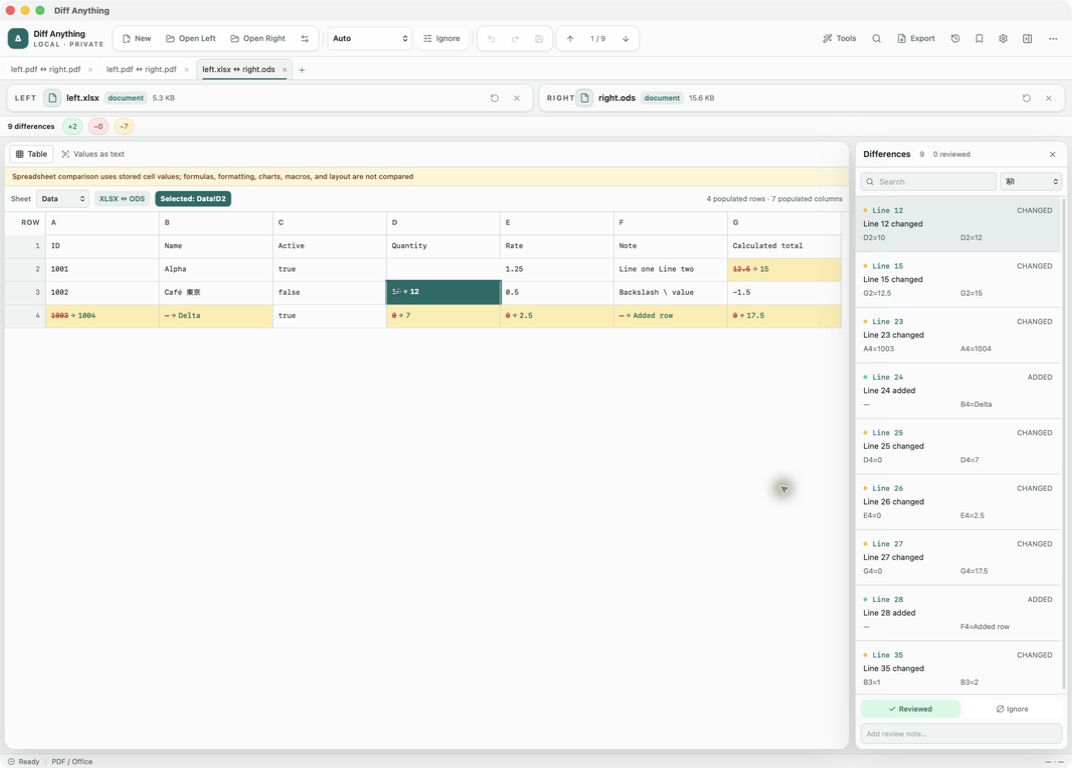
Excel, OpenDocument, and Apple Numbers workbooks compare row by row across formats: an inserted row is one added row, rows can be matched by key columns, formulas are compared between two workbooks of the same format, and a CSV or TSV export can be checked against the sheet it came from. JSON, YAML, TOML, INI, property lists, and XML compare by their data, even across formats, such as a JSON file against a TOML file. Jupyter notebooks compare cell by cell, SQLite databases by schema and rows, and Word and OpenDocument documents by their text and their formatting. PDFs switch between rendered-page visual comparison and extracted text, images from PNG to PSD, HEIC, and SVG offer overlay, swipe, blink, heatmap, and changed-pixel views with ignore regions, and any two files can be compared byte by byte in a hex view.
Folder comparison provides two-pane tree and table layouts, global search and filtering, size and date filters, progressive loading, semantic nested-file comparison, moved-file detection, ignore patterns, and optional .gitignore rules. Archives inside the folders are compared entry by entry, and with Pro a folder snapshot records a folder's state so you can later see what changed since. Archive mode compares normalized paths and streamed SHA-256 hashes across ZIP/ZIP64/ZIPX, 7z, RAR, TAR families, and standalone compressed streams, including encrypted and supported multipart sets. Pro turns reviewed folder changes into explicit create, update, delete, and move plans with stale-result protection, progress, cancellation, metadata preservation, durable recovery, rollback, and one-click undo.
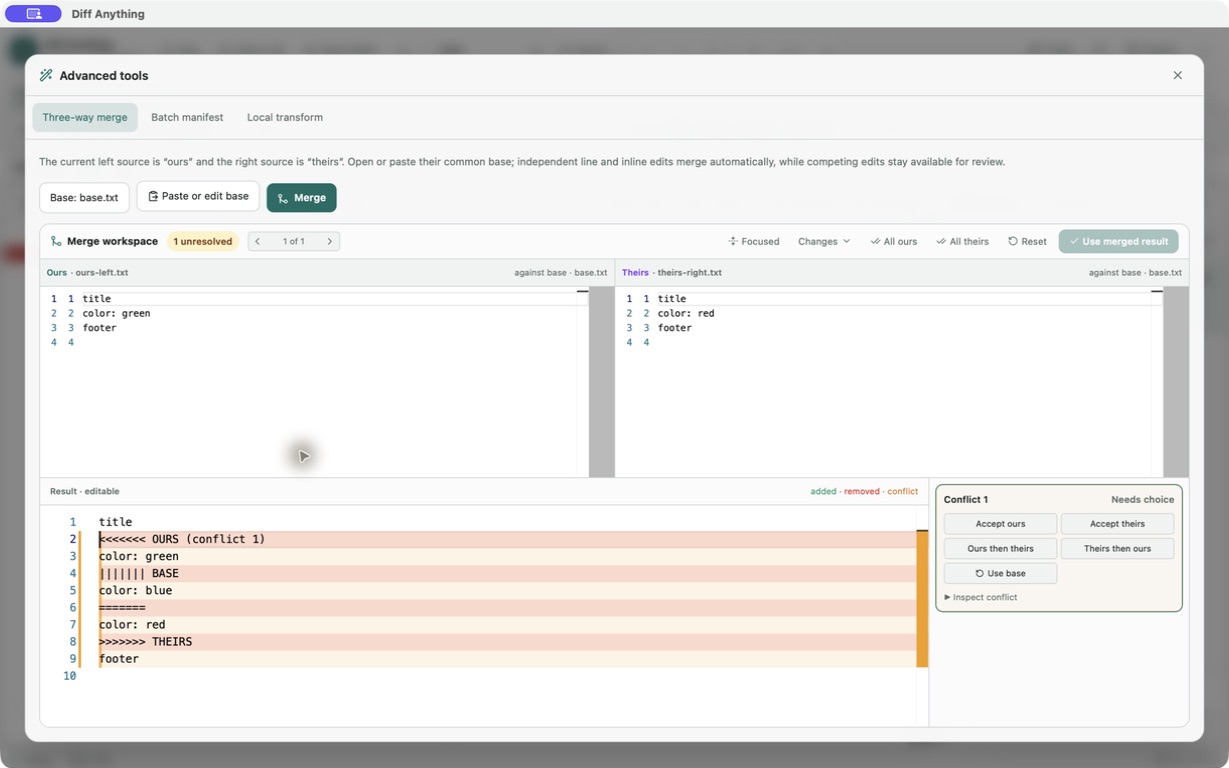
Pro adds a three-way merge workspace that merges JSON, YAML, TOML, and INI files value by value and opens files that already contain conflict markers straight into the merge. Keep repeat comparisons ready with Pro: save profiles and rules, return to recent work, export side-by-side HTML reports, print, apply patches, and export JSON Patch. Bring comparisons into scripts and everyday source control with the CLI, a Git difftool or diff driver, and, with Pro, the merge driver, a merge window for git mergetool, and a CI check that can fail only on breaking API schema changes. The Microsoft Store version on Windows includes the command line; on a Mac, the free command-line helper adds it to the Mac App Store version.
Start a comparison from Finder, the Dock, or File Explorer's Compare with Diff Anything command, or from other apps with diffanything:// links and, on a Mac, AppleScript. Tabs reopen at the next launch, and the interface is available in English, German, and French. Read every result your way: a Blue and yellow difference palette offers an alternative to red and green highlights, and the accessible workspace lists each difference in words, with its location and both values, for keyboard review and supported apply actions.
One customer’s experience · 5 out of 5 stars
“Holy smokes, this tool is worth the price just because of the visual diffing alone.”
Why I built it
I built Diff Anything because the useful question is rarely ‘which lines changed?’ It is ‘what changed in the thing I am actually looking at?’
Screenshots
See differences in the context that matters.
Capabilities
Use the comparison model that matches the material.
Explore local code, spreadsheet, data file, notebook, database, folder, archive, PDF, image, and API comparisons in Diff Anything. Pro adds merge, synchronization, reports, and automation.
Language-aware code comparison
Switch between Smart Diff and the conventional Line Diff while keeping normal syntax highlighting, exact source text, editing, moved blocks, wrapping, and compact context visible. Detection uses filenames, extensions, shebangs, and pasted content.
Folder and archive review
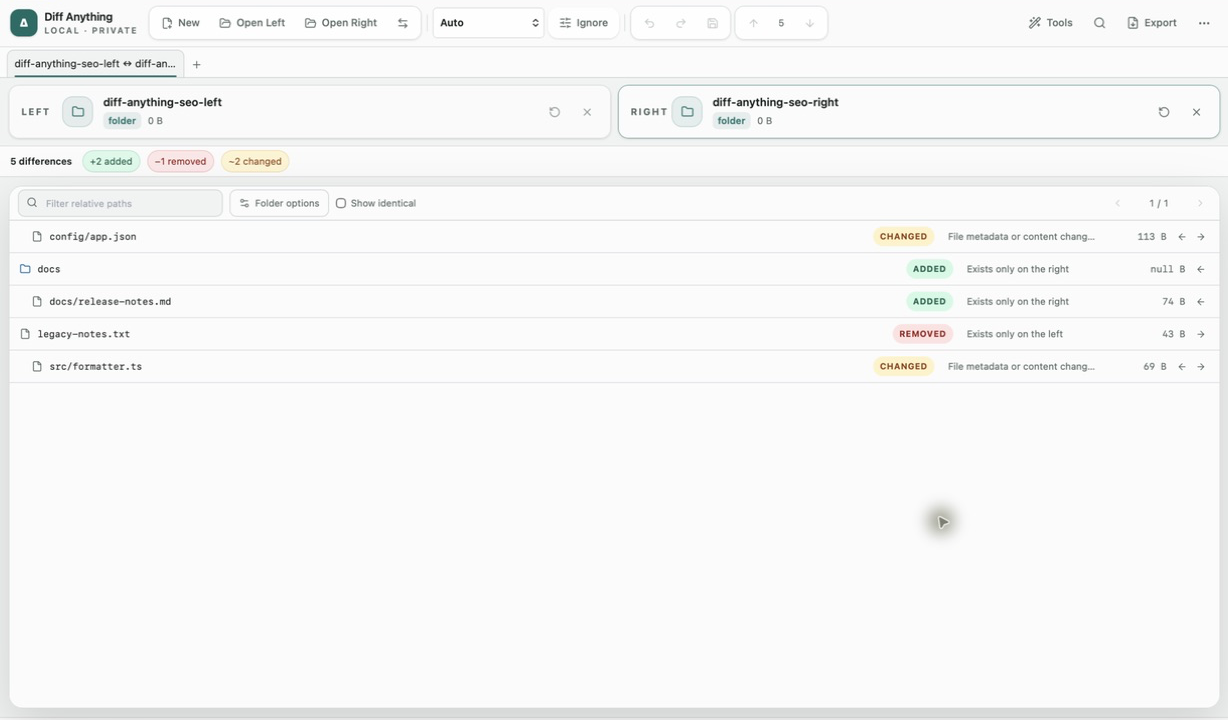
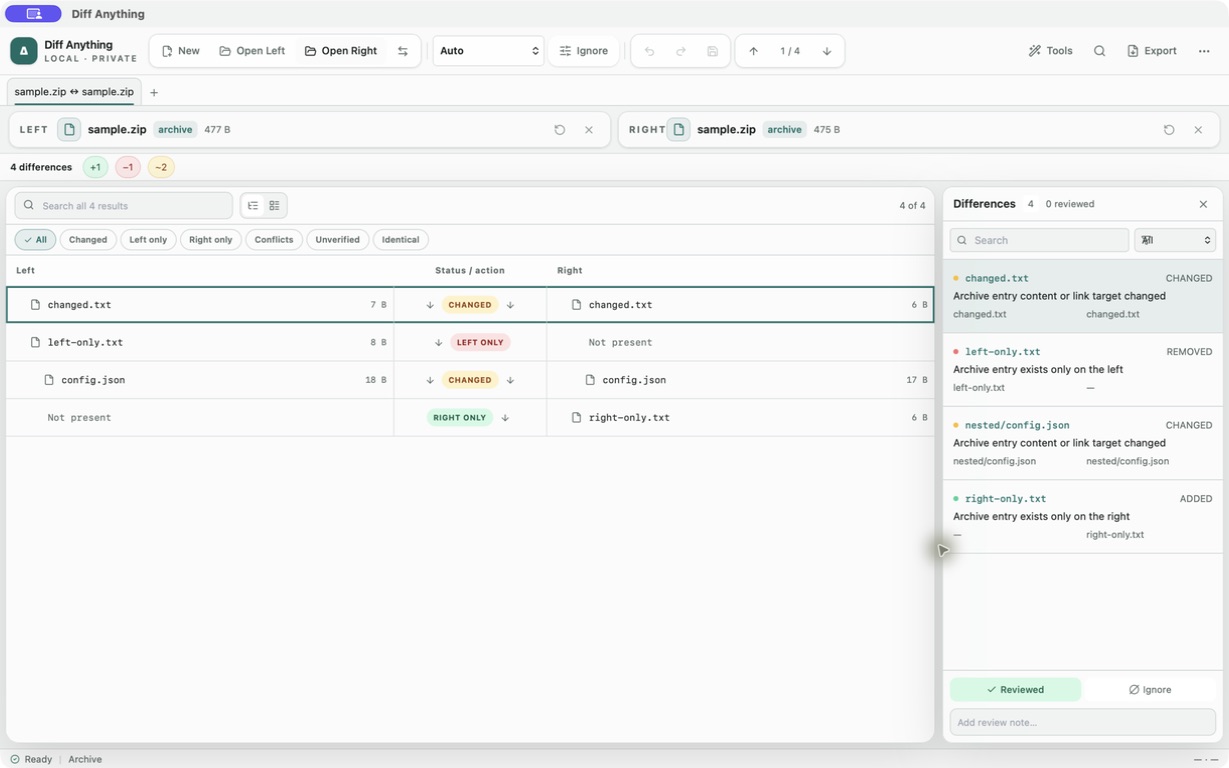
Compare folders in two-pane tree or table layouts with global search, status, size, and date filters, progressive loading, semantic nested-file comparison, moved-file detection, ignore patterns, optional .gitignore rules, and direct opening of nested pairs. Archives inside both folders, such as ZIP, JAR, TGZ, 7z, and RAR files, are compared entry by entry and expanded in the tree, and an archive can be compared with the folder it was extracted from. Archive mode compares normalized paths, types, sizes, link targets, and streamed SHA-256 hashes across ZIP/ZIP64/ZIPX and ZIP-based packages, 7z, RAR, TAR variants, Gzip, Bzip2, XZ, and Zstandard. It supports encrypted ZIP, 7z, and RAR archives plus multipart numbered 7z and common RAR volume sets, with separate in-memory passwords for each side, cancellation, and expansion safety limits; open changed text entries or extract them explicitly. Pro folder synchronization applies reviewed create, update, delete, and move plans transactionally with stale-result protection, progress, cancellation, metadata preservation, durable recovery, restart-safe rollback, and one-click undo.
Connected PDF review
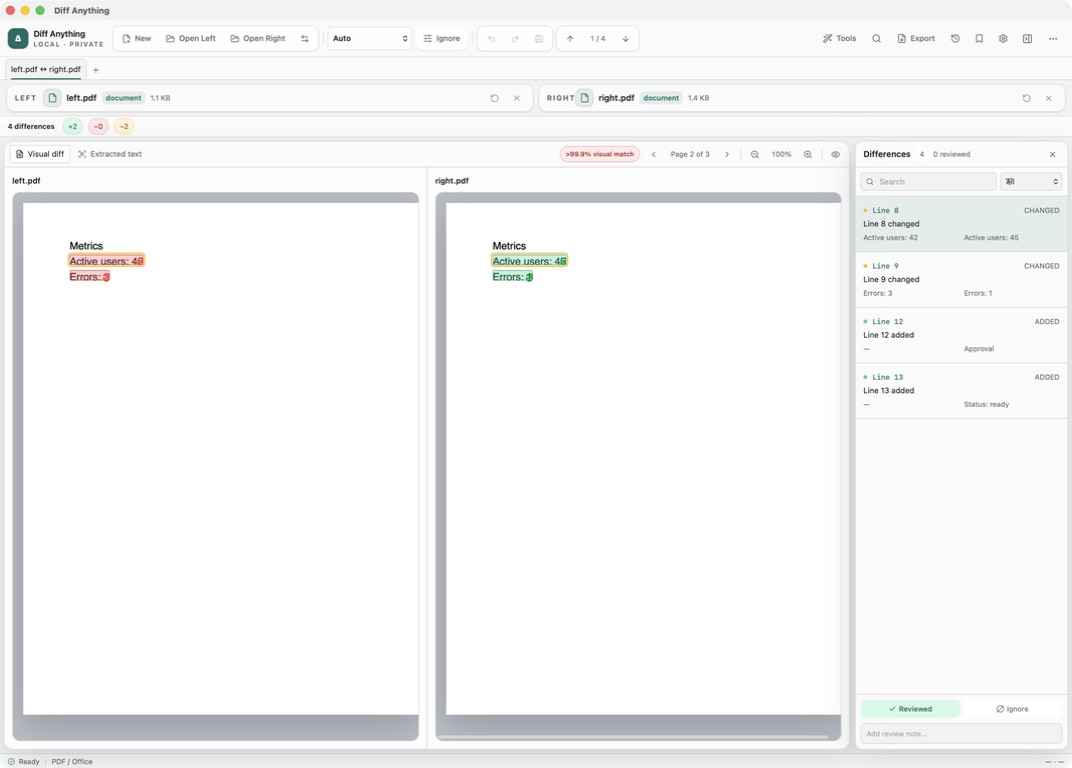
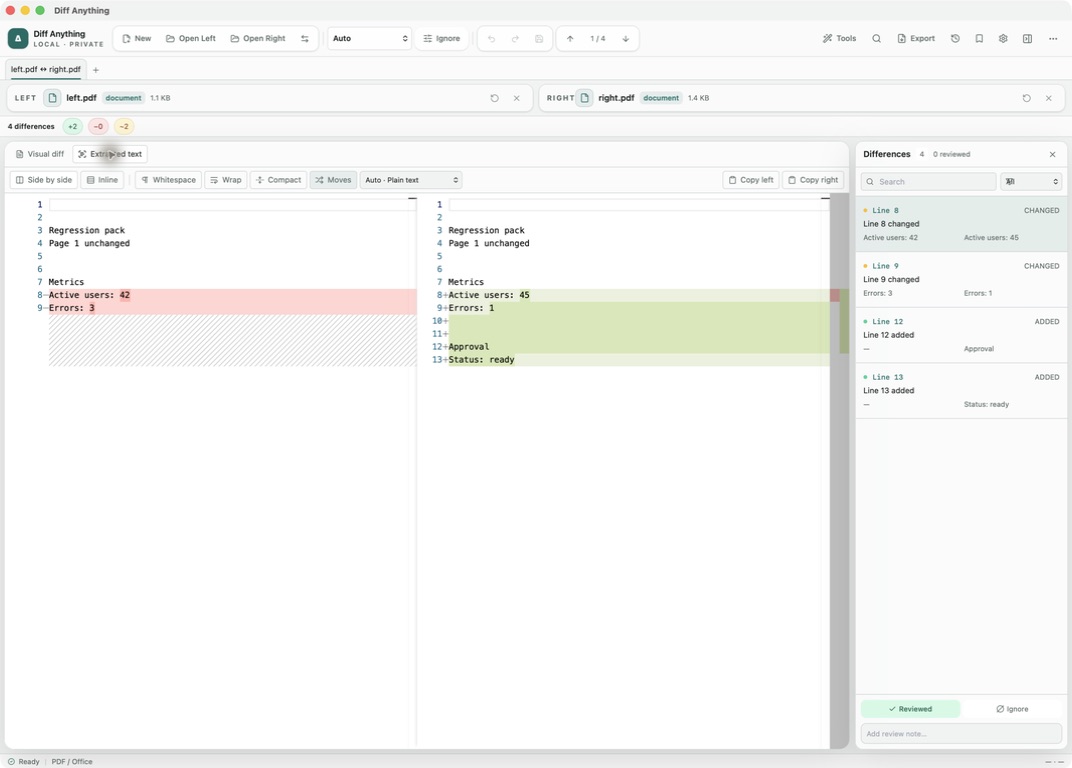
Review rendered PDF pages, move between them, zoom the originals, or switch to extracted text. Visual diff compares page pixels, highlights changed regions, and reports a per-page visual-match percentage; selecting a wording difference keeps Extracted text active. Free shows the first 3 rendered page previews; Pro removes that preview cap.
Workflow
Choose the material, inspect the change, act on it.
Choose sources
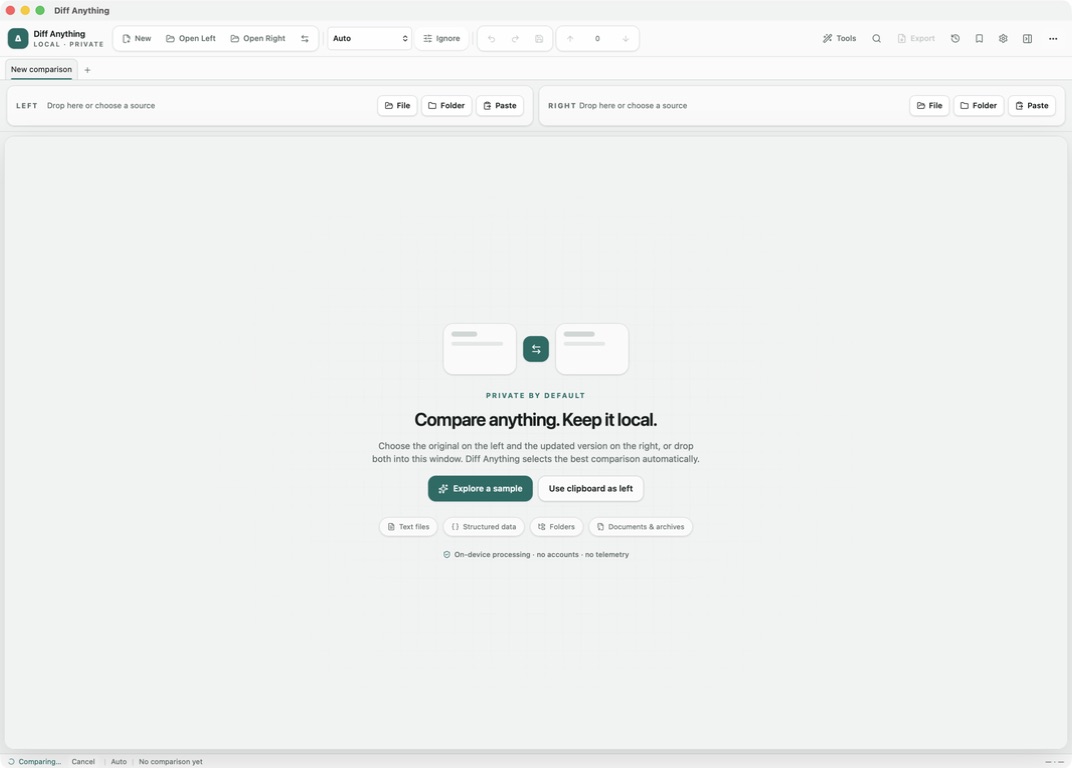
Open files or folders, paste content, or use Pro to load a saved profile with known options.
Select a mode
Use automatic detection or explicitly choose text, structured data, cross-format spreadsheet, notebook, SQLite, folder, archive, document, image, binary, or API comparison. In code comparisons, switch between Smart Diff and conventional Line Diff without changing sources.
Review and resolve
Navigate stable differences, apply supported changes, or use Pro to resolve three-way conflicts and conflict markers or approve a folder synchronization plan without losing source context.
Save or automate
Use Pro to export or print a report, export a JSON Patch, apply a patch, or retain a profile, invoke the CLI, or wire the comparison into Git and CI.
Go deeper
Every comparison mode, explained.
What Diff Anything can do
Explore local code, spreadsheet, data file, notebook, database, folder, archive, PDF, image, and API comparisons in Diff Anything. Pro adds merge, synchronization, reports, and automation.
Browse capabilities →Use casesWhere it fits
Find workflows for spreadsheet handoffs, folder review, merge conflicts, image changes, API compatibility, and private document comparison.
Browse use cases →ManualHow to use it
Set up local comparisons, review folders and spreadsheets, resolve merge conflicts, and use Diff Anything with Git and CI on Windows or, through the free command-line helper, on a Mac.
Open the manual →Popular workflows
Start with the job you need to do.
Compare two folders on Windows and see what changed
File Explorer can't compare folders. Use robocopy /L, PowerShell's Compare-Object, or a visual folder diff to find missing, changed, and moved files.
Open workflow →compare folders on MacCompare two folders on Mac and see what changed
Finder can't compare folders. Use Terminal's diff -rq, FileMerge, or a visual folder diff to find missing, changed, and moved files. 2-minute video.
Open workflow →Beyond Compare alternativeA Beyond Compare alternative for spreadsheets, archives, and structured files
Compare Diff Anything with Beyond Compare. See where each tool fits, then try Diff Anything free on Windows or Mac for folders, spreadsheets, archives, JSON, and code.
Open workflow →archive compare toolCompare encrypted, multipart, and compressed archives by content
Compare ZIP/ZIP64/ZIPX, 7z, RAR, TAR families, Gzip, Bzip2, XZ, and Zstandard locally, with passwords, multipart support, streaming, and explicit safety limits.
Open workflow →file compare toolCompare the files developers actually work with
A local file compare tool for cross-format spreadsheets, text, JSON, YAML, TOML, XML, notebooks, SQLite, folders, archives, documents, images, binaries, and API schemas.
Open workflow →compare spreadsheets different formatsCompare spreadsheets even when the file formats differ
Compare Excel, OpenDocument, and Apple Numbers workbooks row by row in a private desktop diff, even when the formats differ, with key columns and formulas.
Open workflow →three-way merge toolA local three-way merge tool for Base, Ours, and Theirs
Merge three versions locally on Mac or Windows with Diff Anything Pro. Merge JSON, YAML, TOML, and INI by their data, resolve Git conflict markers, and edit the result.
Open workflow →How-to guides
Step-by-step help with common jobs.
- compare Excel files without uploadingCompare two Excel files without uploading them
- compare two Numbers spreadsheetsCompare two Numbers spreadsheets and see what changed
- compare Word documents locallyCompare Word document revisions by extracted text
- compare two PowerPoint presentationsSee what changed between two PowerPoint decks
- OpenAPI breaking changes explainedUnderstand what an OpenAPI change could break
- diff JSON filesCompare JSON by structure, not line position
- compare OpenAPI specifications locallyReview API compatibility, not YAML movement
- Guiffy alternativeMoving from Guiffy to Diff Anything: a practical migration guide
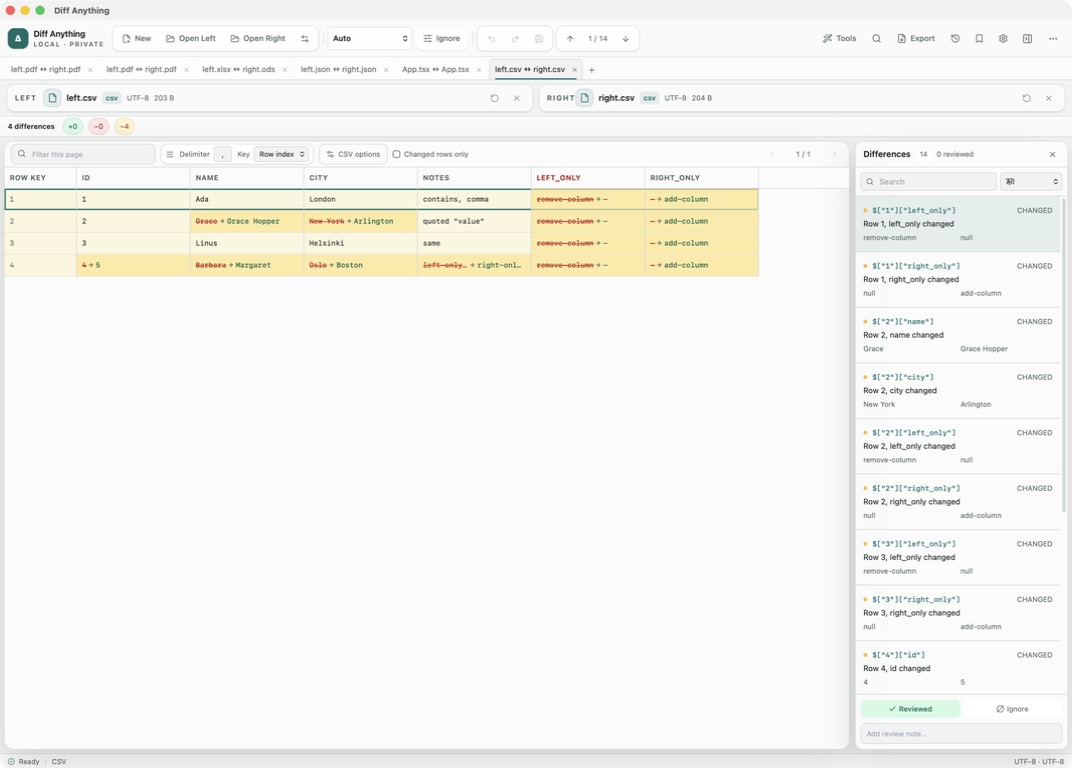
- compare two CSV filesCompare CSV rows by identity, not position
- compare spreadsheets in different formatsCompare Excel, ODS, and Numbers workbooks without converting first
- compare imagesSee exactly where two images differ
- compare PDFsCompare PDFs visually or by extracted text
- risks of online diff toolsYour diff should not require giving someone else the files
Start here
Diff Anything guides.
Set up local comparisons, review folders and spreadsheets, resolve merge conflicts, and use Diff Anything with Git and CI on Windows or, through the free command-line helper, on a Mac.
Choose the right comparison mode
Choose sources, understand automatic detection, and select the engine that answers the question you are actually asking.
Read guide →Compare folders, spreadsheets, documents, and images
Review cross-format spreadsheet values, release trees, documents, and visual assets with purpose-built navigation, safety checks, and rollback.
Read guide →Compare ZIP, 7z, RAR, TAR, and compressed archives
Understand content-based archive comparison, encrypted and multipart inputs, supported codecs, streaming behavior, extraction, and safety boundaries in Diff Anything.
Read guide →Use Diff Anything from the CLI, Git, and CI
Run repeatable comparisons, read highlighted terminal output, interpret exit codes, integrate with Git, and publish machine-readable CI results.
Read guide →Profiles, rules, review state, and reports
Turn a useful one-off comparison into a repeatable review with explicit ignore rules, notes, and, with Pro, saved profiles and exported reports.
Read guide →Privacy, safety, and troubleshooting
Understand the local comparison boundary, recover from input and copy problems, and prepare useful diagnostics without exposing sensitive sources.
Read guide →Start your next project
Get Diff Anything.
See every change. Keep every source local. Available on the Mac App Store and Microsoft Store.
Command-line helper for Mac Free download that adds the diff-anything command, Git settings, and git mergetool to the Mac App Store version.
Free & Pro: what’s included
Free desktop use lets you try every comparison engine for files up to 5 MiB per side and 10 new comparison sessions per local day; collection previews show the first 100 items, binary comparisons the first 100 byte differences, and PDF previews the first 3 pages. Plain text, JSON, and Jupyter notebook comparison are complete, and opening files from Finder or File Explorer, diffanything:// links, and AppleScript are free. The free CLI supports text, JSON, and notebooks, and the command-line helper that brings the CLI to the Mac App Store version is a free download that uses the Pro purchase made in the app. A one-time Pro purchase removes the preview and session limits and unlocks larger sources within technical limits, saved profiles and history, saving folder snapshots, report export and printing, JSON Patch export, applying patches, three-way merge and conflict resolution, the Git merge driver and merge tool, folder synchronization, batch manifests, every CLI mode, and, on Windows, trusted preprocessors.
Privacy and data
No accounts, cloud comparison service, analytics, or telemetry.
Your first workflow, explained.
Follow the Diff Anything guide from setup to your first result.
Open the getting-started guideCommon questions
Before you download Diff Anything.
Do compared files leave the computer?
No. Comparison is local. The application has no account, cloud comparison service, analytics, or telemetry.
How does automatic mode choose a comparison?
Compatible spreadsheet formats can use the shared spreadsheet comparison even when their extensions differ, matching structured formats use their semantic engine, two files in different data formats, such as JSON and TOML, are compared by their data, two folders use folder comparison, an archive beside a folder is compared as the folder it holds, and other compatible inputs fall back to text. You can always choose a concrete mode.
Can I compare different spreadsheet formats?
Yes. Diff Anything compares Excel, OpenDocument, and Apple Numbers workbooks in any pairing, sheet by sheet and row by row. Rows are matched by their content, or by key columns you choose under Match rows by, so an inserted row is one added row. A CSV or TSV file opened beside a workbook is compared by cell values with one sheet, the first by default; choose another under Compare with sheet. Values are compared as stored text, so 20 and 20.0 count as different. Formulas are compared between two workbooks of the same format; formatting, charts, macros, and workbook layout are not compared. Sheets are matched by name, and a Numbers file shows each table under its own name, “Table 1” unless you renamed it. Before you compare a Numbers file with an Excel or ODS copy, give the table in Numbers the same name as the other file's sheet; otherwise its rows show as removed and added.
Can Diff Anything be used from Git or CI?
Yes. The Microsoft Store version on Windows includes the command line. On a Mac, install the free command-line helper, which adds the diff-anything command to the Mac App Store version and uses the Pro purchase made in the app on the same Mac. The CLI supports difference exit codes, machine-readable output, Git difftool configuration, and a Git diff driver for file types you assign in .gitattributes. The free CLI compares text, JSON, and Jupyter notebooks; Pro adds every other CLI mode, the merge driver, the merge tool that git mergetool opens in a window, batch manifests with JSON, JUnit, or SARIF output, and --fail-on breaking for API schema checks.
How does three-way merge handle conflicts?
Three-way merge is part of Pro. Choose a common Base for Ours and Theirs. JSON, YAML, TOML, and INI files are merged by their data, value by value, so a conflict appears only where both sides changed the same value differently; other files merge by lines. Focused source diffs show what each side changed from Base, and independent line edits, or edits to separate words of the same line, combine automatically. When both sides change the same words, the result is a conflict; a value is never assembled from parts of each side. Overlapping edits offer Ours, Theirs, Ours then Theirs, Theirs then Ours, and Base choices, with conflict navigation, bulk side choices, and reset. The result remains editable and cannot become the current right source while conflict markers remain; saving that modified source is a separate action.
Can folder synchronization be undone?
Yes. Pro folder synchronization previews create, update, delete, and move actions, rejects stale plans, applies the reviewed selection transactionally with progress and cancellation, preserves supported metadata, uses durable recovery journals and restart-safe rollback, and offers one-click undo after a successful synchronization.
Which archives can Diff Anything compare?
ZIP/ZIP64 and ZIPX, ZIP-based packages, 7z, RAR 1.3 through 7, TAR and compressed TAR variants, plus standalone Gzip, Bzip2, XZ, and Zstandard streams. Encrypted ZIP, 7z, and RAR archives are supported, as are numbered 7z and common RAR volume sets. Split ZIP, ACE, ARJ, CAB, ISO/disk images, and filesystem images are not archive-mode inputs.
Which changes can be applied directly?
Selected text, JSON, YAML, TOML, INI, property list, XML, environment-file, HTTP-response, and API-schema differences can be applied in either direction. JSON, TOML, INI, XML property list, and HTTP targets are edited in place, so their comments, indentation, and layout are kept; a binary property list is compared but never written. Between two data formats, a change is written in the target's own format, or refused, with the reason, where that format cannot hold it. YAML and XML targets are rewritten from their parsed data after a confirmation, which drops comments and custom layout. A JSON API schema keeps its layout; a YAML schema is rewritten after a confirmation.
Can I change the red and green difference colors?
Yes. In Settings → Difference colors, choose Blue and yellow. Additions become blue and removals yellow, in light and dark themes. Written difference descriptions provide another way to check what changed. The setting is part of the free plan.
Can Diff Anything resolve Git merge conflicts?
Yes. With Pro, open a file that contains conflict markers and choose Resolve: its conflicts open in the merge workspace, every line outside them stays as Git merged it, and the resolved file is saved in its own encoding and line endings. Diff Anything can also be Git's merge tool, so git mergetool opens each conflicted file in its merge window: the Microsoft Store version on Windows directly, and the Mac App Store version through the free command-line helper. Seeing the conflicts in a file is free.
Is Diff Anything available in German or French?
Yes. The interface is available in English, German, and French. It follows the system's language or the one chosen in Settings, and switches at once.
Does Diff Anything reopen my tabs after a restart?
Yes. With Reopen tabs from last time in Settings, on by default, the tabs that were open reopen in their order, with their comparison types, options, and views, and files and folders are read again from disk. Pasted text and unsaved edits are not kept.
Can I review a comparison without the side-by-side view?
Yes. The accessible workspace (Command-Shift-A on a Mac, Control-Shift-A on Windows) lists every difference in words with its location and both values, and lets you review, ignore, and apply changes from the keyboard. On a Mac it opens automatically when VoiceOver is running.